How Can We Help?
How to update POS
Update POS Setup – Reinstall POS Application
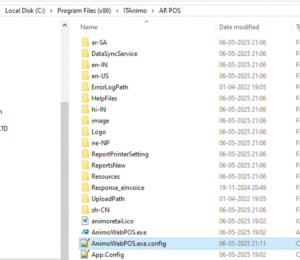
Note – Before you update the setup kindly copy custom files or the files in which changes have been made. Backup of Customization.
- InstallPath\ITAnimo\AR POS\HelpFiles\BarControls
- InstallPath\ITAnimo\AR POS\Logo
- InstallPath\ITAnimo\AR POS\ReportsNew
There is a config file which also can be copied to skip steps of DB Configuration after reinstallation of POS Application, for that take a backup of following files
- InstallPath\ITAnimo\AR POS\AnimoWebPOS.exe.config
- InstallPath\ITAnimo\AR POS\DataSyncService\DataSyncService.exe.config
Download Setup
- Helpdesk Team shares you an URL to download the setup
- Use that link to download the setup at all POS machines in all stores.
Uninstall POS Application
- Uninstall existing POS Application
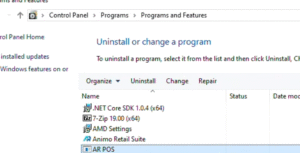
- Go to Control Panel – Programs – Select the program name AR POS
- Click on UNINSTALL
- a message box will appear saying preparing to remove
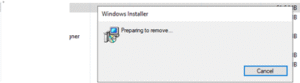
- Now wait for the installer to complete this step
Reinstall POS Application
- Download and unzip the folder provided by Support Team
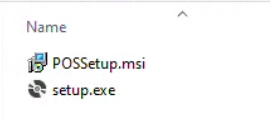
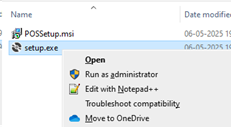
- Right click on setup.exe and “Run as Administrator”
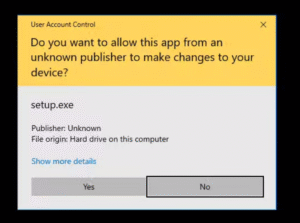
- Incase user account control is enable, system may prompt to accept,
Click on YES
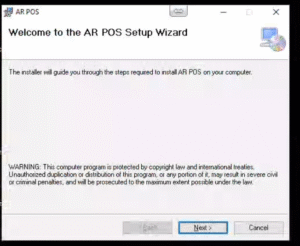
- The screen appears like below, click on Next
- Check Installation Folder and change if required
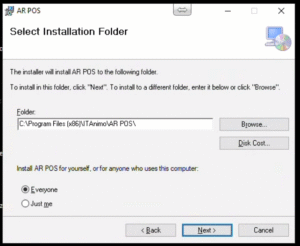
- Click on Next
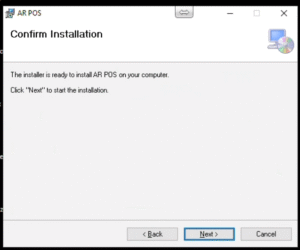
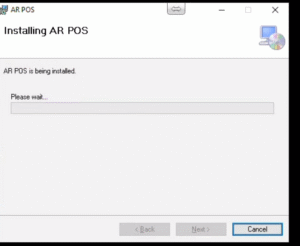
- Wait for Installation to be complete
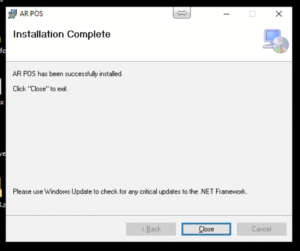
- Close the setup wizard
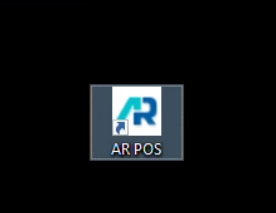
- Now ARPOS icon will be visible on desktop
Change DB Configuration
- Option 1
- Double Click on ARPOS Icon and system will ask to enter Database Credential
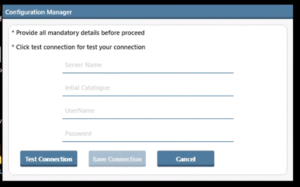
- Server – System Name or IP of System on which SQL Server is installed
- Database Name (Default is AnimoPOS)
- User – SQL Server User (Default is AnimoPOS)
- Password – SQL Server Password (Default is AnimoPOS)
- Click on Test Connection to check connection first
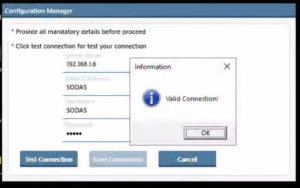
- If test connection is successful click on save connection
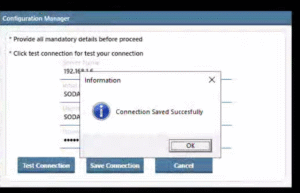
- Double Click on ARPOS Icon and system will ask to enter Database Credential
-
Option 2
This is an alternate way to avoid these steps of DB Configuration by replacing following files from backup
- InstallPath\ITAnimo\AR POS\AnimoWebPOS.exe.config
- InstallPath\ITAnimo\ARPOS\DataSyncService\DataSyncService.exe.config
Enable Customization
- Copy the customize or modified files as per your requirement from the backup folder