KB-0006- How to apply Promotion Discount.
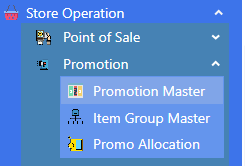
>Navigation : Store Operation > Promotion.
> Here are three step to apply Promotion Discount.
>Promotion Master
>Item Group Master
>Promo Allocation
>>STEP – I
> First click on Item Group Master function.
>After clicking Item Group Master this window will appear
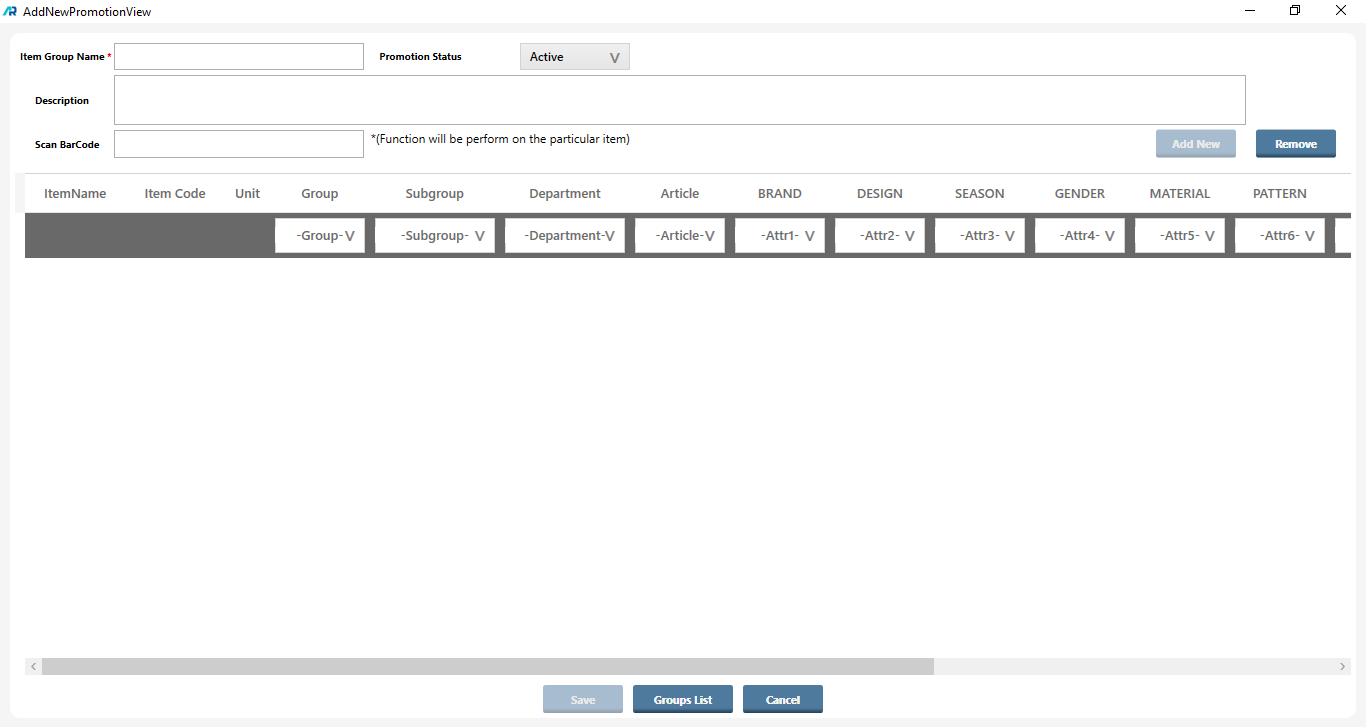
>Here, First enter that name of the item, Brand, Department on which you want to apply the discount in (Item Group Name) box For example if you want to apply 30% discount on PUMA Brand than you enter 30% DIS ON BRAND PUMA. Click on promotion status and select Active option, then select brand PUMA in Filter option. And if you want to give same discount on any other brand also, then click on ADD New button and a row will be added, and after that you also select that Brand.
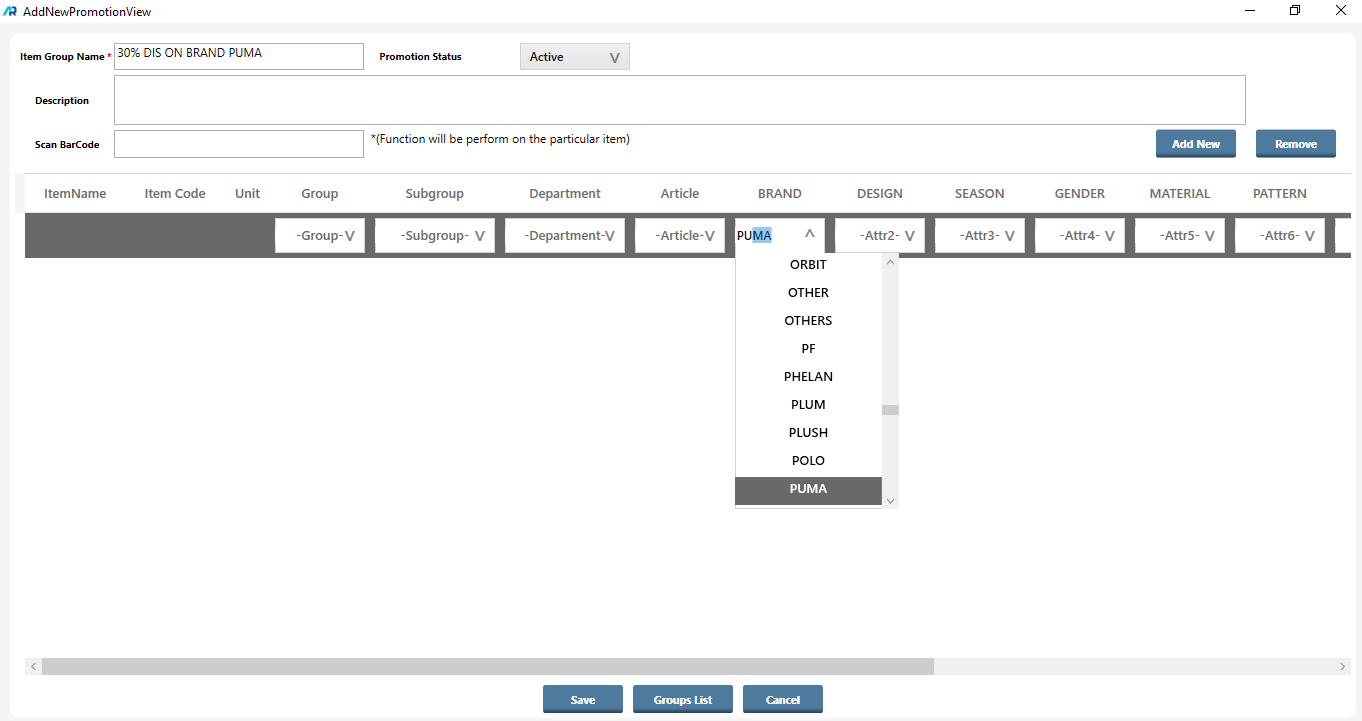
>After filter selection process is complete, click on Save button.

>Once Document is saved it shows a confirmation message.
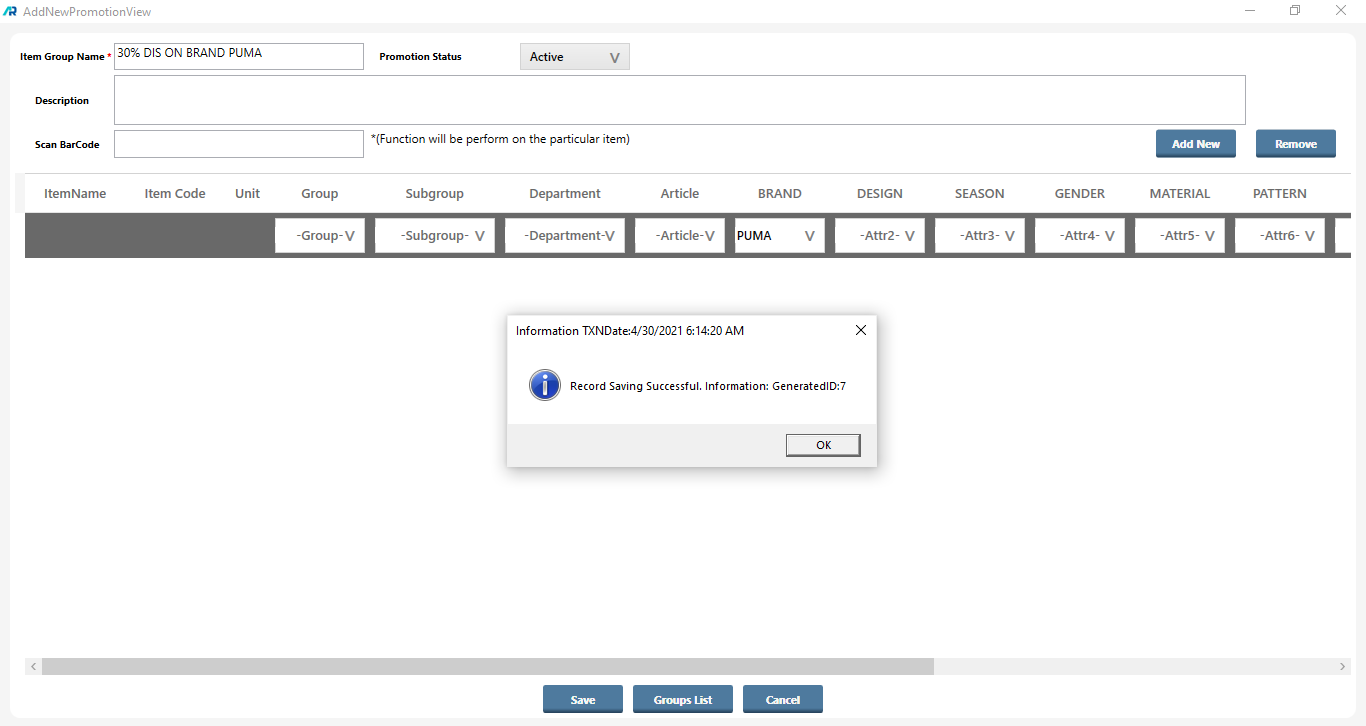
>Now your Step – I Process is complete.
>>STEP – II
> Click on Promotion Master function
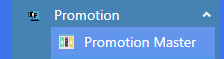
>After clicking Promotion Master this window will appear.
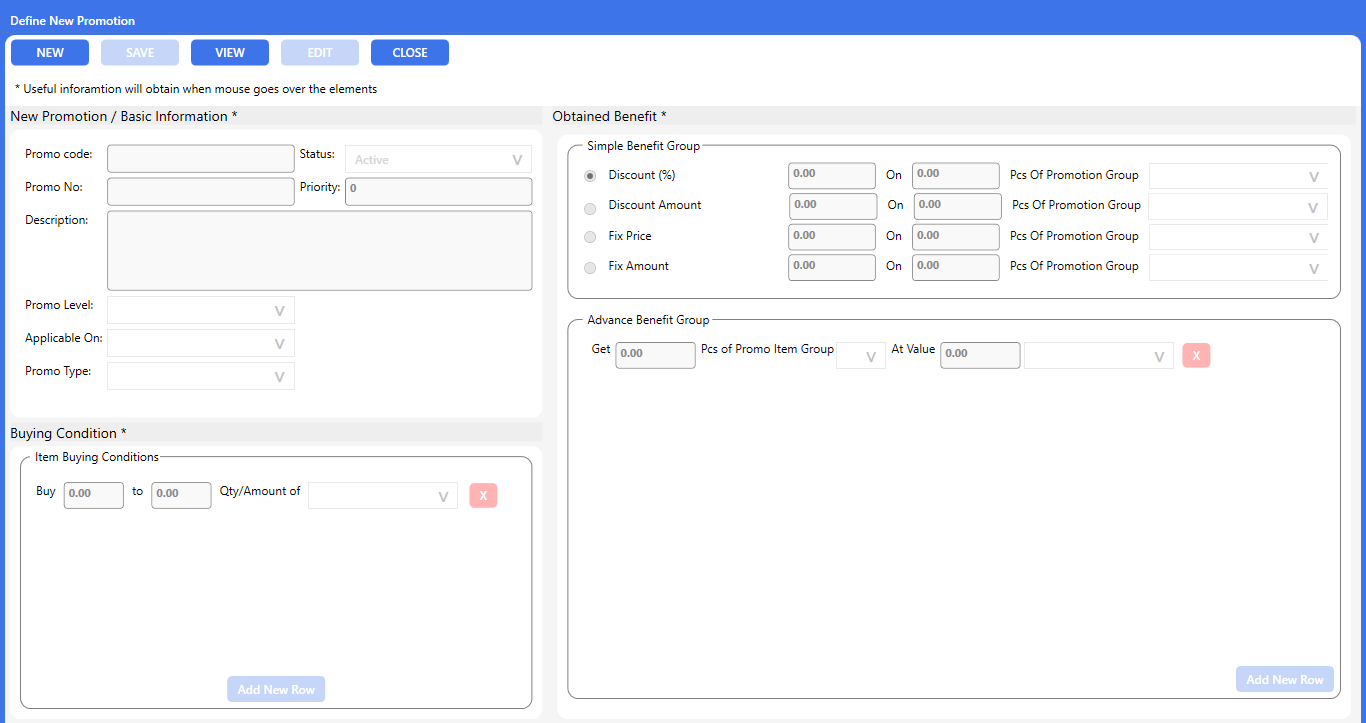
>Click on New button, type your promo name in Description box like (30% DIS ON BRAND PUMA).
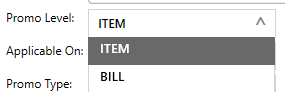
>Select promo level (there are two options) whether you want to apply the discount on item level or bill level. Select ITEM here.
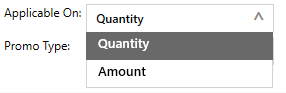
>Select Applicable On (there are two options) whether you want to apply the discount on Quantity wise or Amount wise. Select Quantity here.
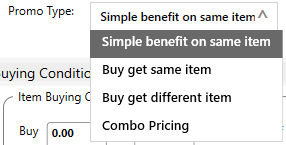
>Select promo Type (there are four options) start with Simple benefit on same item.
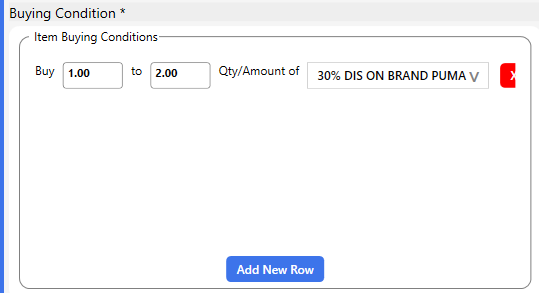
>Enter your quantity ratio and select your promo by clicking arrow key in Qty/Amount of box.
>Now next step is Obtained Benefit Box. As you can see, it has given 4 options.
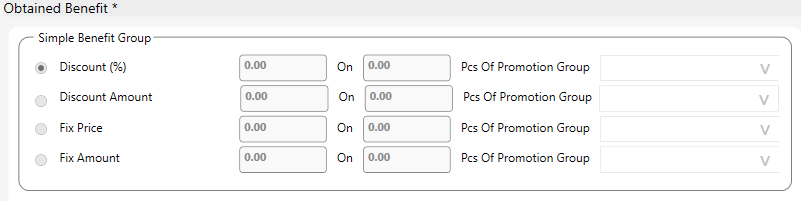
>You can use any option and put a discount.
>For Example, if you want to apply Discount Percentage wise then click on Discount % box, and put discount % ratio, and enter quantity in other box.

>If you want to apply Discount Amount wise then click on Discount Amount box, and put discount value.

>And if you want to apply Fix Price/Fix Amount wise discount then click on Fix Price/Fix Amount box, and put Flat value.

> we have selected first option. DISCOUNT%
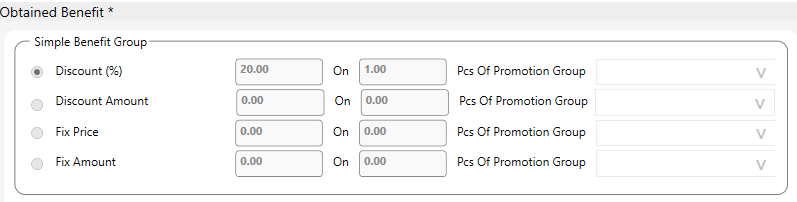
>Now click on Save button.

>Once Document is saved it shows a confirmation message.
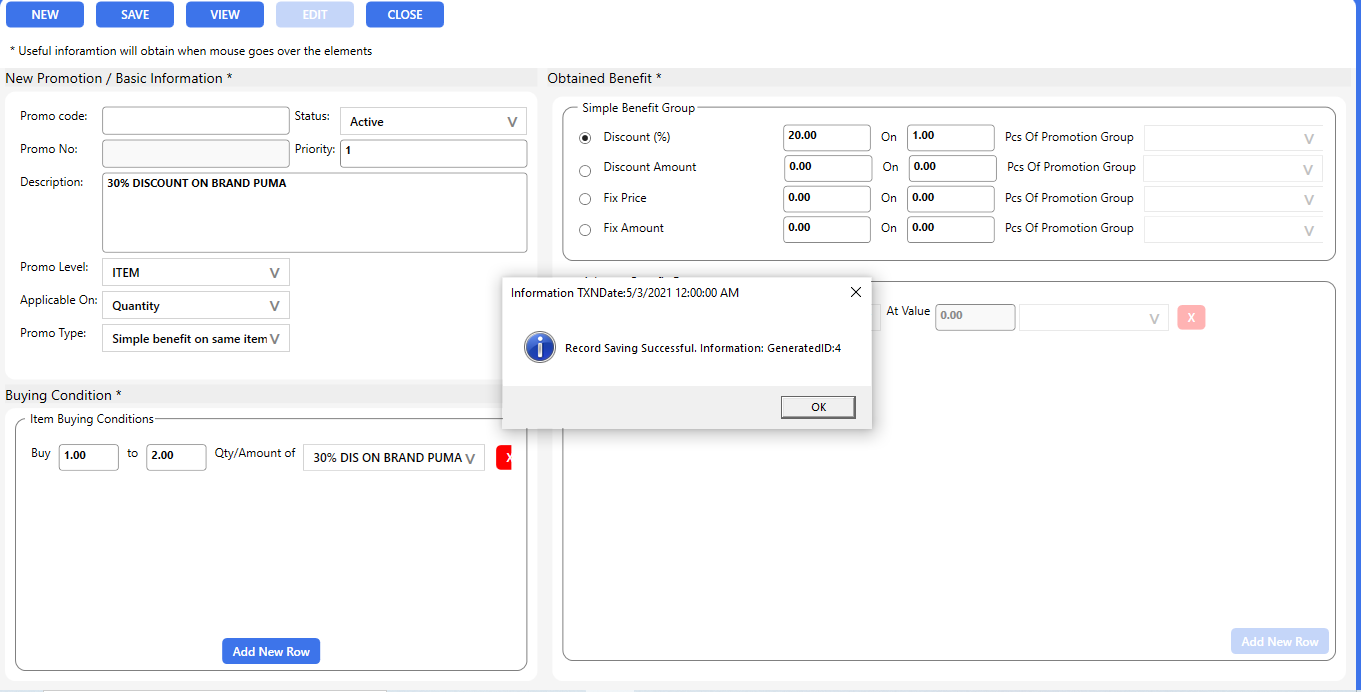
>Now your Step – II Process is complete.
>>Step – III
>Click on Promo Allocation function.
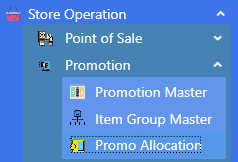
>After clicking Promo Allocation this window will appear.
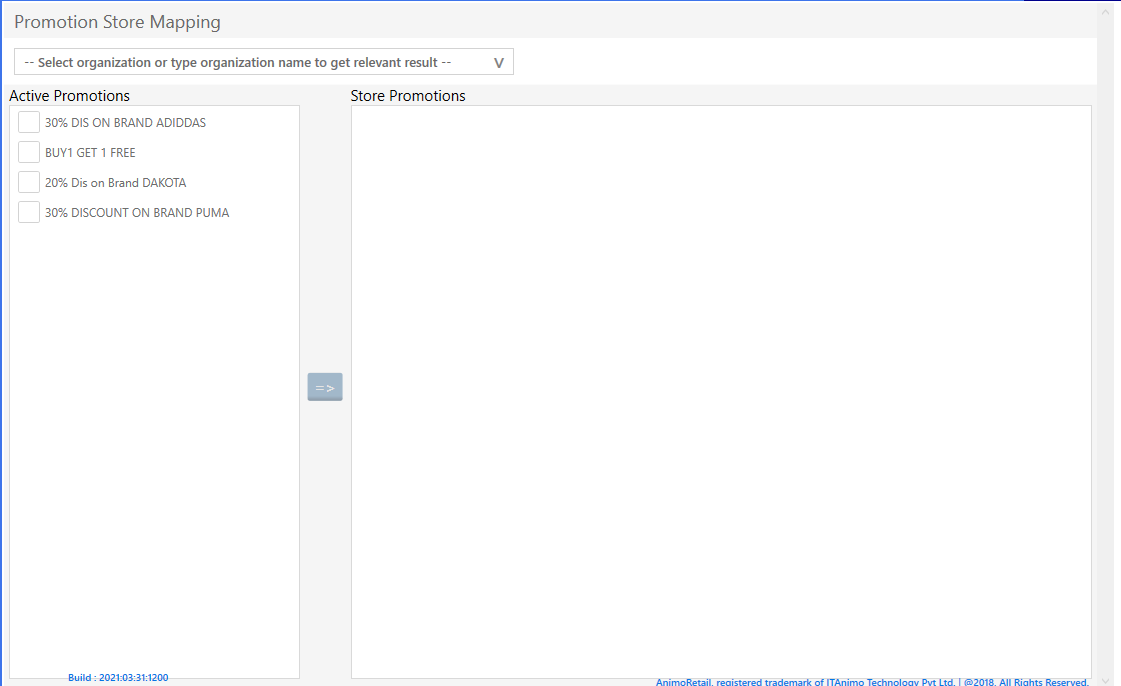
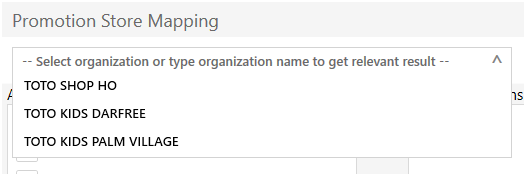
>Select the Organization, where you want to set the promo.
>After selecting the Organization, click on the promo that you have created, and send this promo to Store Promotions Box with the help of arrow key in blue color in middle of the screen.
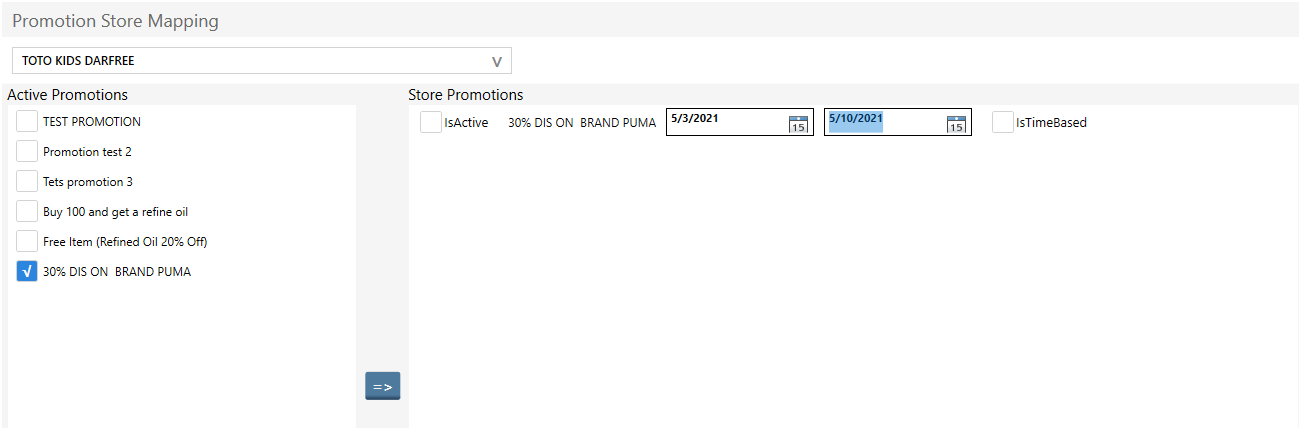
>Now select that Date Range, how long do you want to run this promo at this Organization. And after date selection click on Is Active box.

> If you want to run this promo at other Organization as well, then you can do it one by one by following the same process.
>Now your Step – III Process is complete.
>> Now your Promotion Discount Process is complete….
>>>Now you can check this promo in billing function by login to that store.