KB-0010-How to create POS Order.
>Navigation : Store Operation > Point of Sale > POS Order
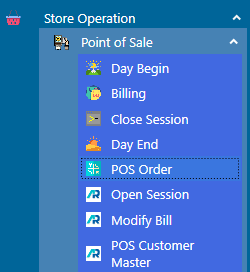
>POS Order Interface
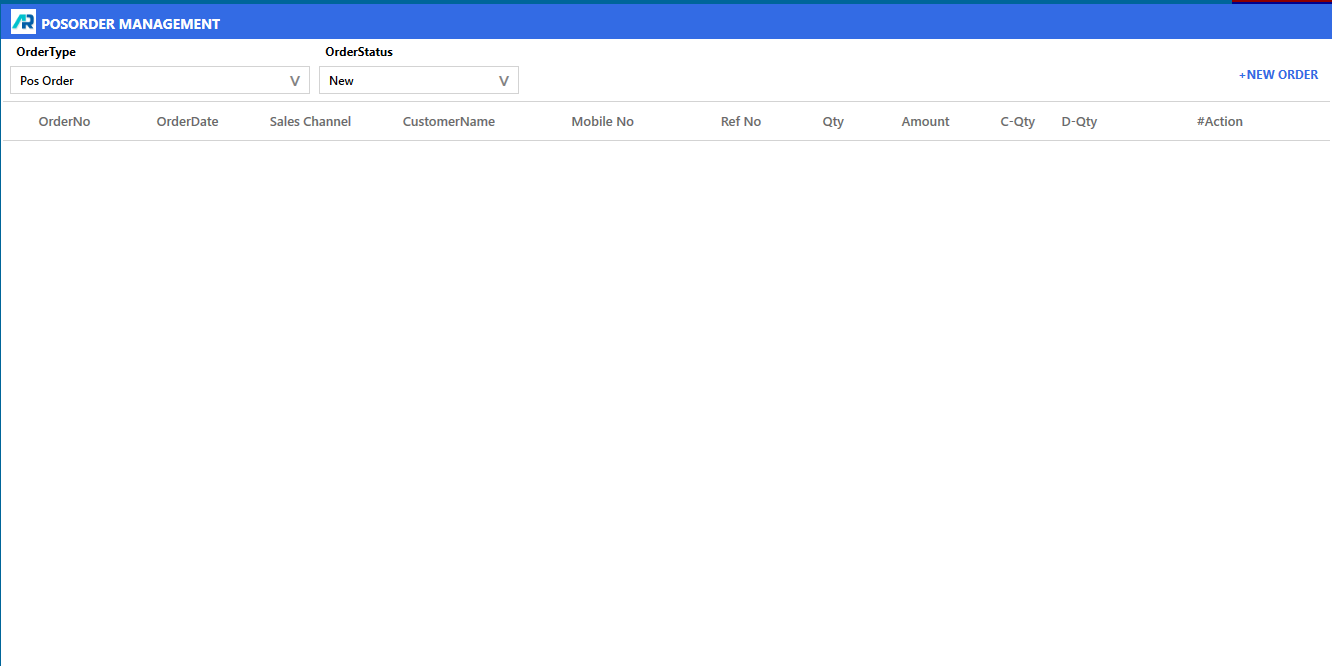
>Click on New Order option.

>After click on NEW ORDER option, the new window will be open.
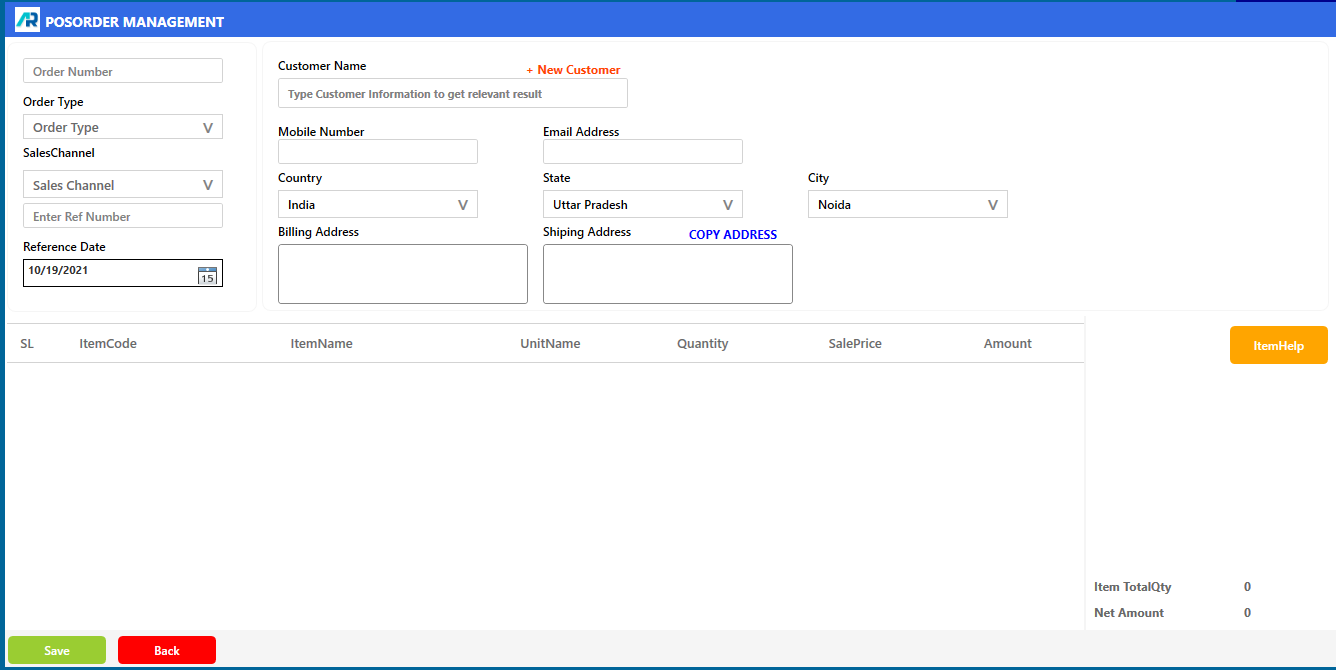
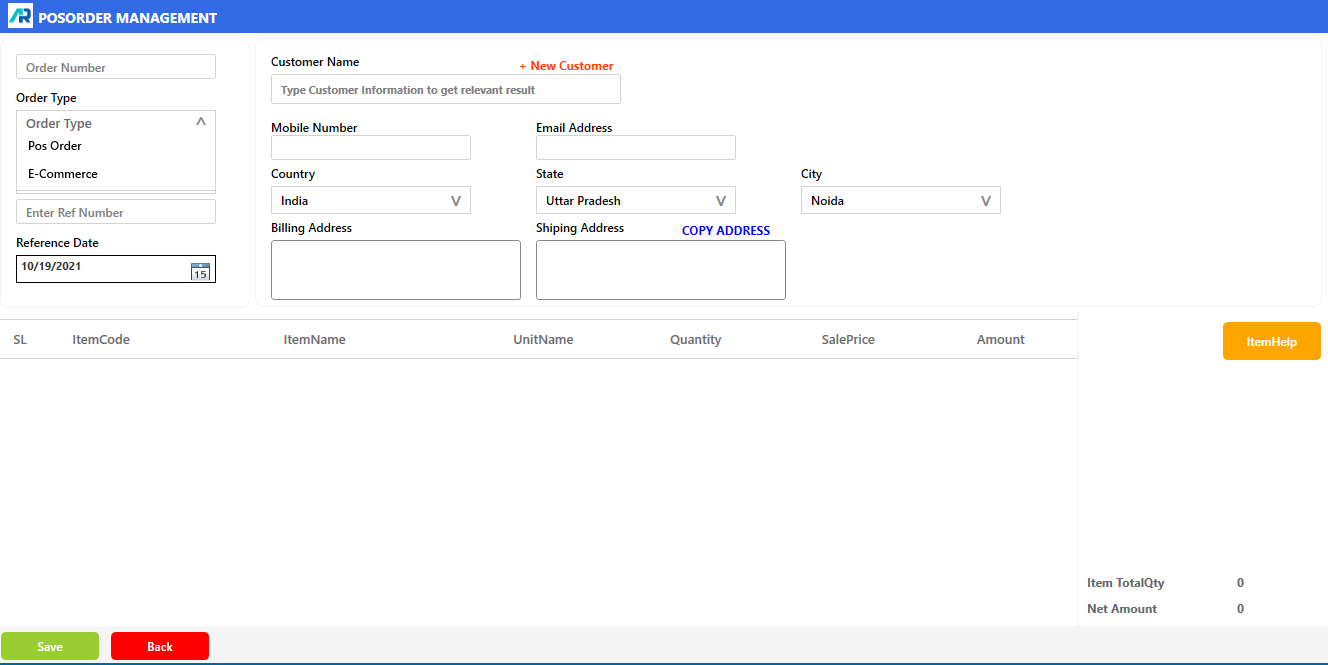
>Select Order type.
>Select Customer Name.
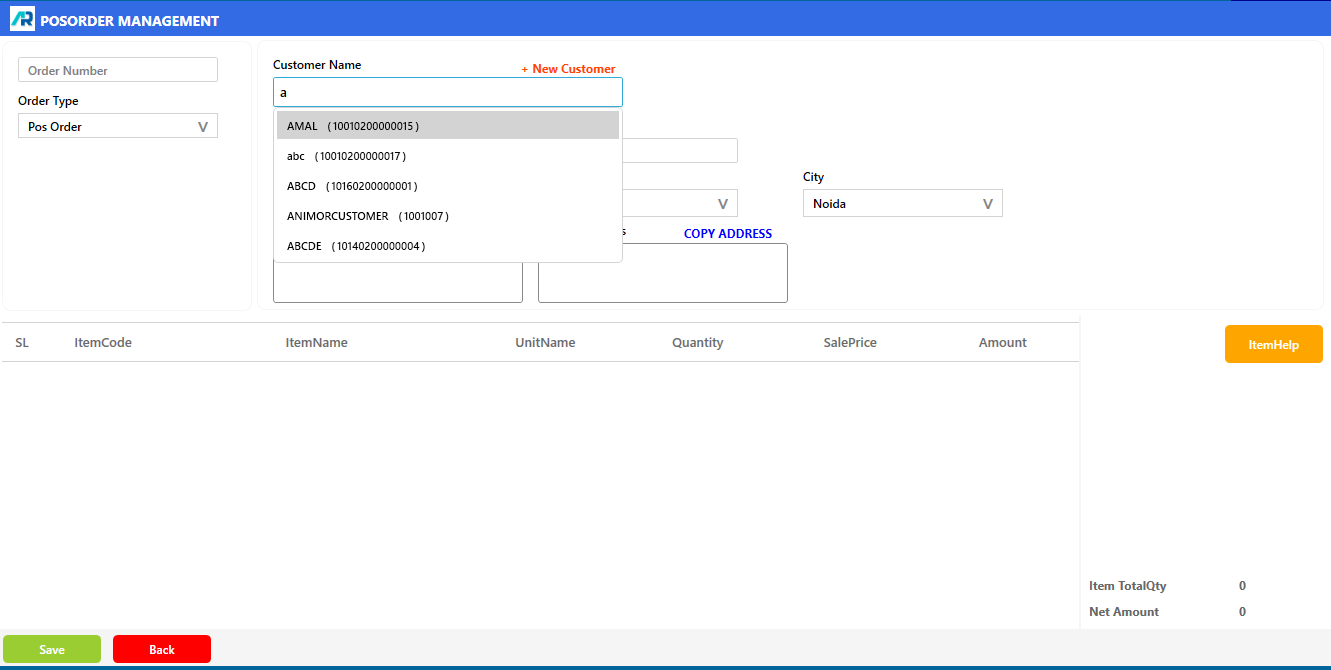
>Click on Item Help button,

>Scan the item or select the article.
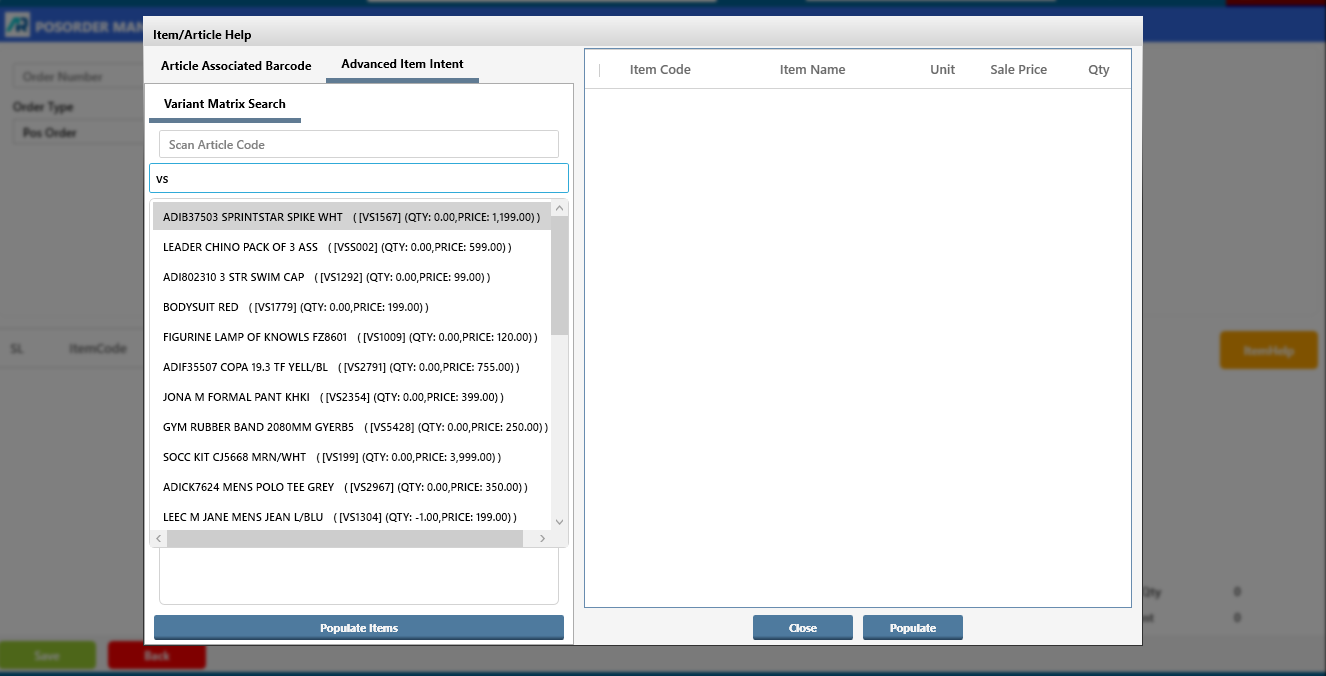
>Click on Save button, and your POS Order created successfully.
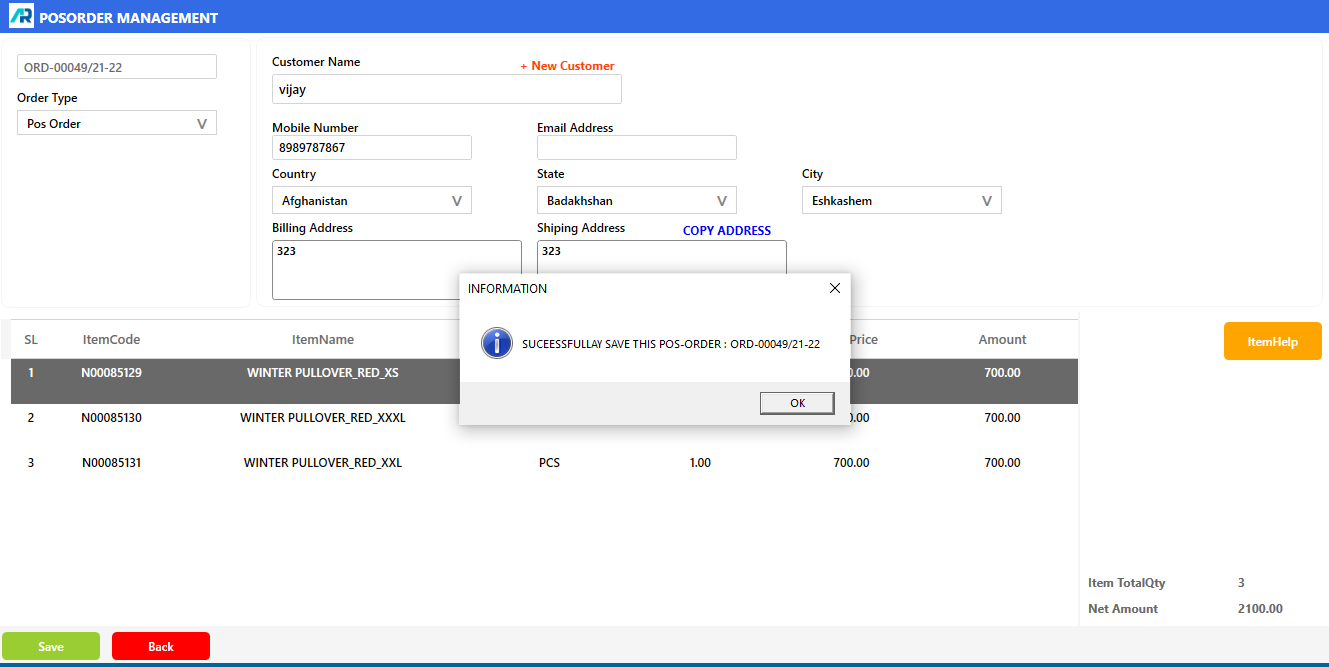
>For Approved New Order, click on Order Status and select New.
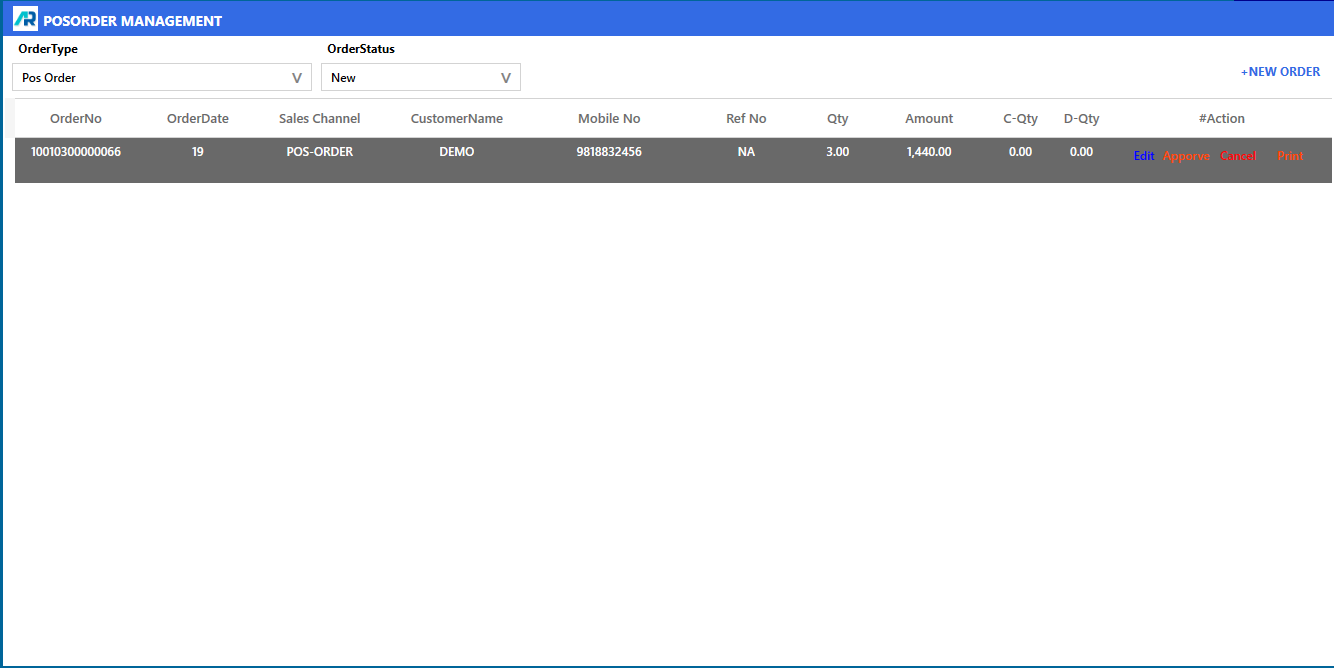
>Click on Approve button

>Click on Process button.
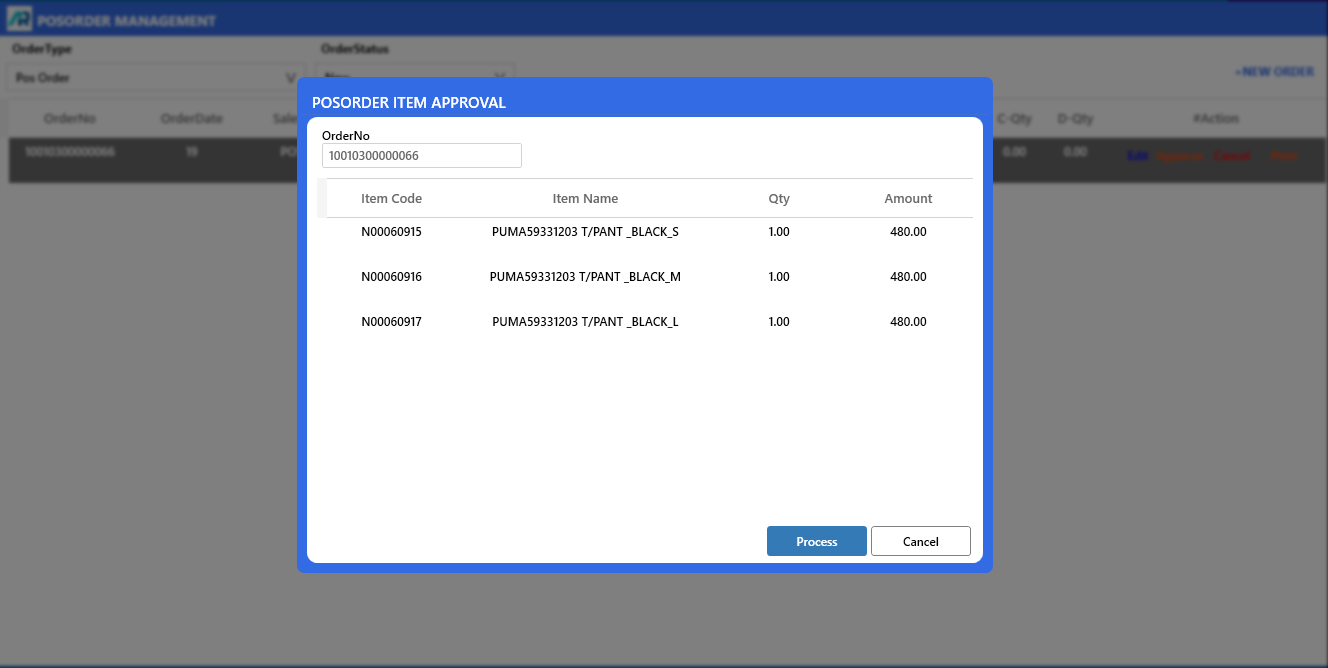
>Now your POS Order will be Approved Successfully.
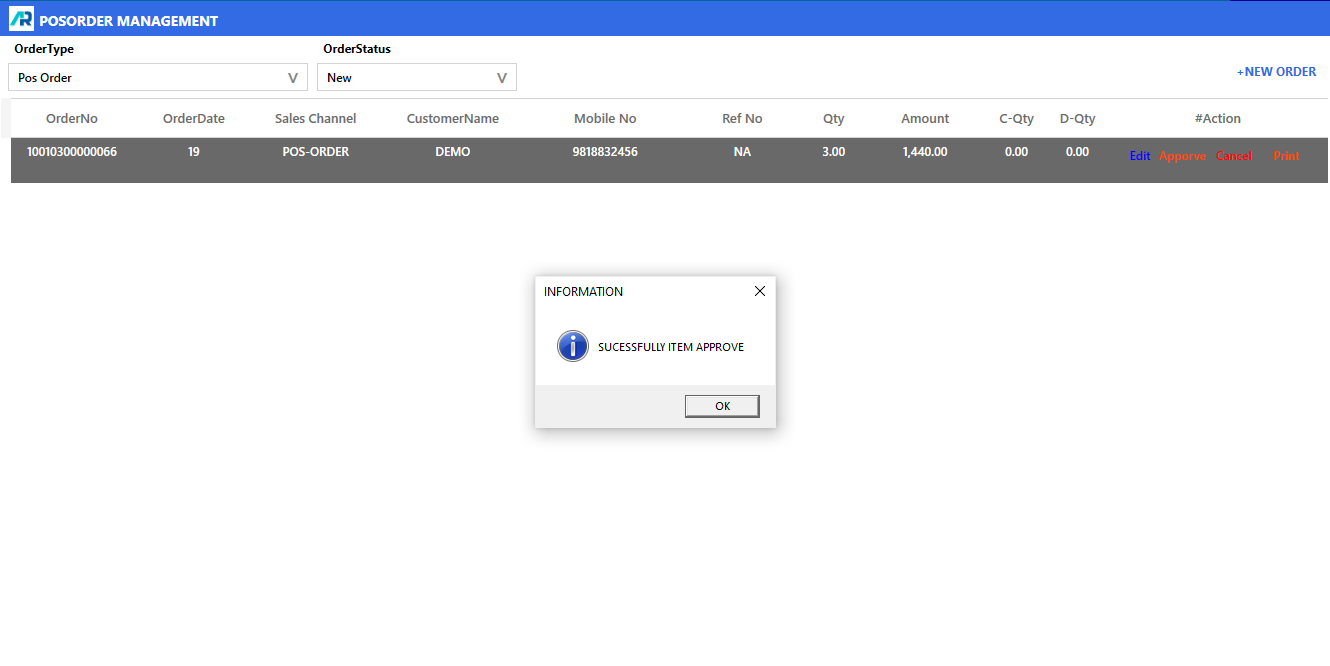
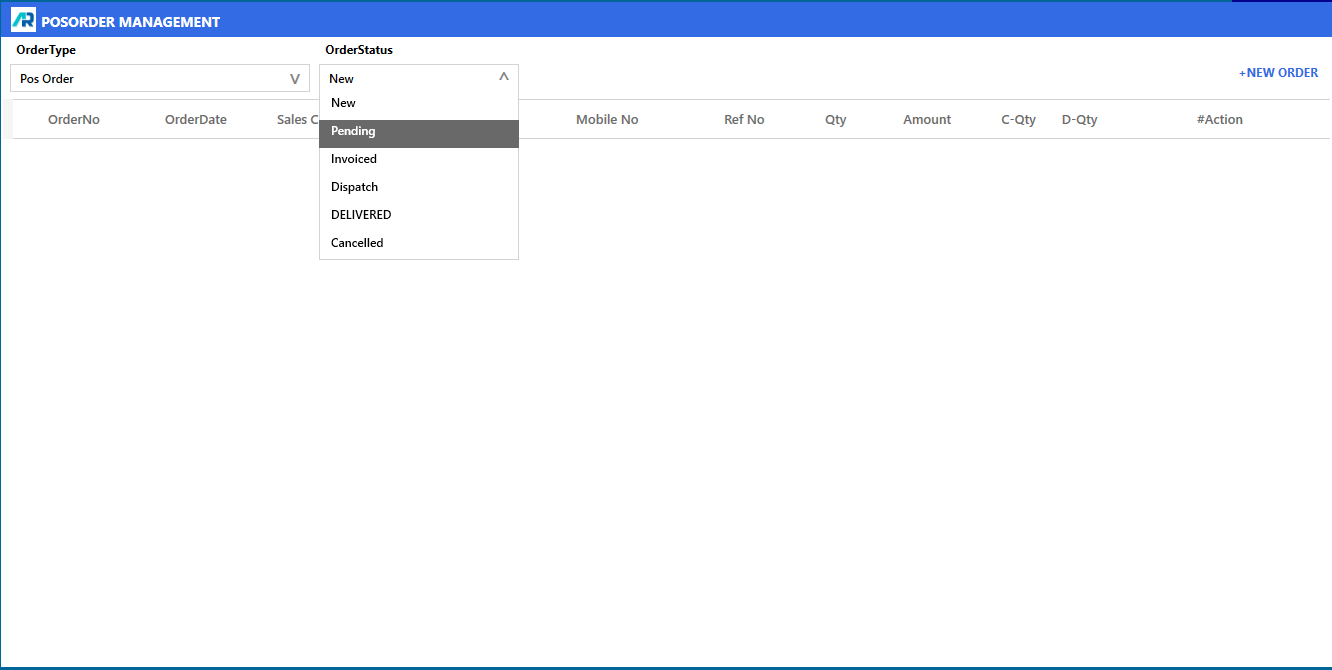
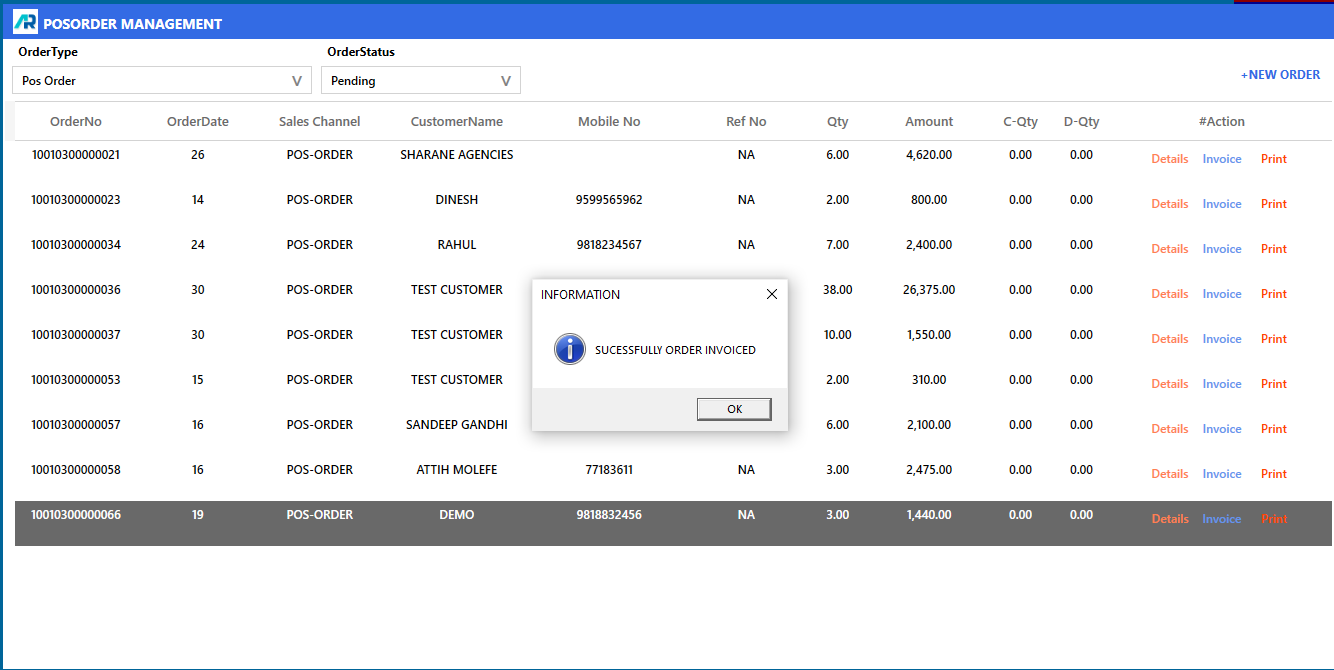
>For make the invoice of this order, click on order status and select Pending
>Click on Invoice button, and after that click on Process button.
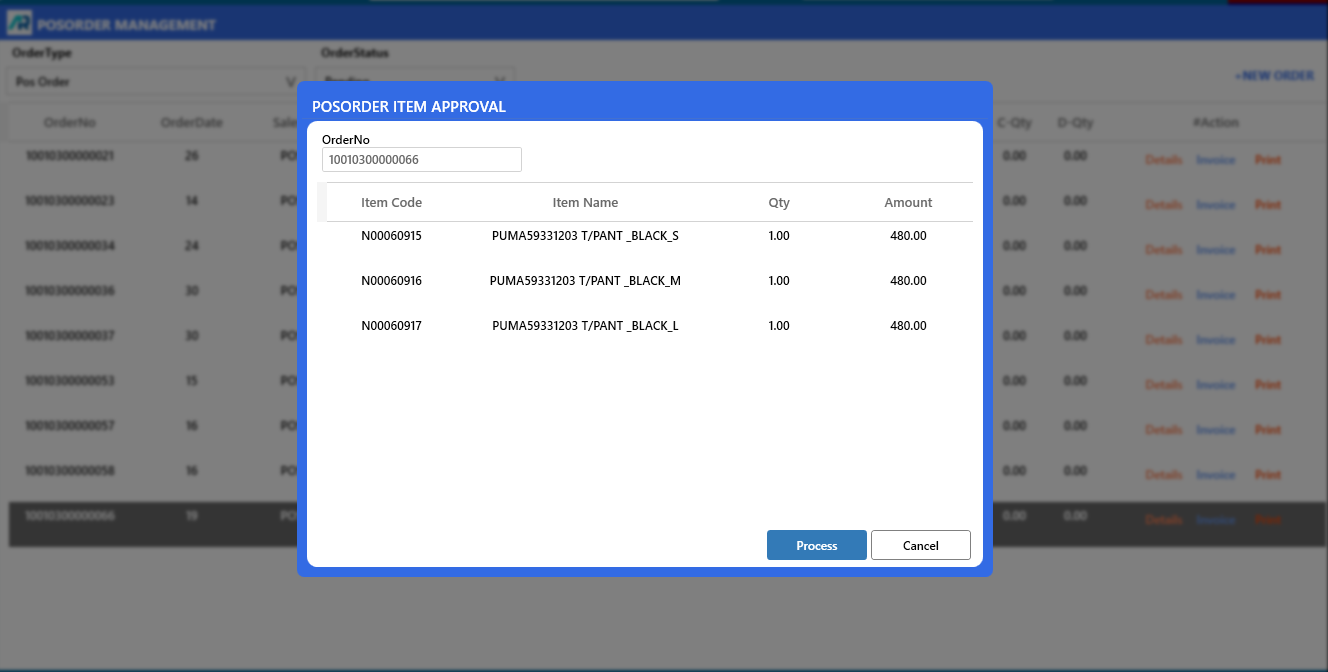
>Now your POS Order Invoiced Successfully.
>For make the Dispatch of this order, click on order status and select Invoiced.
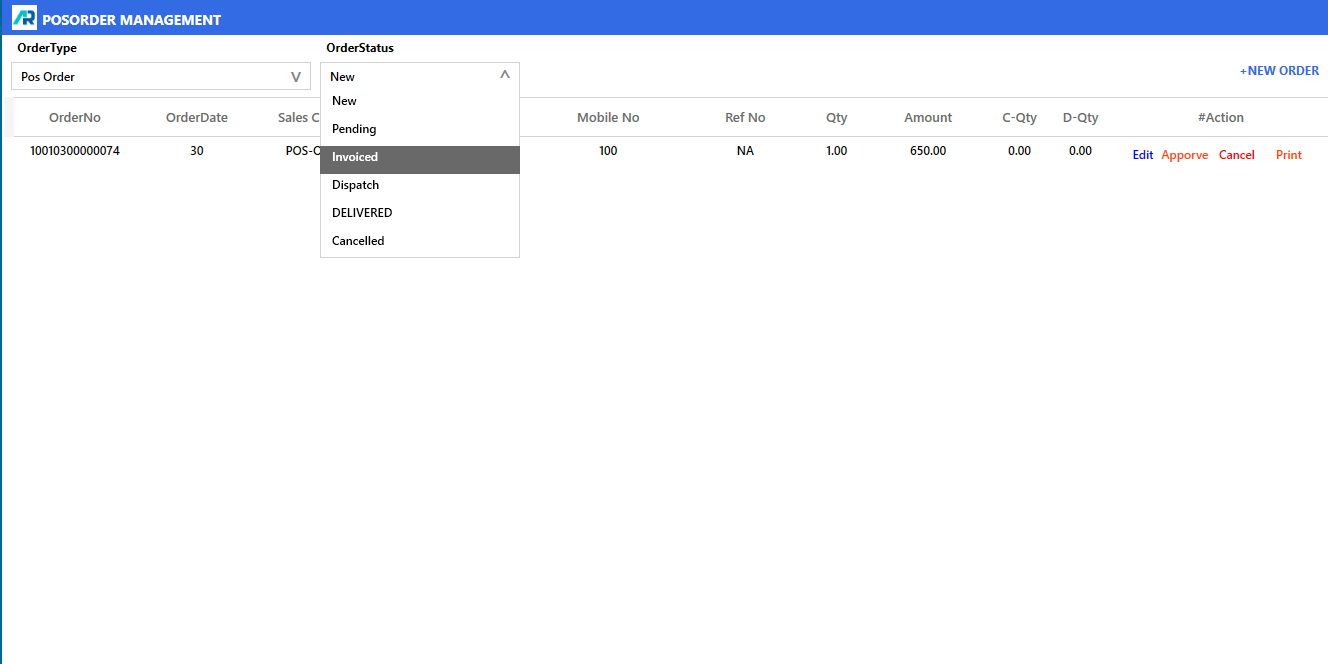
>Select the Invoice and click on Dispatch button, and after that click on Process button.
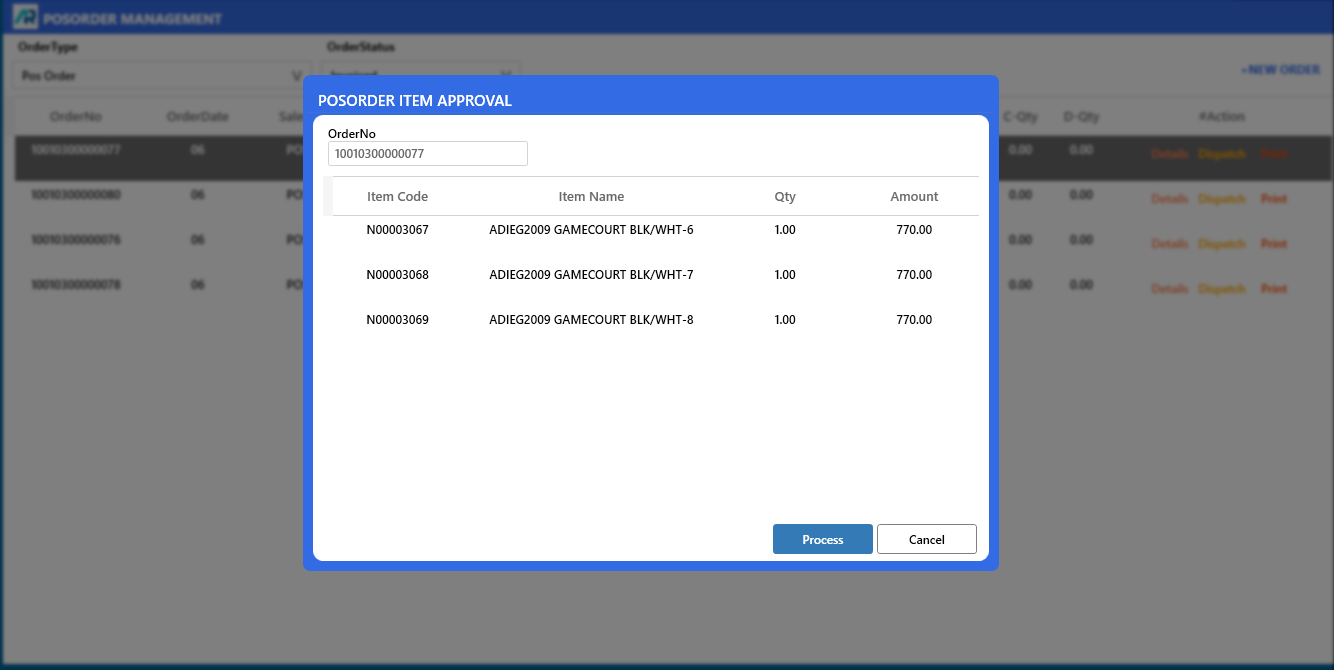
>Now your POS Order Invoiced Successfully.