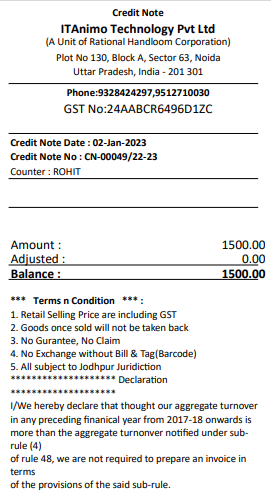
KB-0014 How to Issue the Credit Note
>Navigation : Store Operation >Point of Sale > Billing.
> First Click on Billing Function.
>After clicking Billing function this window will appear.
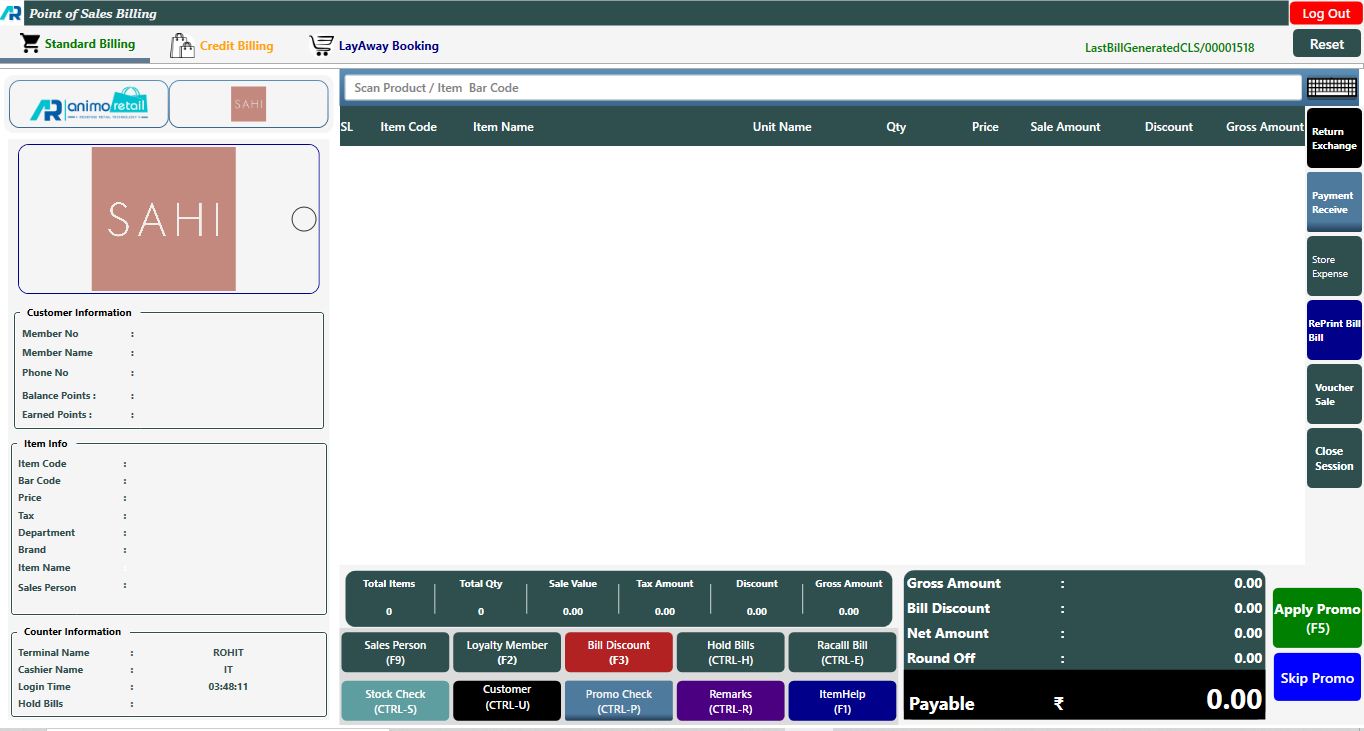
> Select the Sales person by clicking on Sales person button (F9) and select the Customer by you clicking on Customer button. This step is optional.
> > After that click on the Return Exchange button or press F7 key.

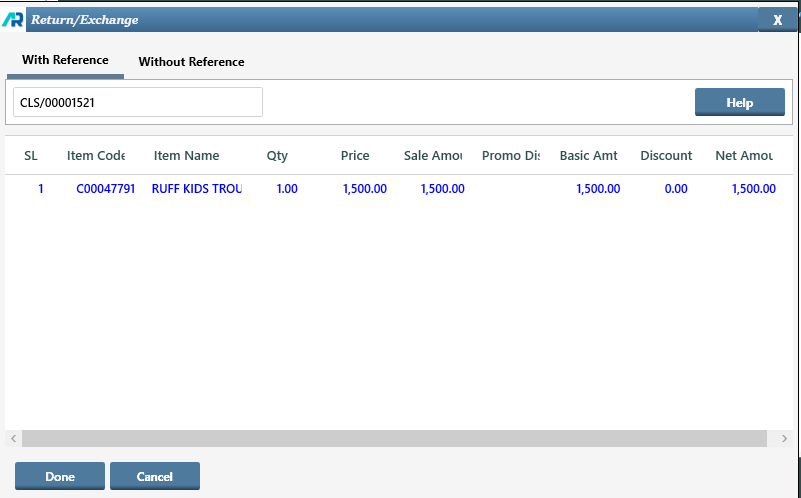
>After click on Return Exchange button this window will open. Here you can see there are two option with reference and without reference, as you can see with reference option you can select the bill number and without reference option you can use the barcode.
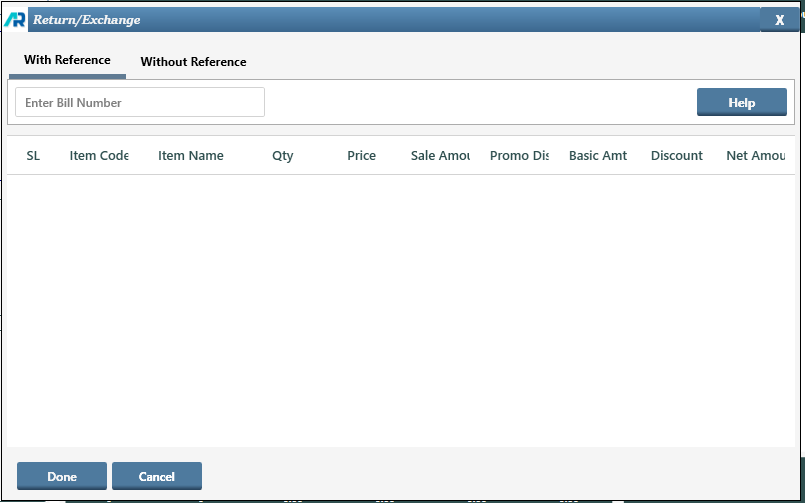
>Enter the bill number of the item for which you want to issue the credit note or Press on Help Button if Bill No is not available.
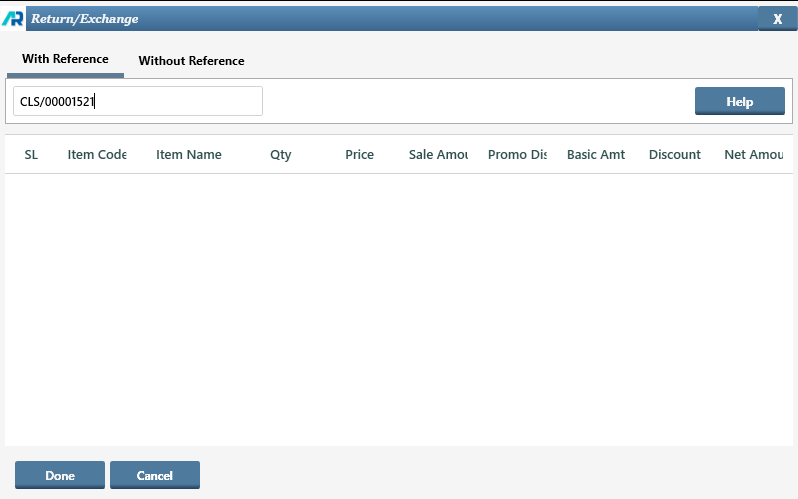
>If the bill number is not available and you click on Help button option this window will appear.
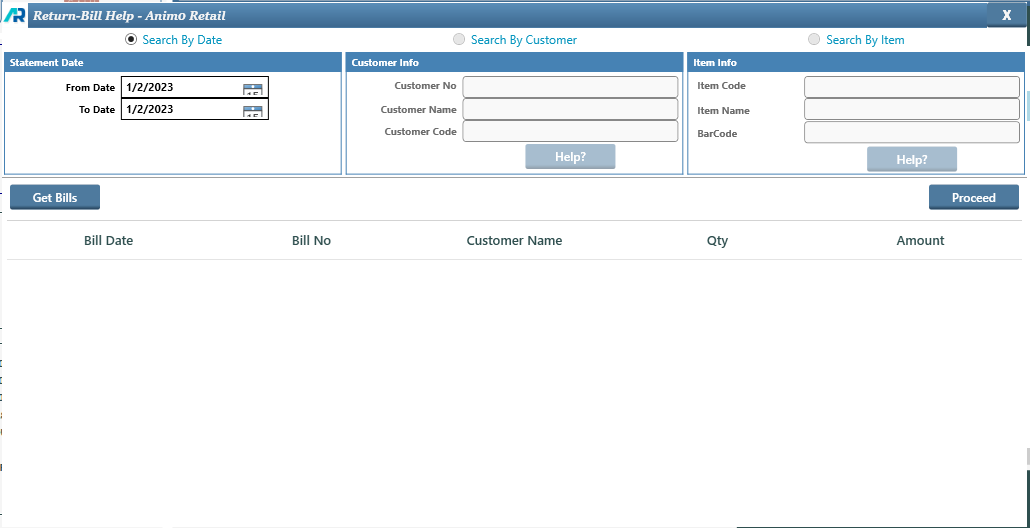
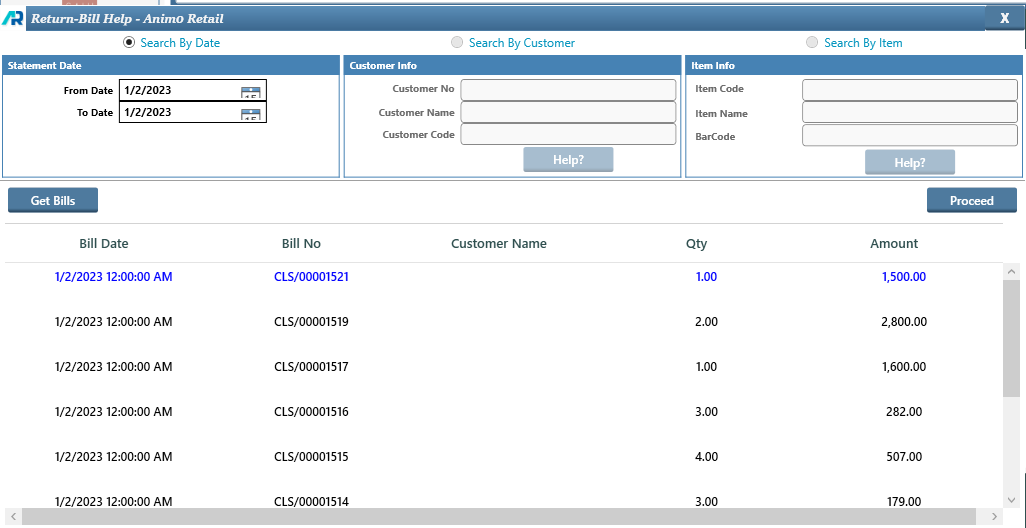
>Select the date range of the bill and click on the Get Bills button. Select Bill and click on Proceed button.
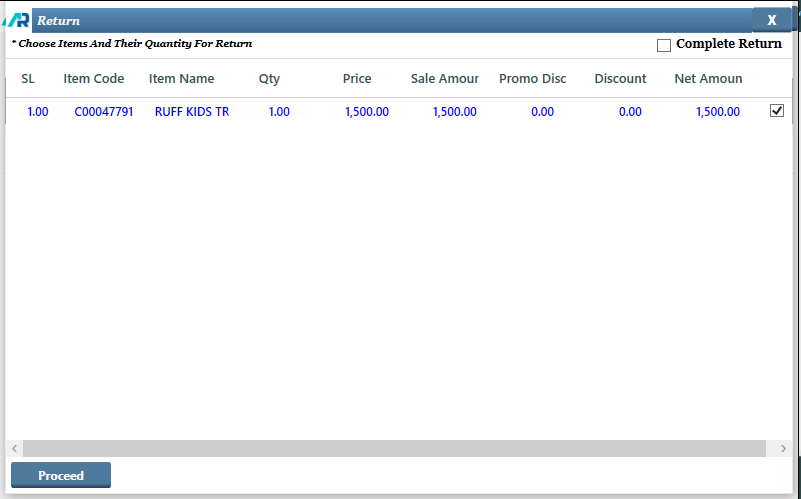
>After click on Proceed button this window will open. now select the item by clicking on check box option, then again click on Proceed button.
>After Click on Proceed button this window will open, now click on Done button.
> After Click on Done button you will see that the return item showing on billing screen.
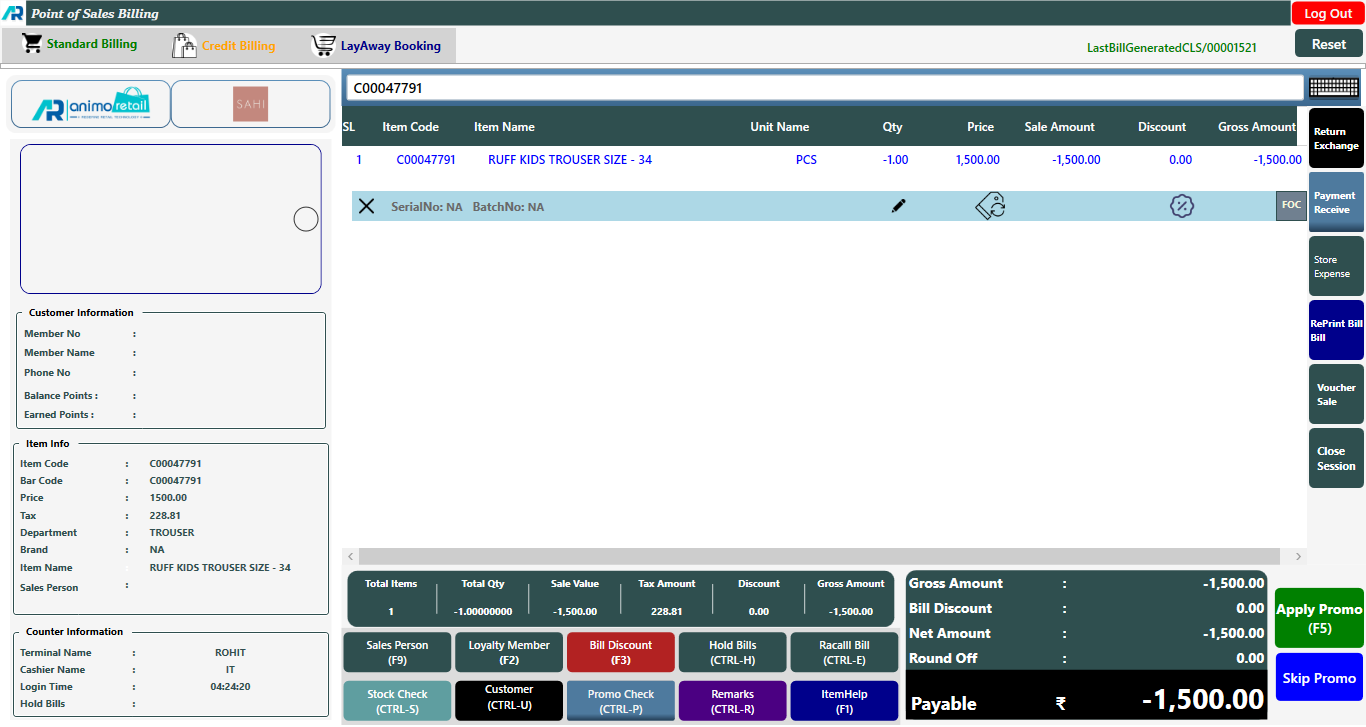
>Click on F5 button and open tender window. You can see there are two options.
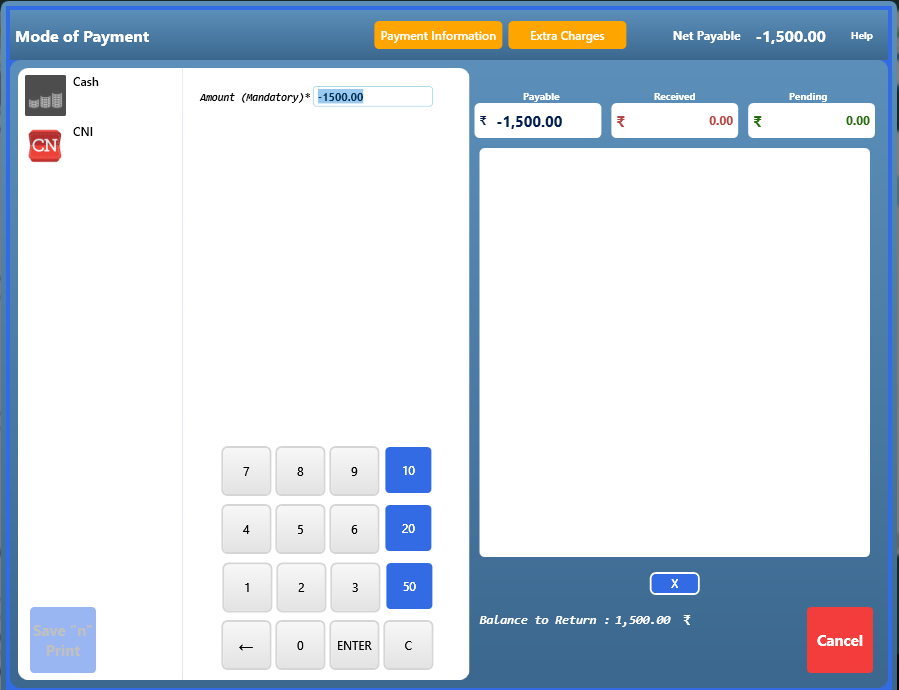
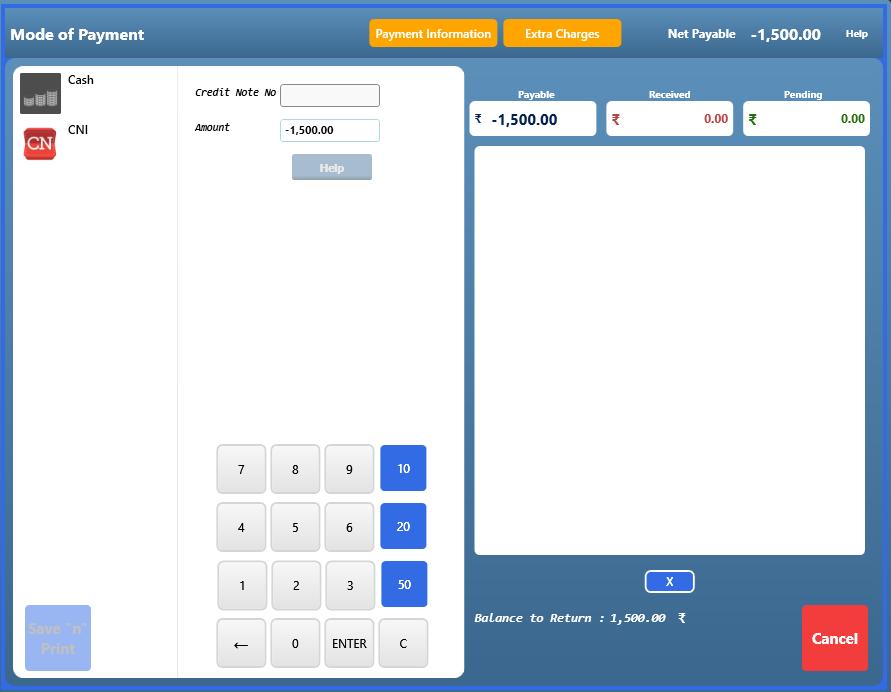
>For credit note issue click on CNI option just click on amount column and press enter button.
> After click on enter button, click on Save n Print button.
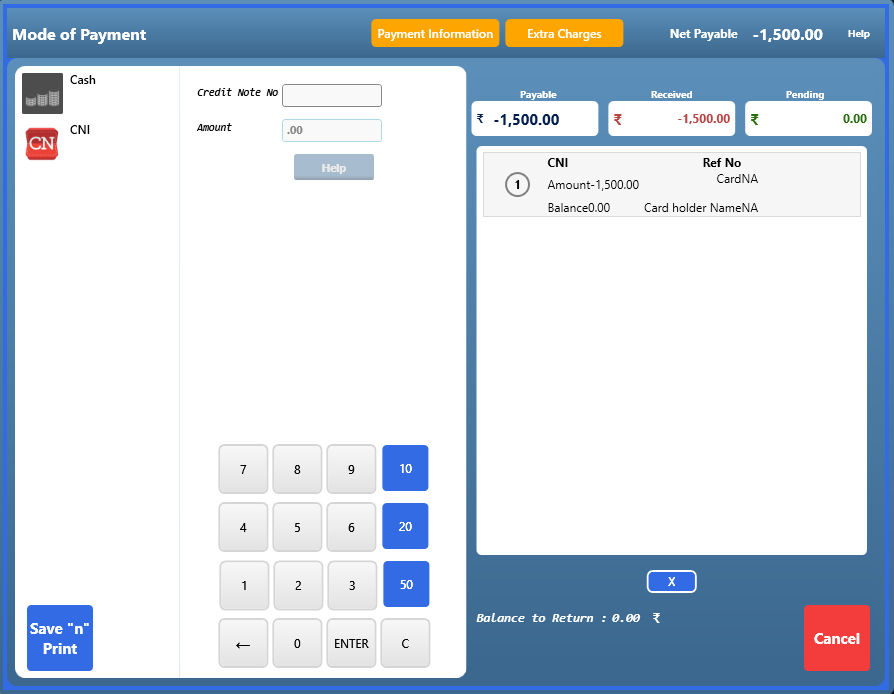
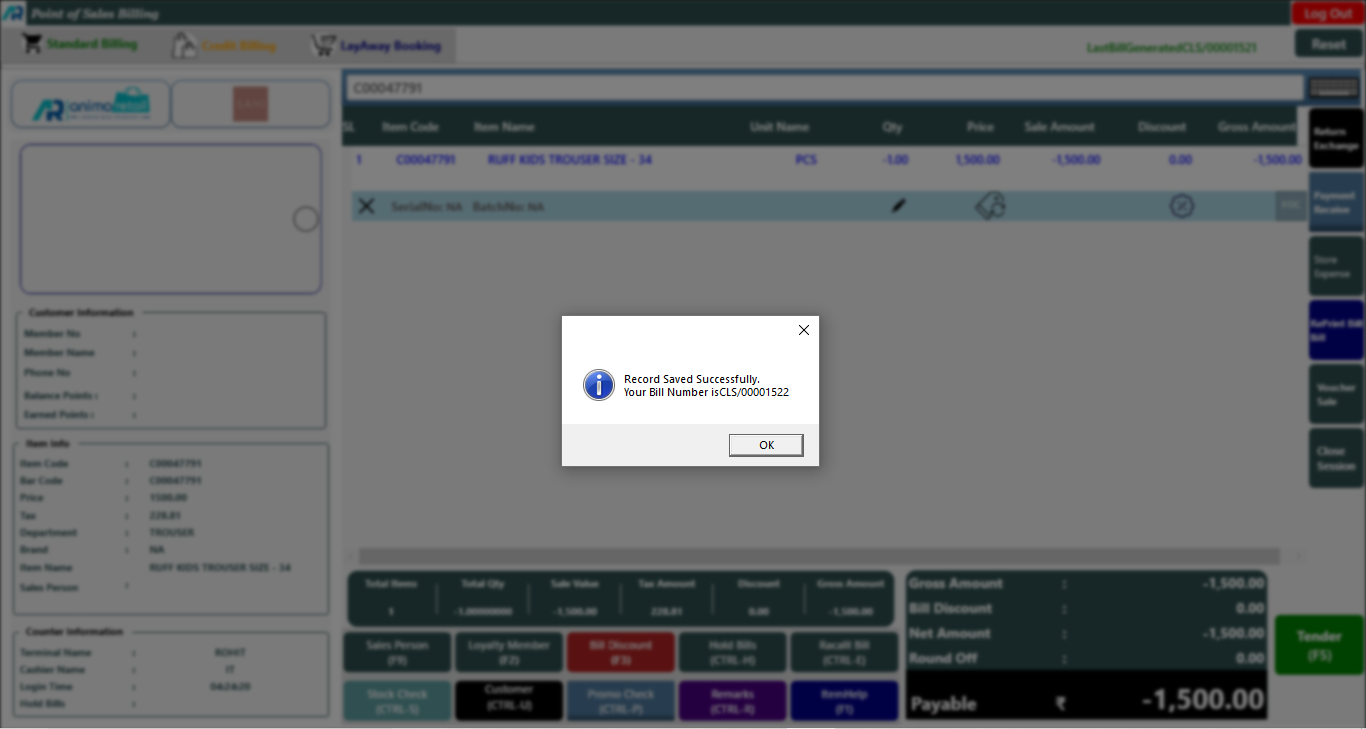
> Now as you see the confirmation message will appear and whole process is complete now.
>>After Bill save you can check the Credit Note Bill Print.