KB-0015 How to adjust the Credit Note.
>Navigation : Store Operation >Point of Sale > Billing.
> First Click on Billing Function.
>After clicking Billing function this window will appear.
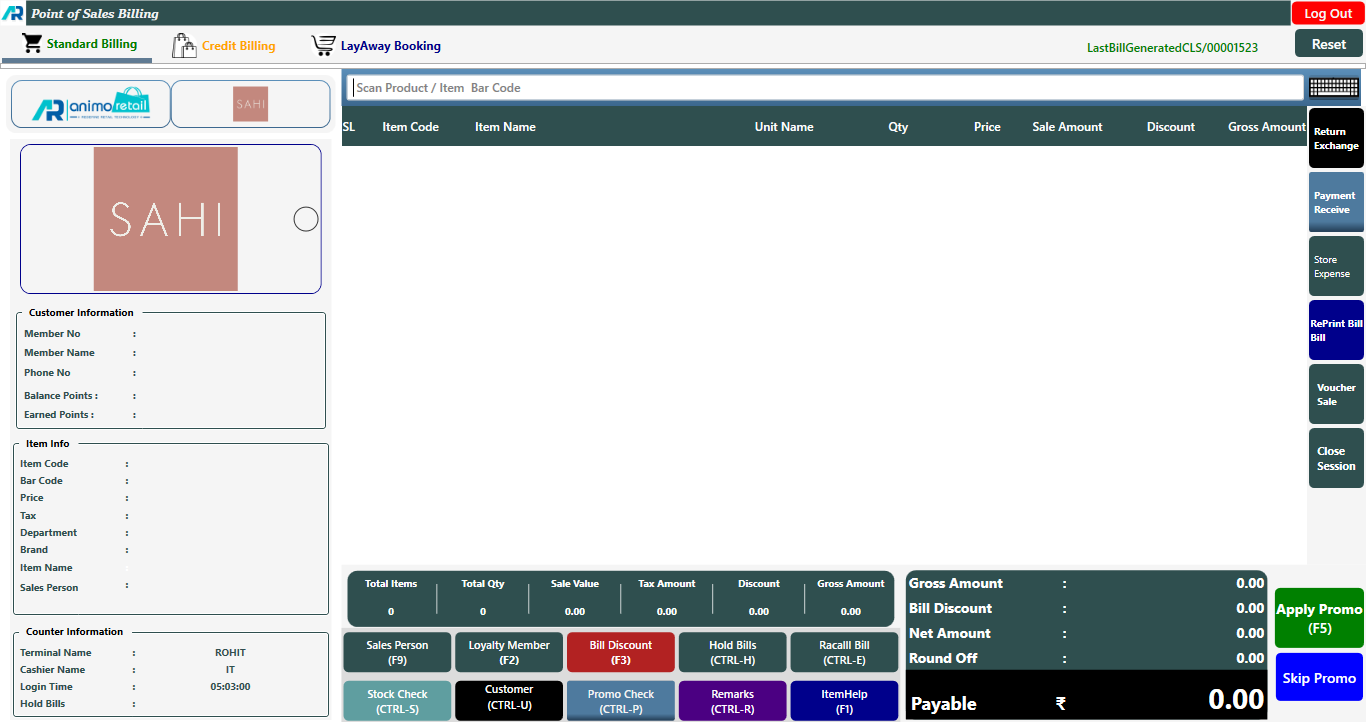
> After that scan the items that you have purchased.
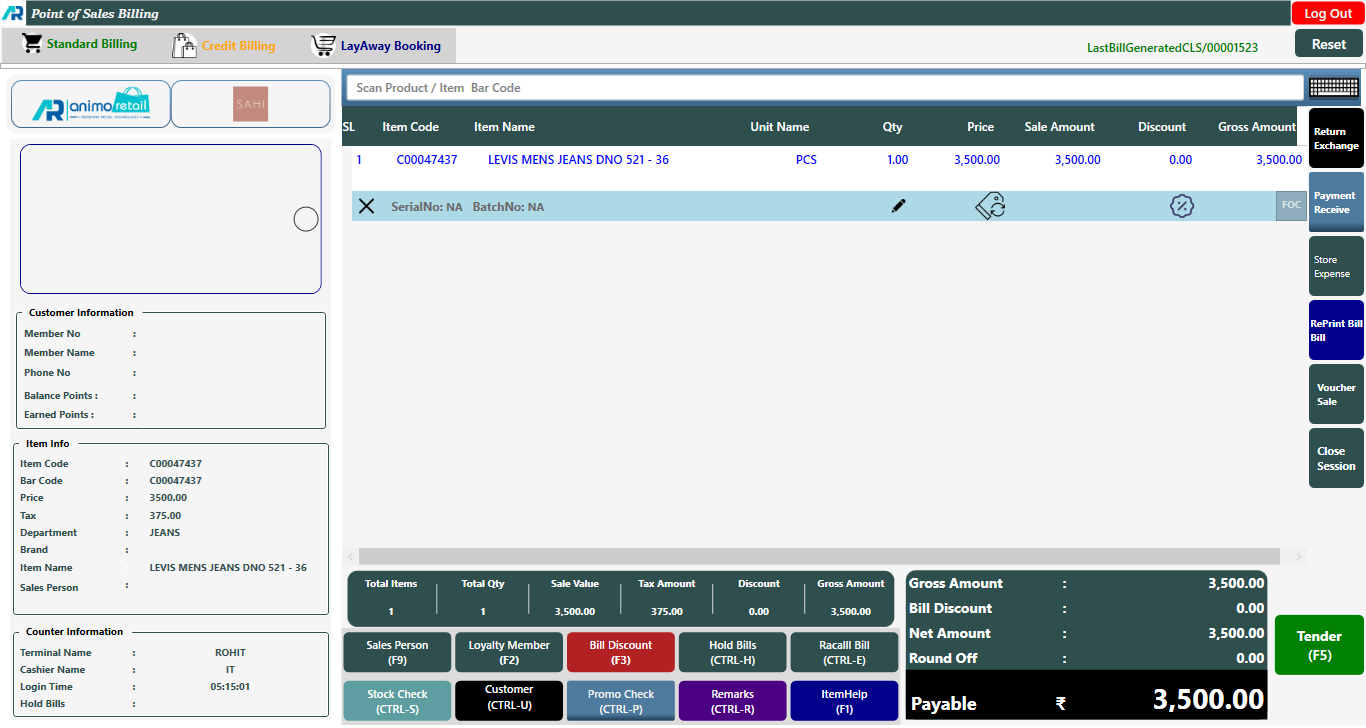
>After you scan purchased items, click on F5 button and open tender window.
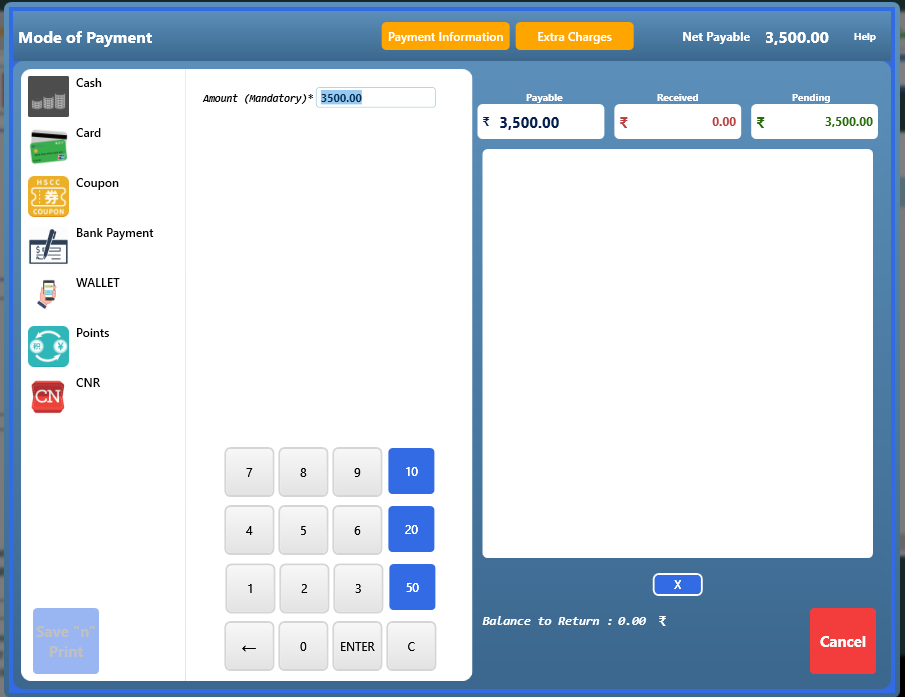
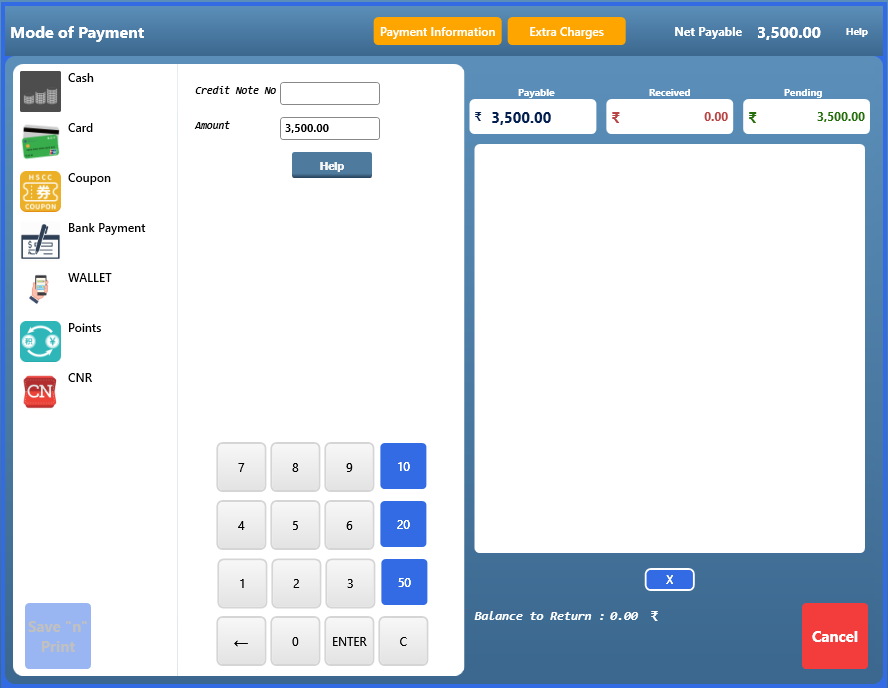
>Click on CNR button

>After click on CNR button, click on Help button
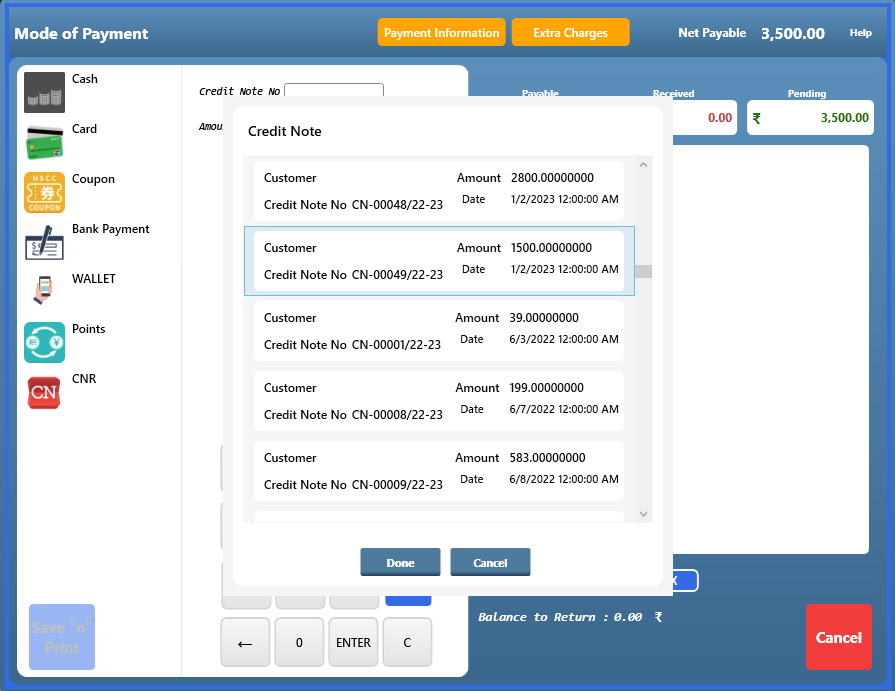
>Select the credit note which you want to adjust then Press Enter button or click on done button
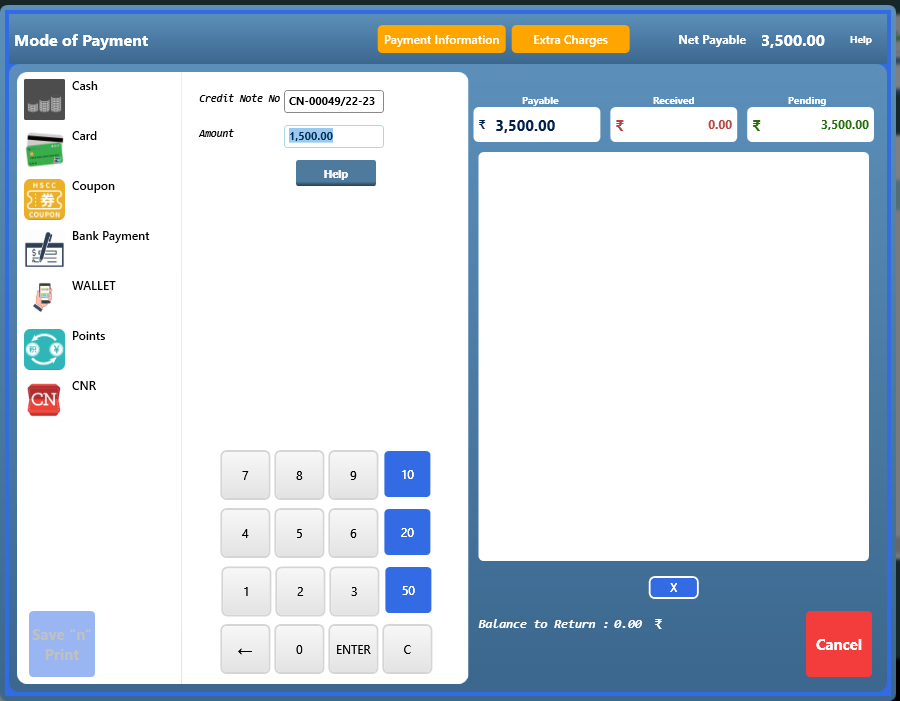
>After click on done button, once click on amount column then press enter.
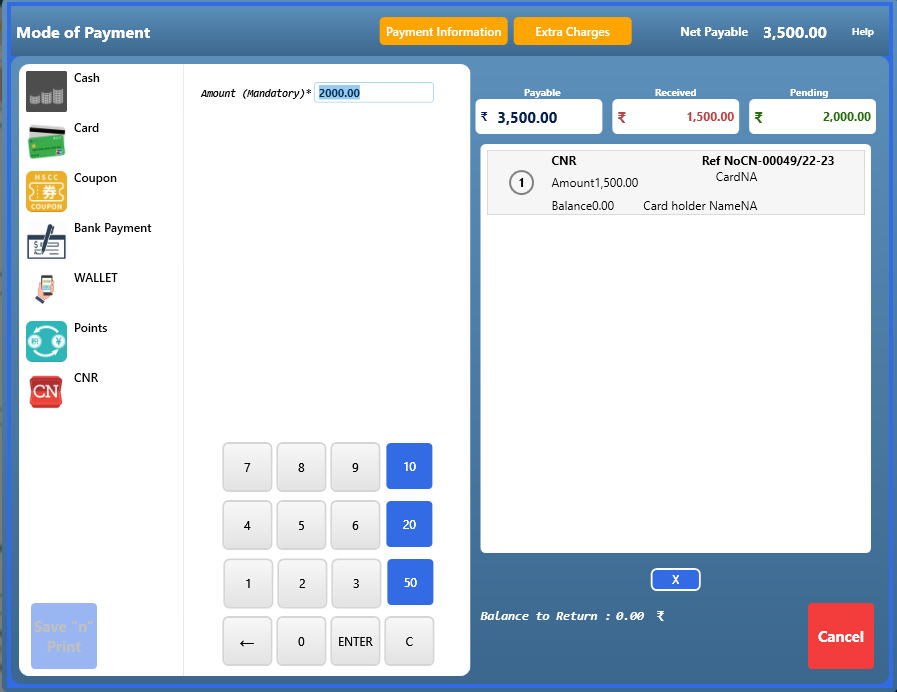
>After press enter button, the credit note has been adjusted in the bill, now select the payment mode to pay the rest amount.
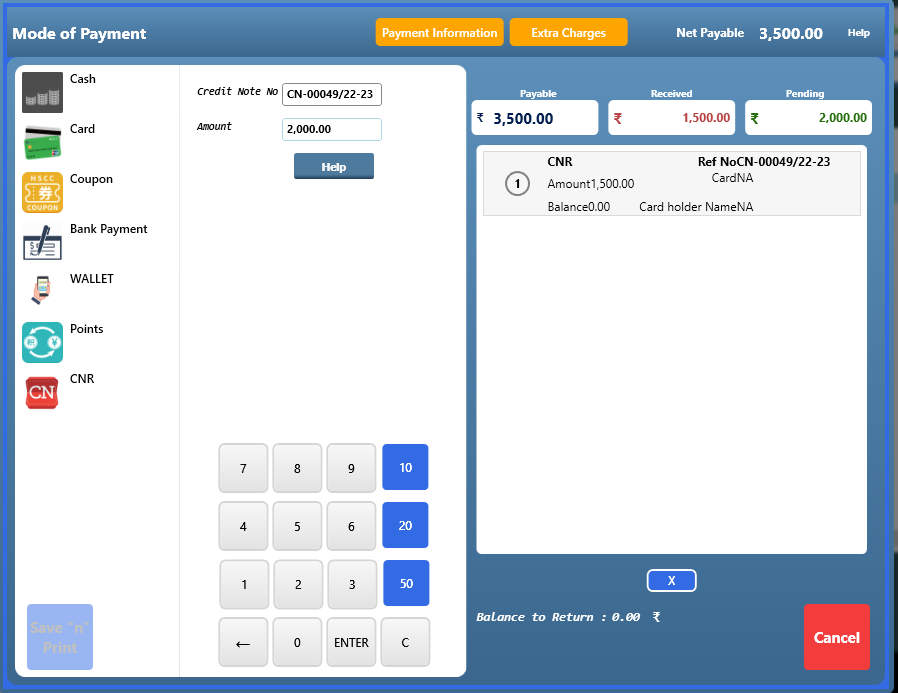
> we have selected the cash payment mode option, now press enter.
>Now click on save n print option to save the bill.
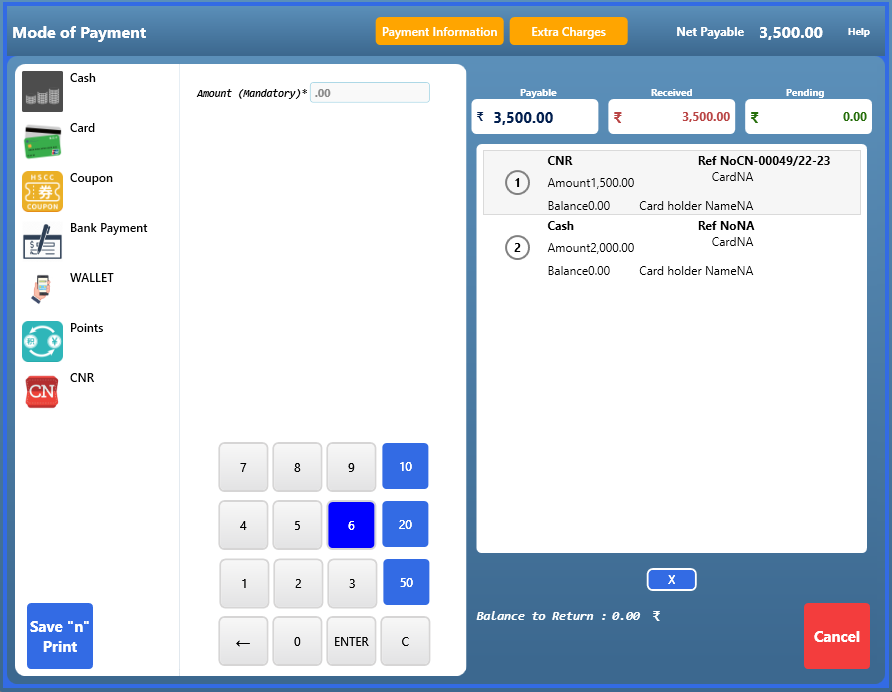
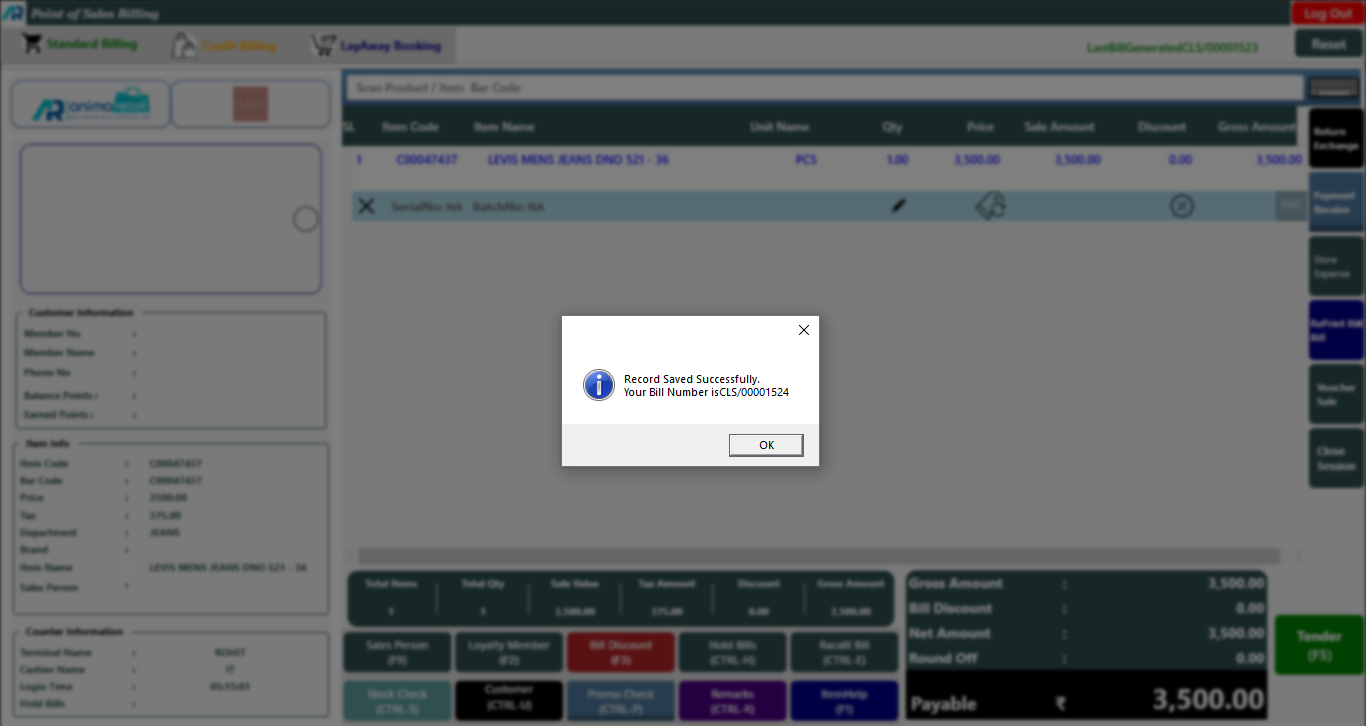
> Now as you see the confirmation message will appear and whole process is complete now.