KB-0018-How to create 10% Promotion.
STEP 1
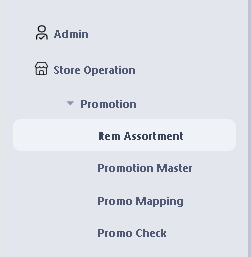
> Open Item Assortment option.
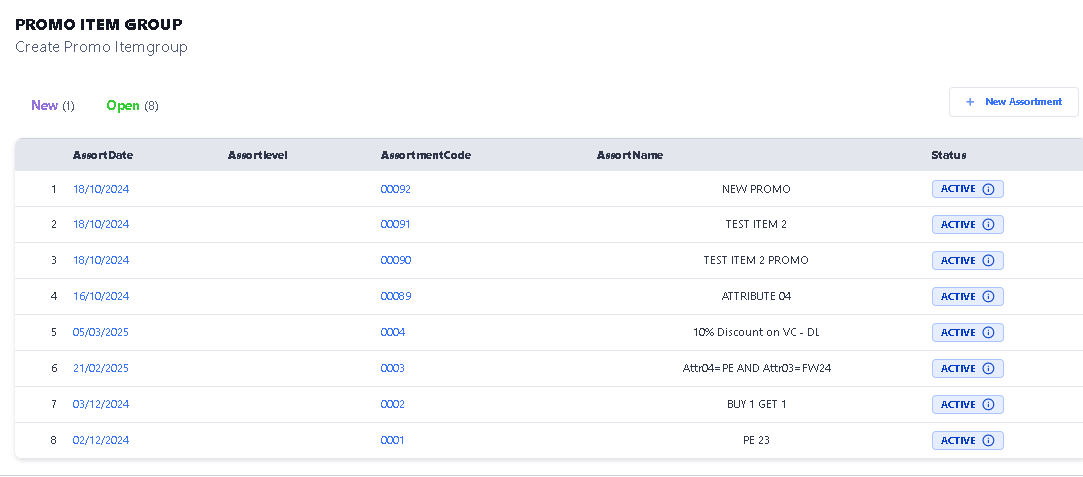
 > After open Assortment, click on New Assortment button.
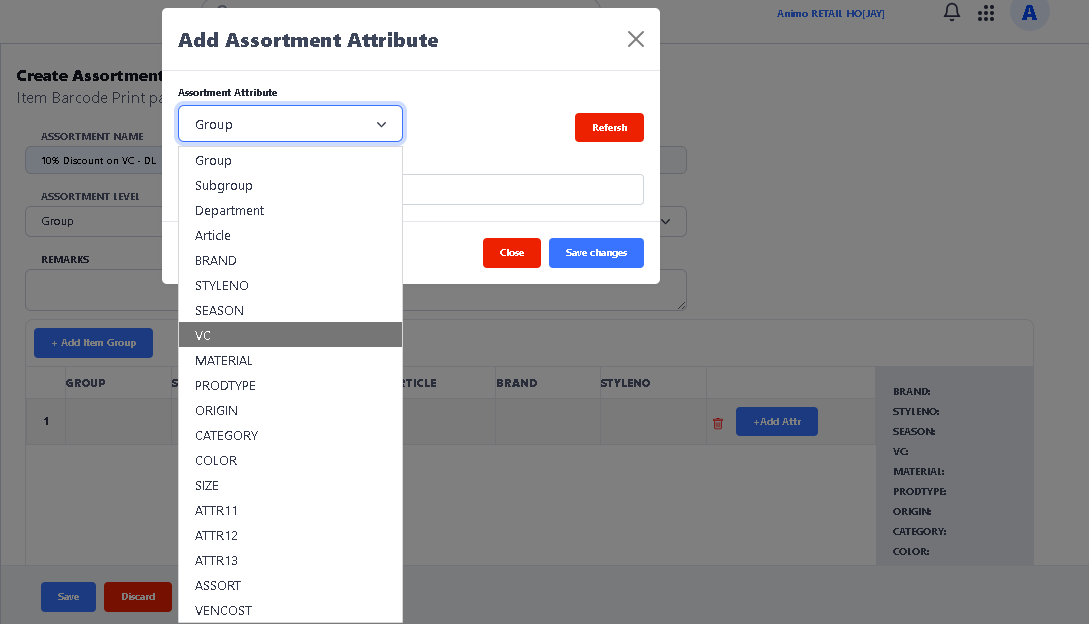
> After Click New Assortment button, First Type Assortment Name, Select Group or Attributes by clicking on Add Item Group then click on Add Attribute button. after select click on Save Changes button then click on Save button to save the Assortment.
STEP 2
> Open Promotion Master option.
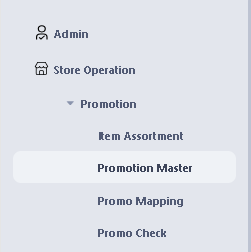
> After open, Click on New Promotion button
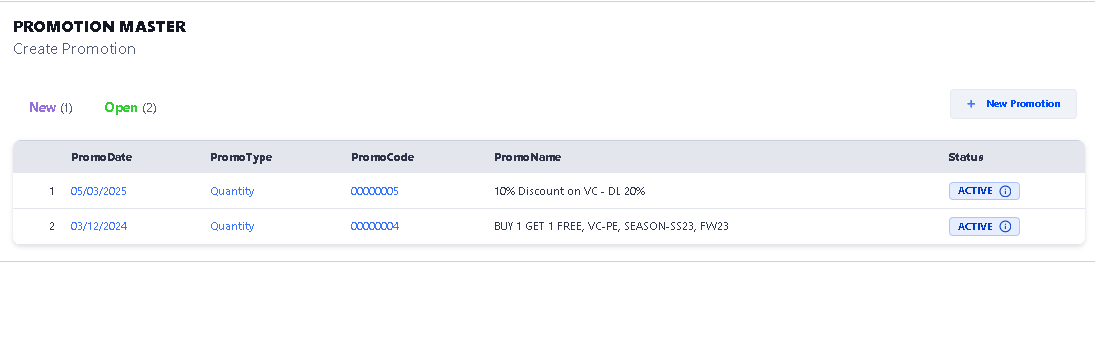
> After open
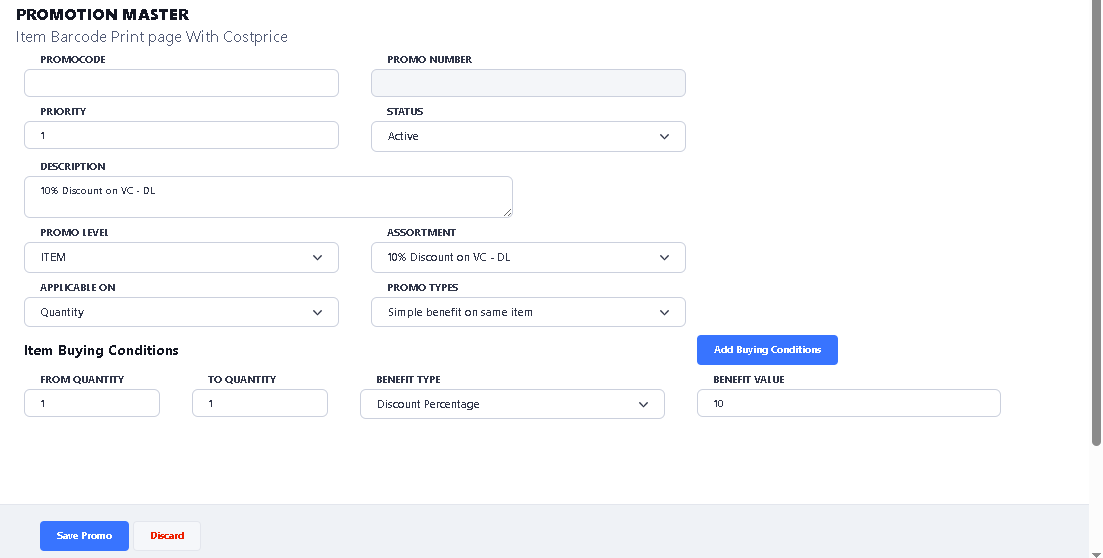
First: Enter Promo Code in Promo Code option
Second: Enter Promo Description in Description option
Third: Select Item or Bill level discount in Promo Level option
Fourth: Select Assortment in Assortment option
Fifth: Select Simple Benefit on same Item in Promo Type option
Sixth: Select Discount Percentage in Benefit Type option
Seventh: Enter 10 in Benefit value option
After Fill all details, click on Save Promo button to save the Promotion Master.
STEP 3
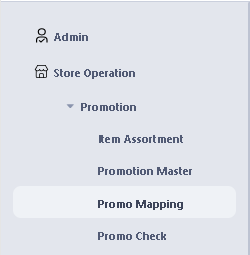
> Open Promo Mapping option.
 > Select Store in Store option in which you want to run the promotion
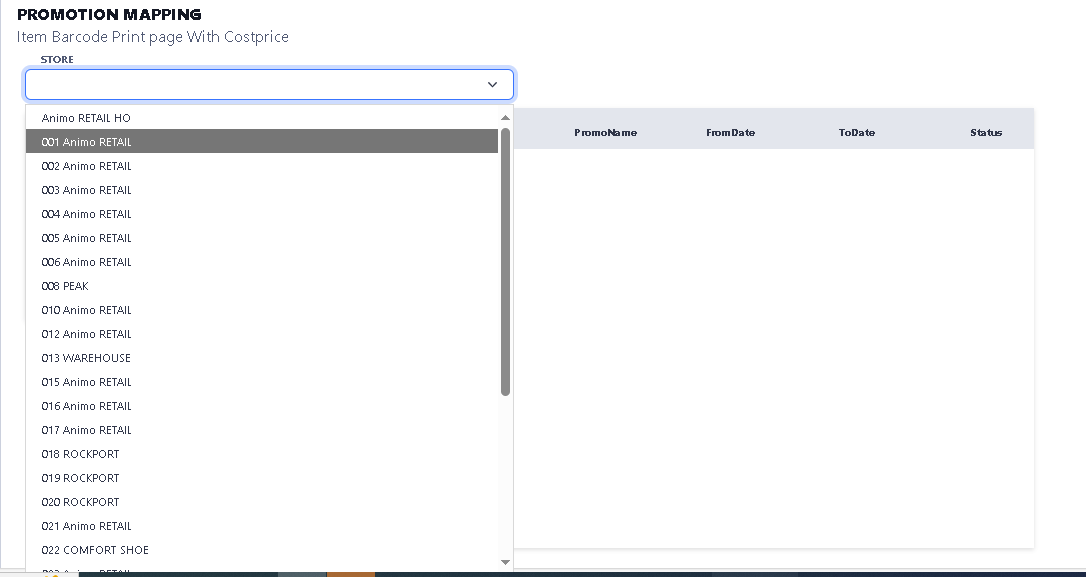
> After Select the Store, Select Promotion by clicking the check box, and click on Add button.
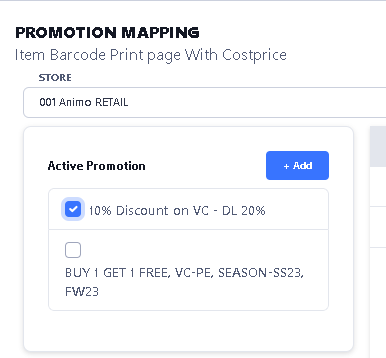
> After click on Add button, you can see selected promotion showing on right side, click on check box again and select the date rage in which you want to run this promotion. after select date click on Apply button to applicable promotion on selected store.
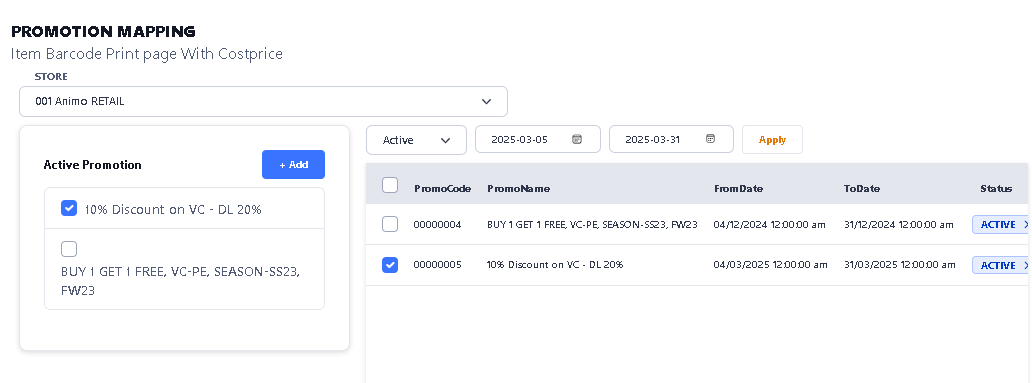
>> Now the Promotion process is completed.