AR/WEB-002- How to create Purchase Order.
Navigation – Procurement – Order Managment – Purchase Order
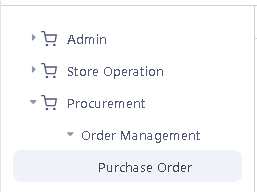
> After click on Purchase Order function this window will appear.
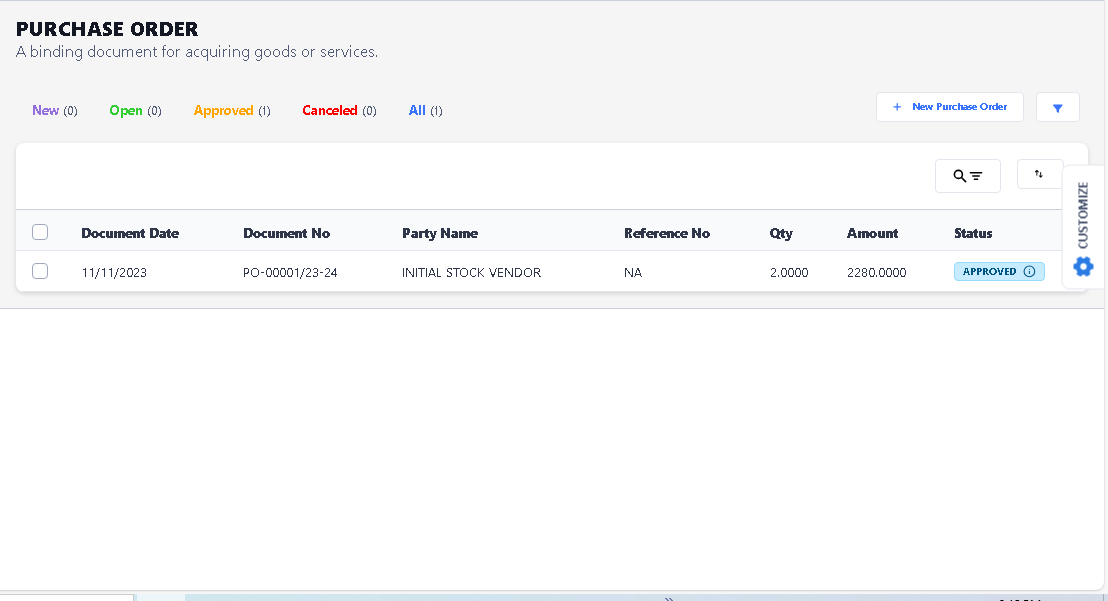
> Click on New Purchase Order Button to Create New Purchase Order.
>After click New button new window will be open.
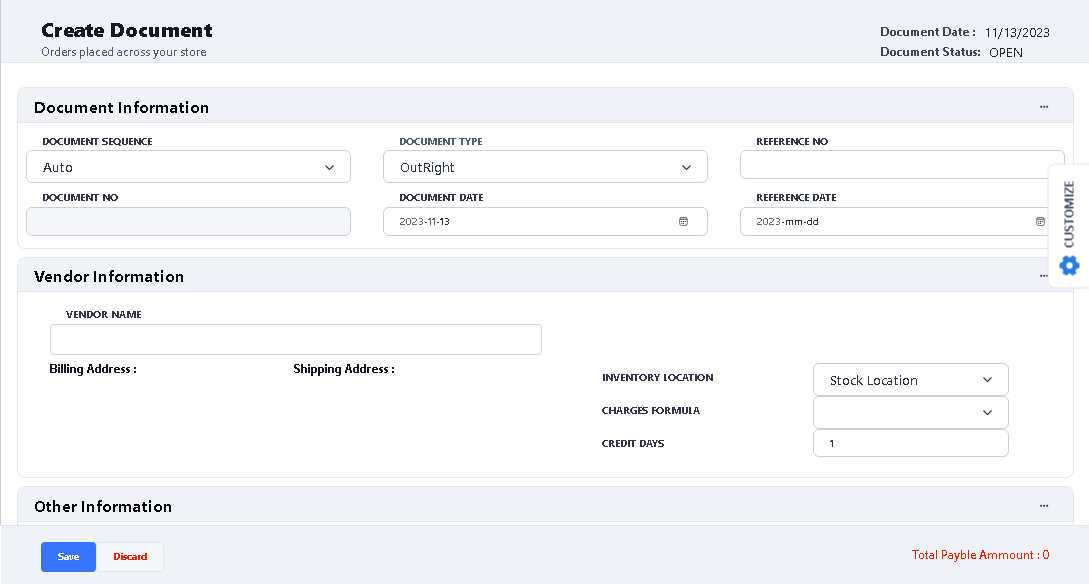
>In Document Information option- put the Invoice No in (Reference No column), Invoice Date in (Reference Date column),
>In Vendor Information option – select the vendor of Rand Currency by typing.
> In Other Information option – Select the Valid upto date of stock received.
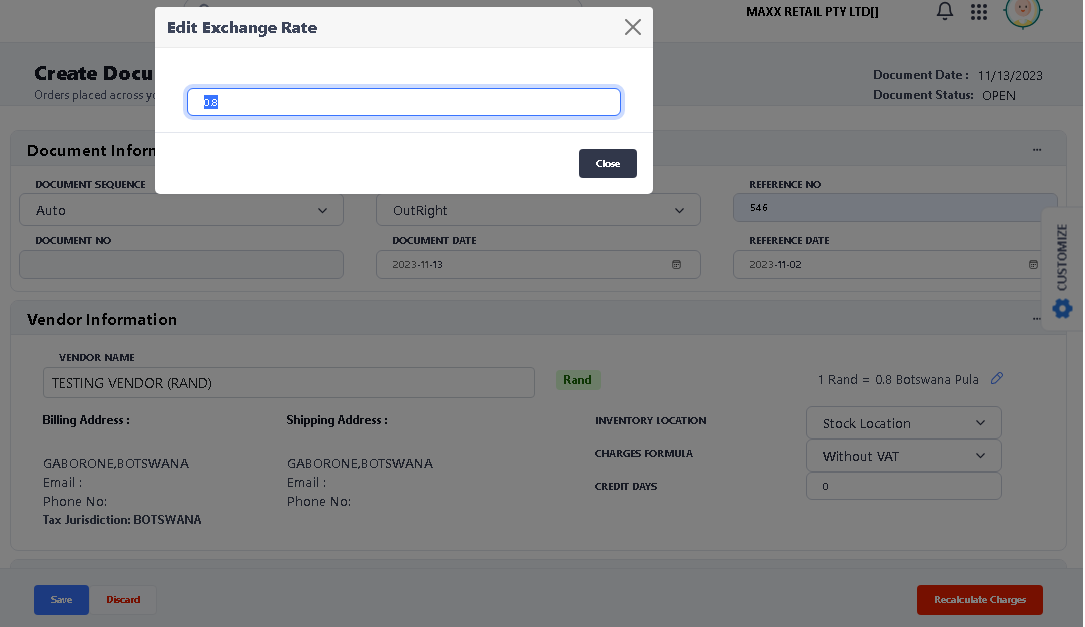
> Select Exchange Rate by click on Edit Exchange rate button

After Click Edit this window will open, enter the exchange rate and click close button.
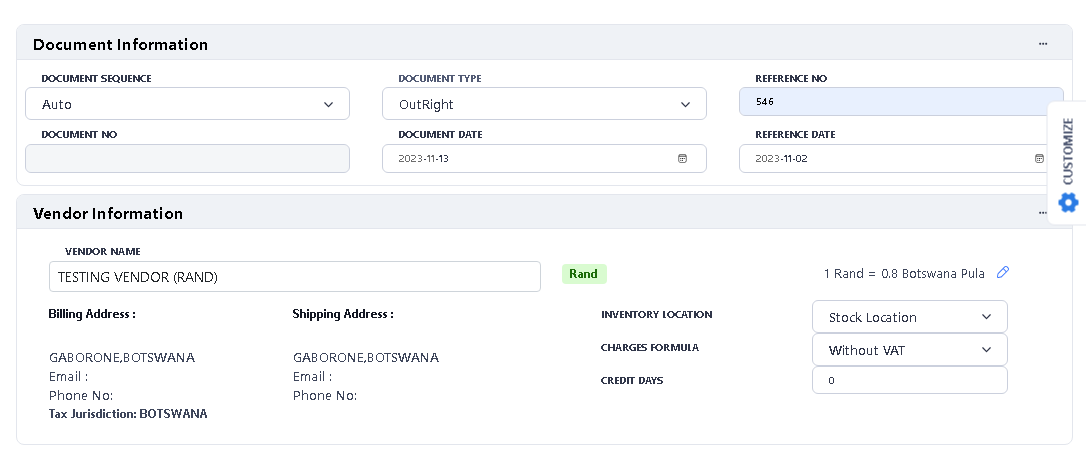
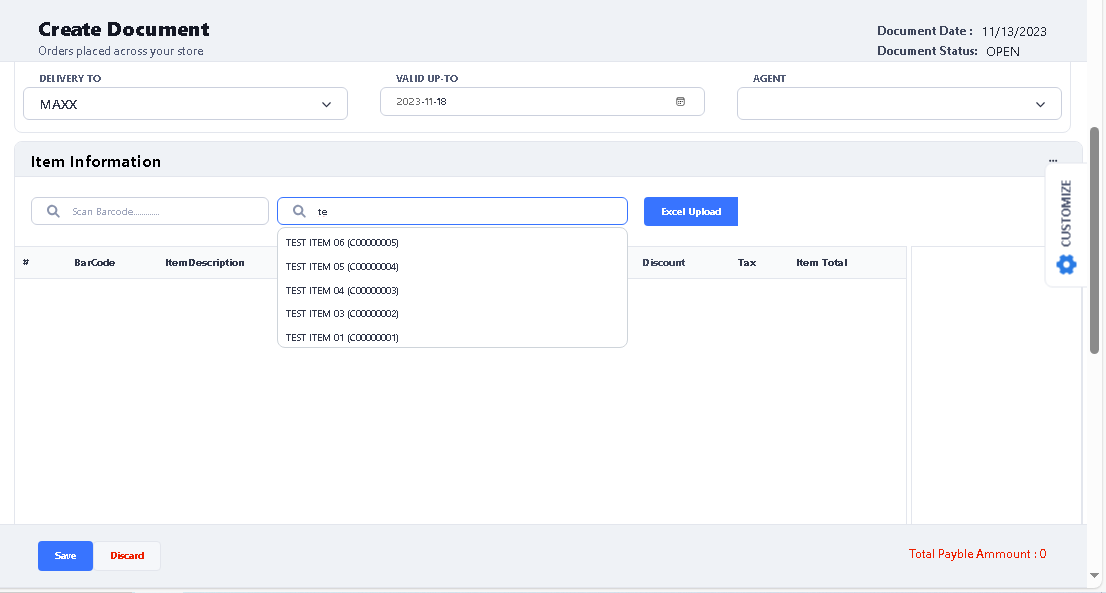
> After select all information, you can see there are two option two select the Item,
1) Scan Barcode option
2) Search Any Article option.
> For select the item, type the item name in search barcode option, and select the item from the list.
> After select any item, you can see the calculation by Rand exchange rate. (1000*0.8) = 800 in LCY column.
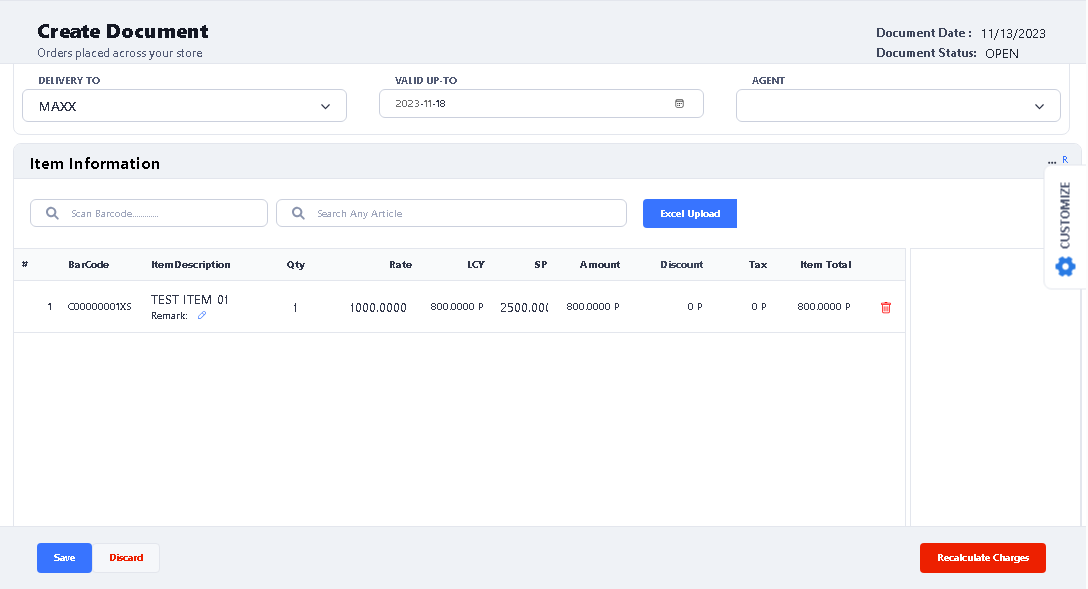
> Now if you want to change the quantity / Rate / SP of any item, click on that once and change it. you can also use tab option to go next Rate or SP option.
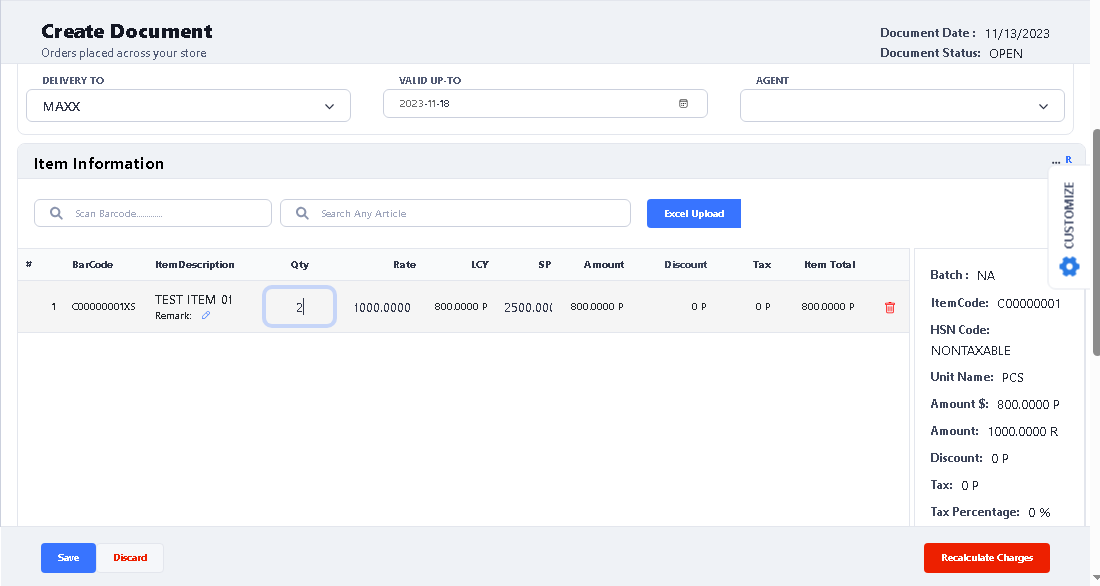
> If you want to delete any item or size from the grid, click on delete option to delete

> If you want to Item level discount, please click on discount option, and select the option (Percentage or Amount). and enter the discount amount. (If you put the Amount value 100, you can see that it is also calculated from exchange rate = 100*0.80= 80.
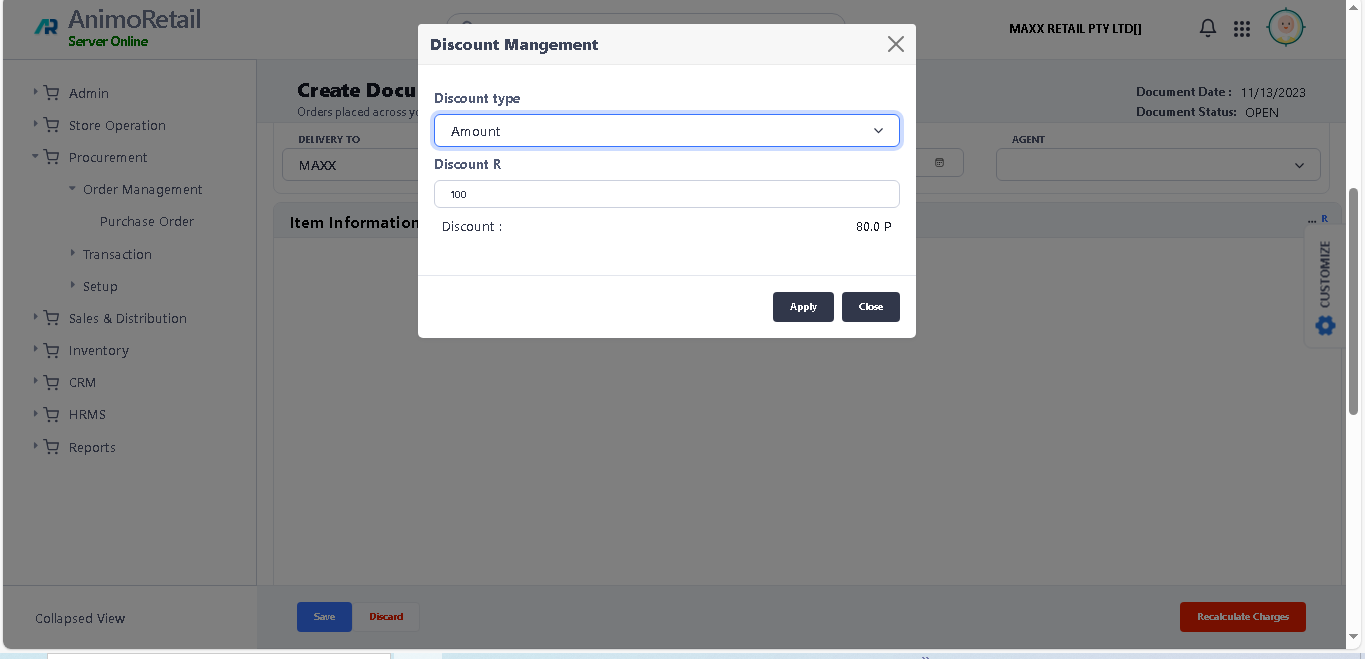
After select option and put discount, click on apply button.
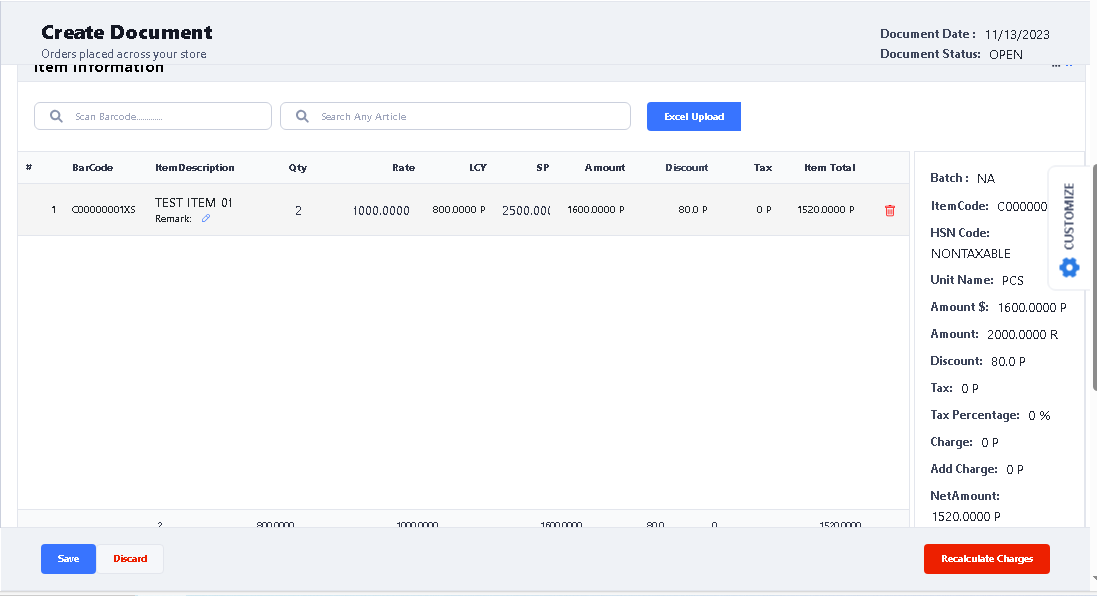
> If you want to put discount and other charges on bill level, then you can put that in Summery option.
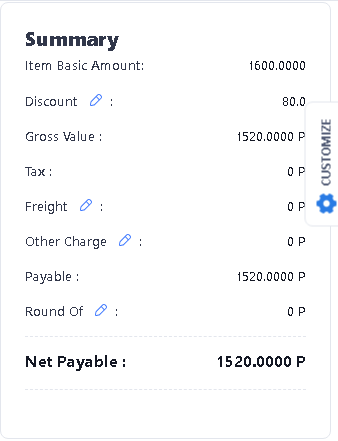
> like if you want to put Freight then click on Freight edit option in summary, after click on edit button, this window will appear. Put Freight amount and click on Recalculate button to calculate amount. Click Close button after putting values.
> Same process if you want to put Other Charges.

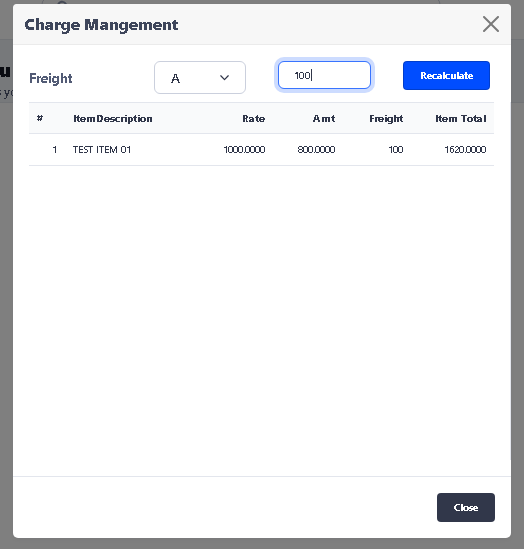
> After close charges window, you will see the charges apply on the whole bill level.
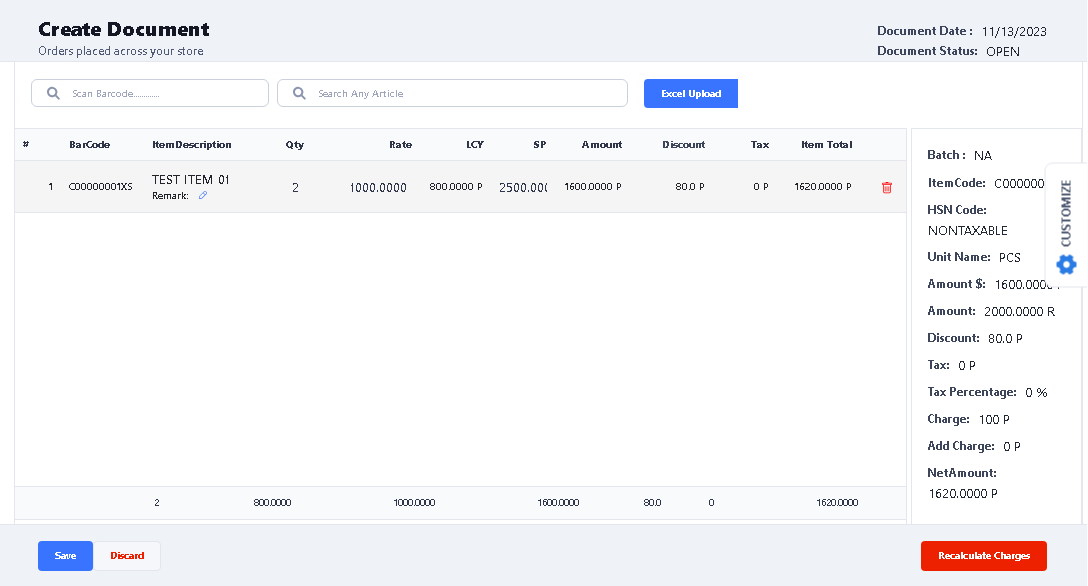
> Now you can click on Save button to save the purchase order.
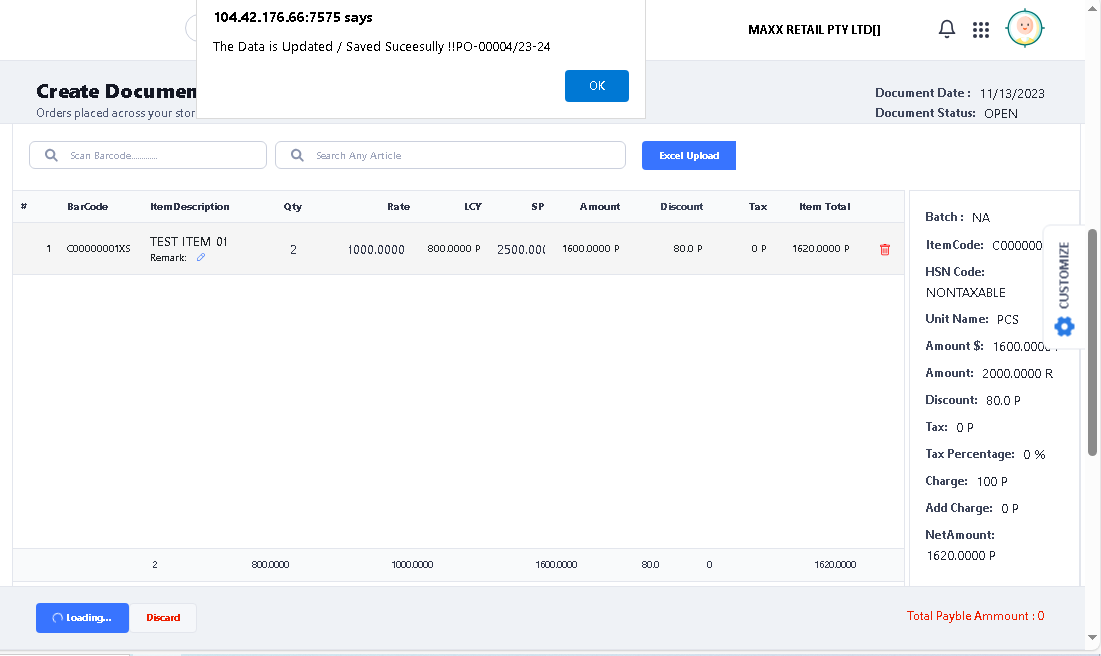
> After click on save, you will see the confirmation message. Click ok to continue.
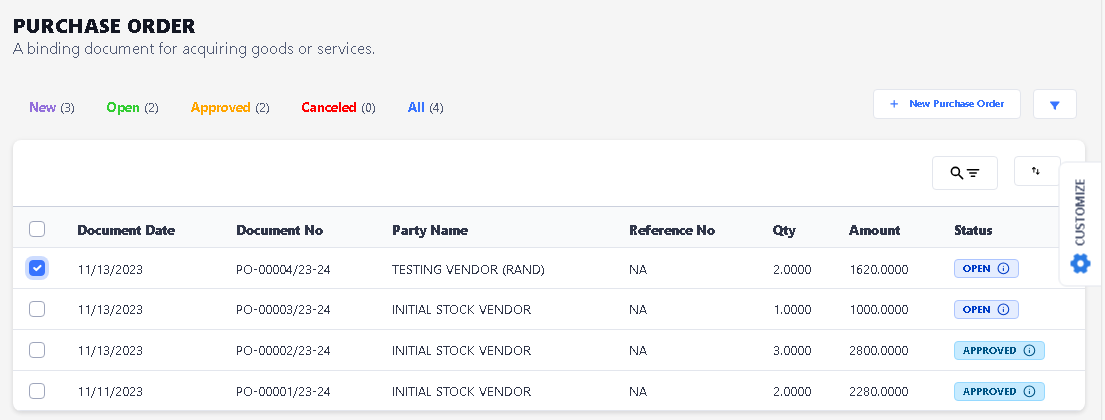
> For Approve the Purchase order, select the PO which you want to Approve the click to open once,
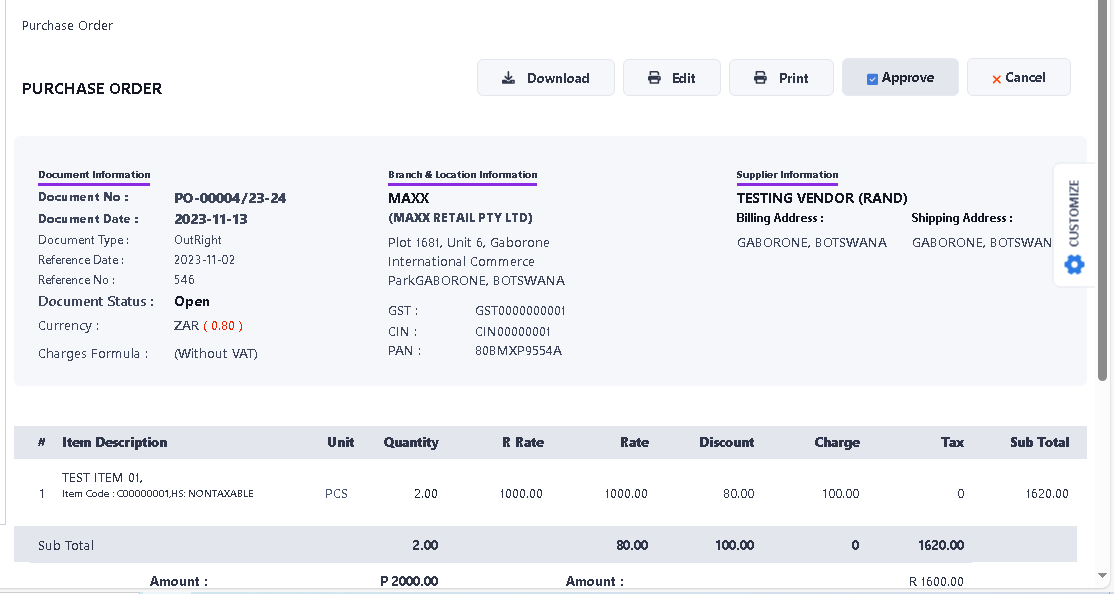
> After open the Purchase Order. Click on Approve button to Approve the purchase order.
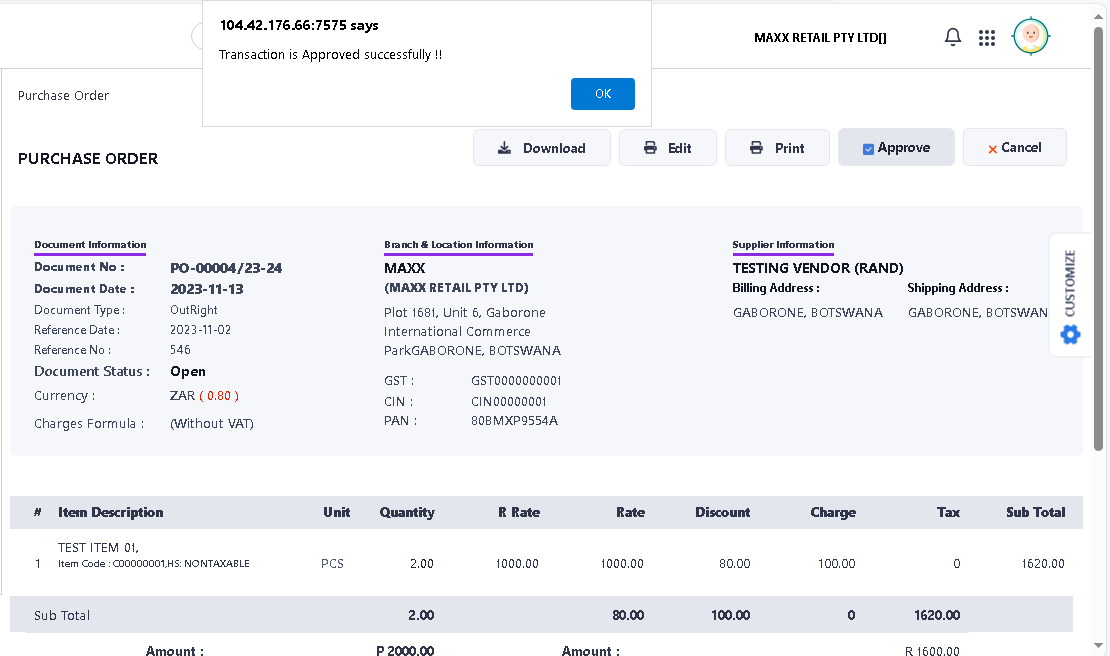
> After click Approve button, you will see the confirmation message. click ok to continue.
>> Now the Purchase Order Create process is completed successfully.