AR/WEB-004- How to create Purchase Invoice and Vendor Payment.
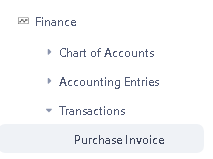
Navigation – Finance – Transactions – Purchase Invoice.
Note: Before making the Purchase Invoice, check that the Goods Receipt document should be Approved.
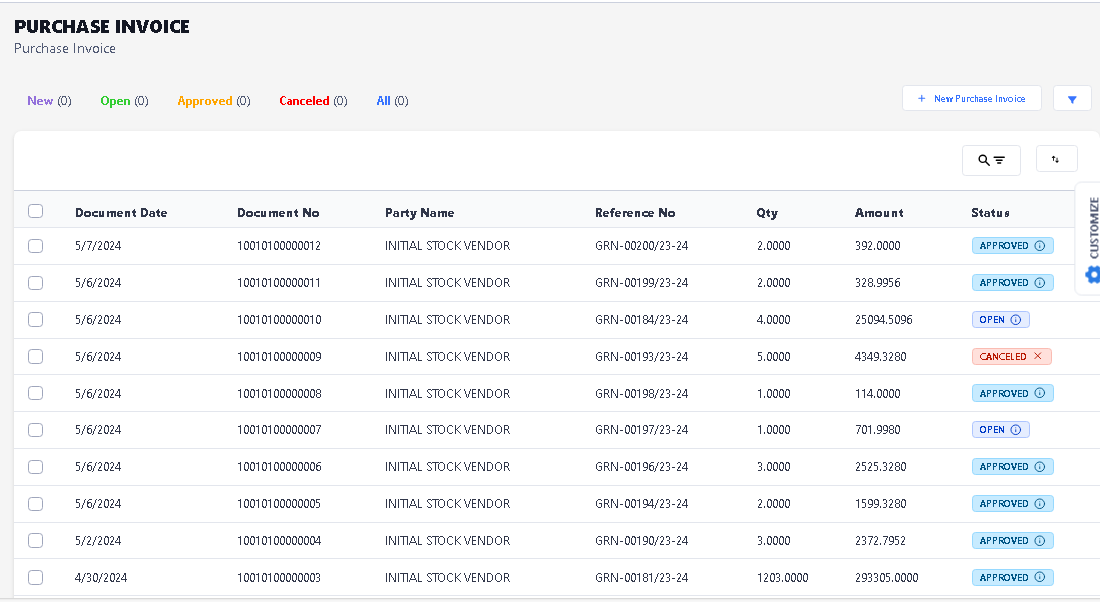
 > After click on Purchase Invoice function this window will appear.
> Click on New Purchase Invoice button to Create New Invoice.
 >After click New button new window will be open, enter the reference number and select the reference date.
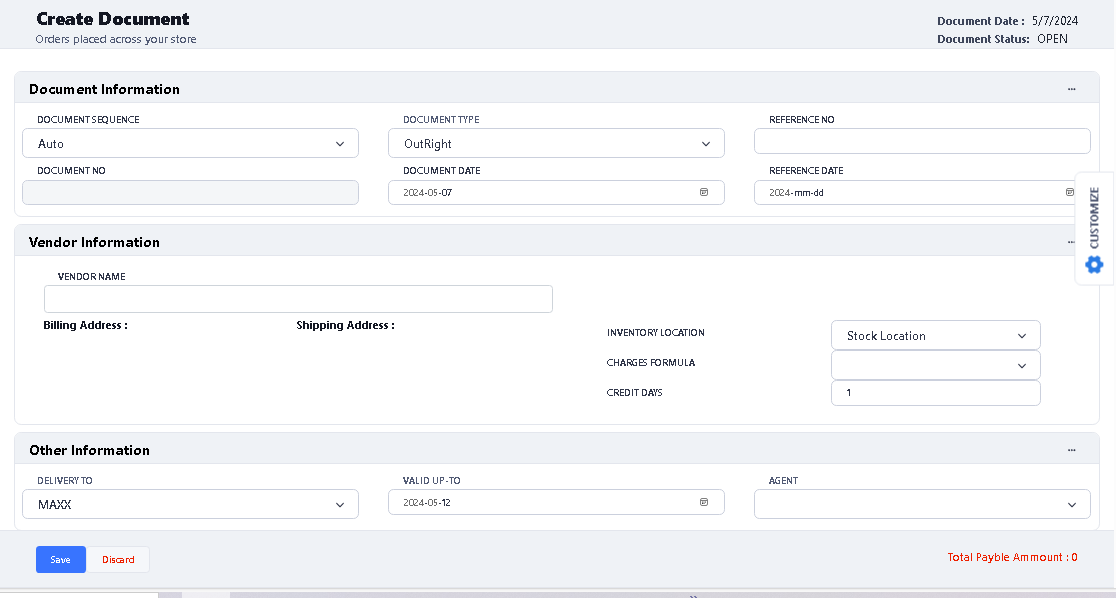
> Select the Vendor Name which you want to invoice.
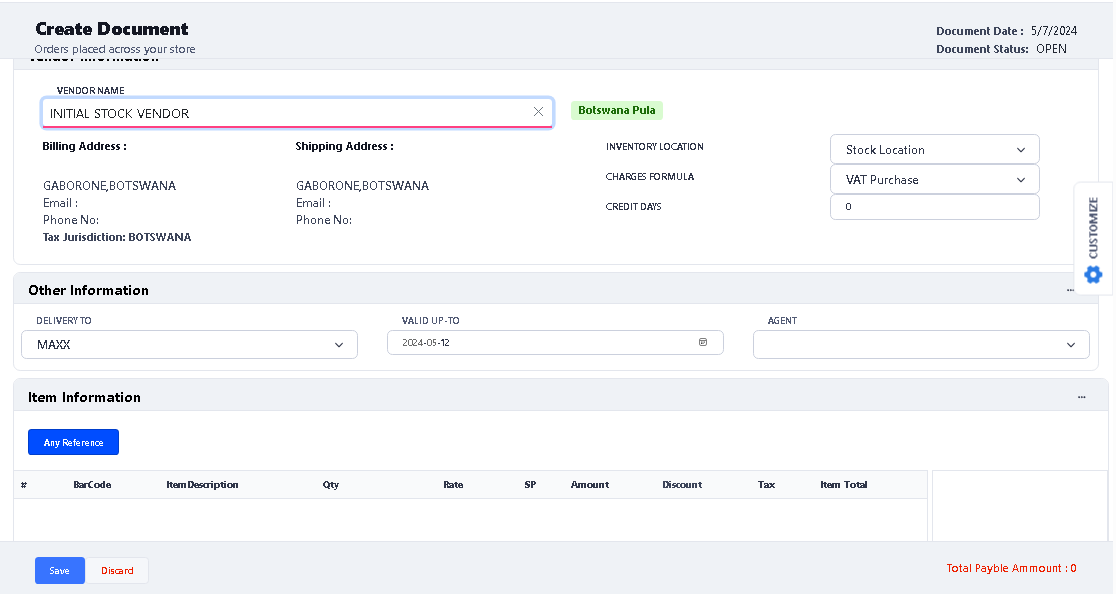
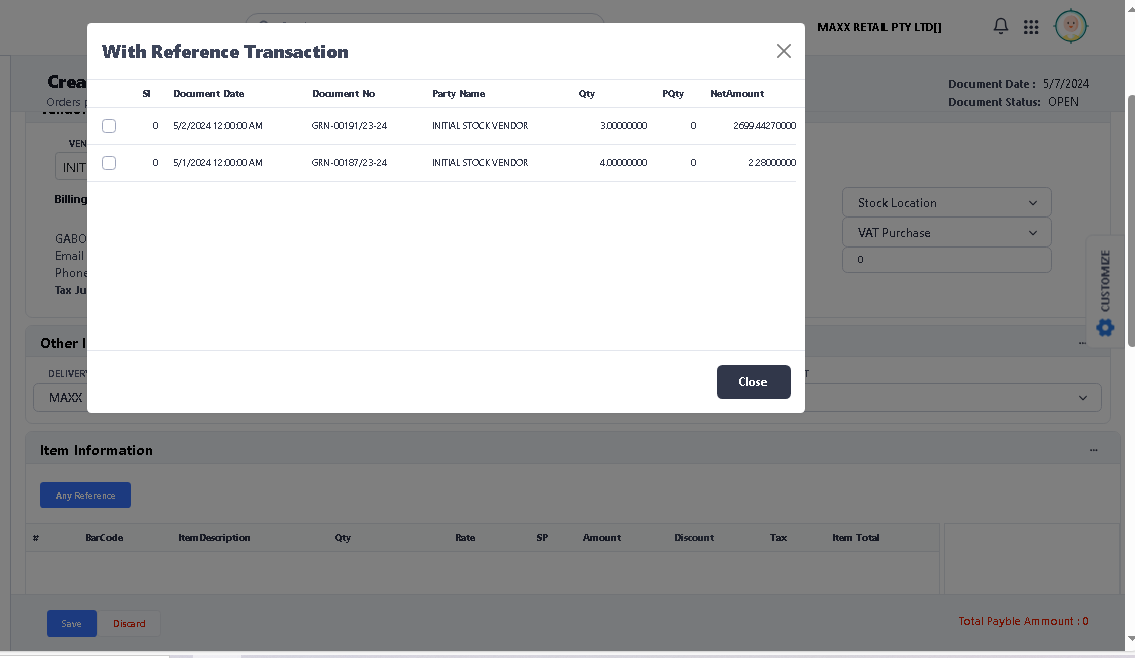
> After select the vendor, click on Any Reference button to select Goods Receipt document of selected vendor.

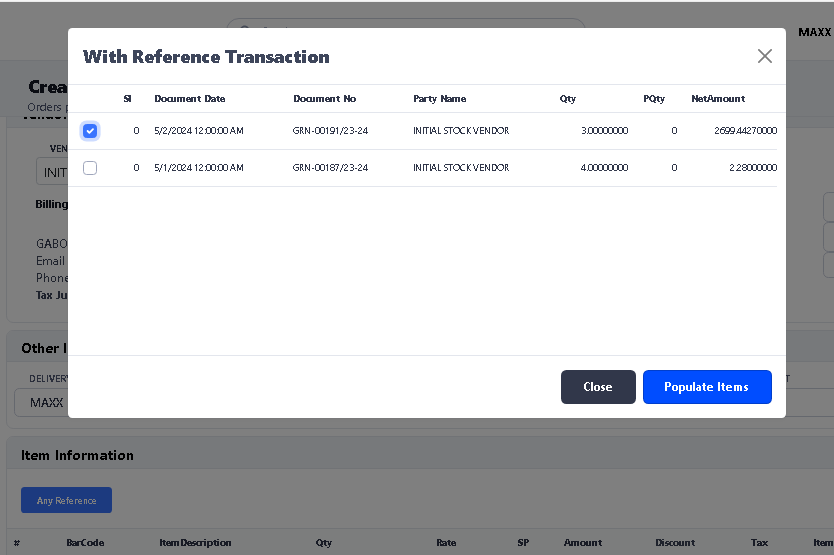
>After clicking Any Reference button you will see the new window will open, select the document which you want to make invoice by click on check box.
> After select the document click on Populate Items button.
> After click on Populate Items button, you will see that all items showing in the grid

> Click on Save button to save the document.
> After click on save, you will see the confirmation message. Click ok to continue.
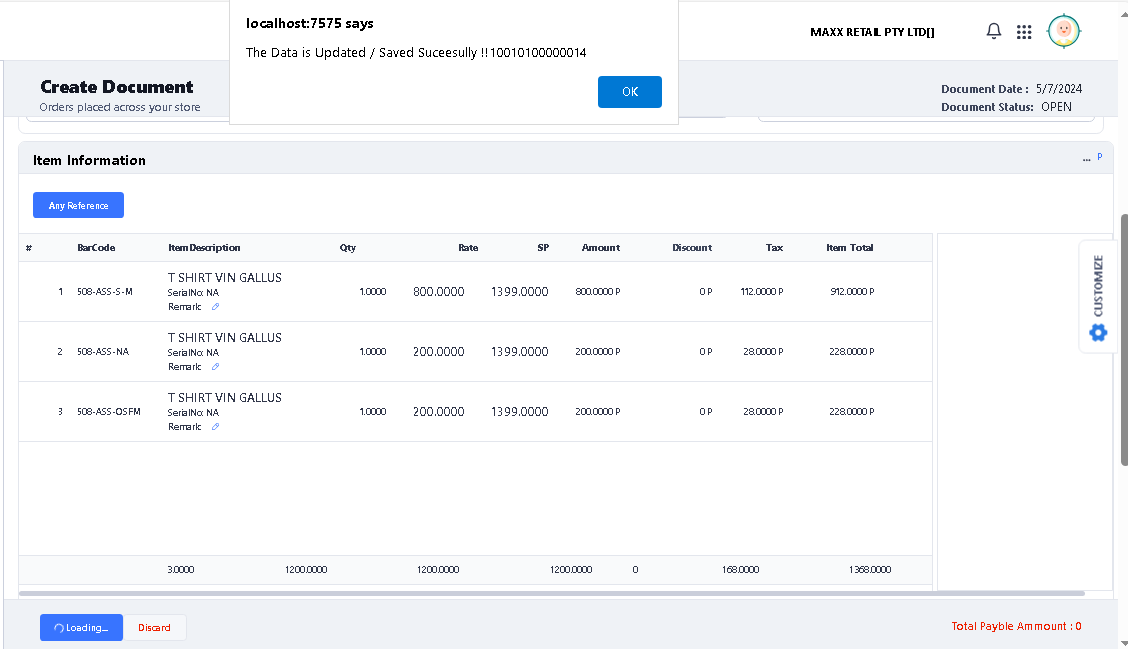
> Click OK, and you will see Purchase Invoice has been created and showing in the list.
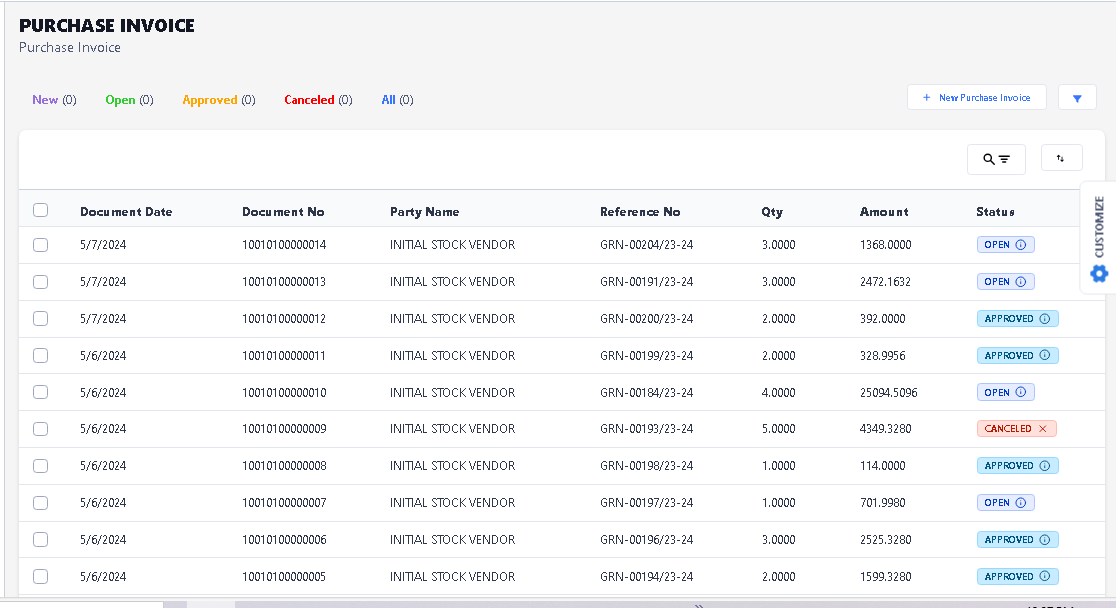
> For Vendor Payment, you have to Approved the Purchase Invoice first.
> For Approve Purchase invoice, click on particular invoice which you want to Approve.
> After click you will see the view page of the document, Click on Approve button on the top.
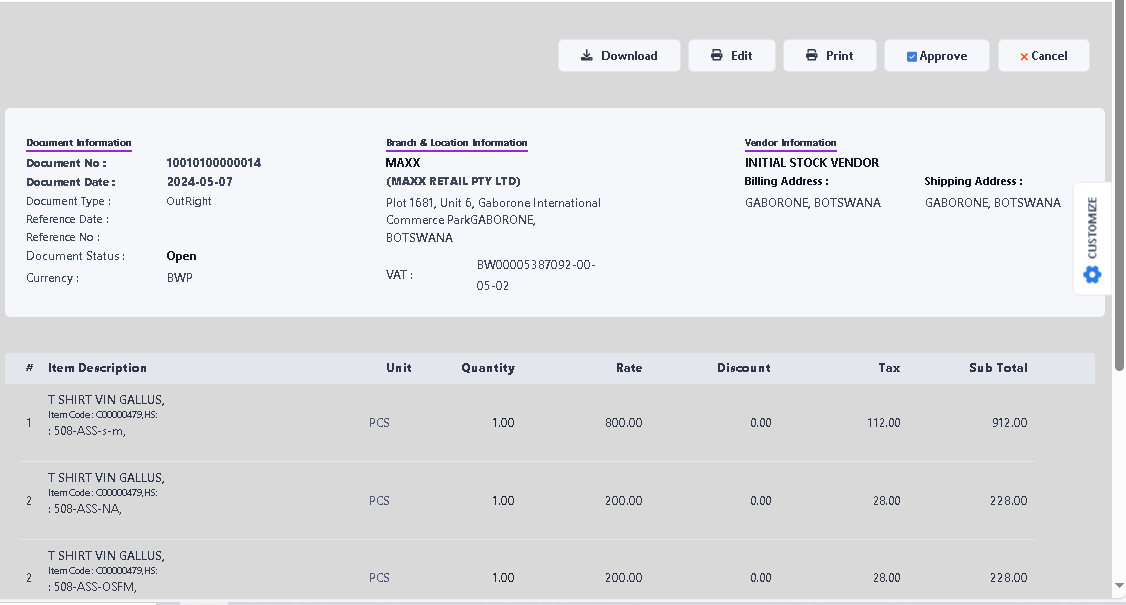
>After click on Approve button, you will see the confirmation message. click ok to continue.
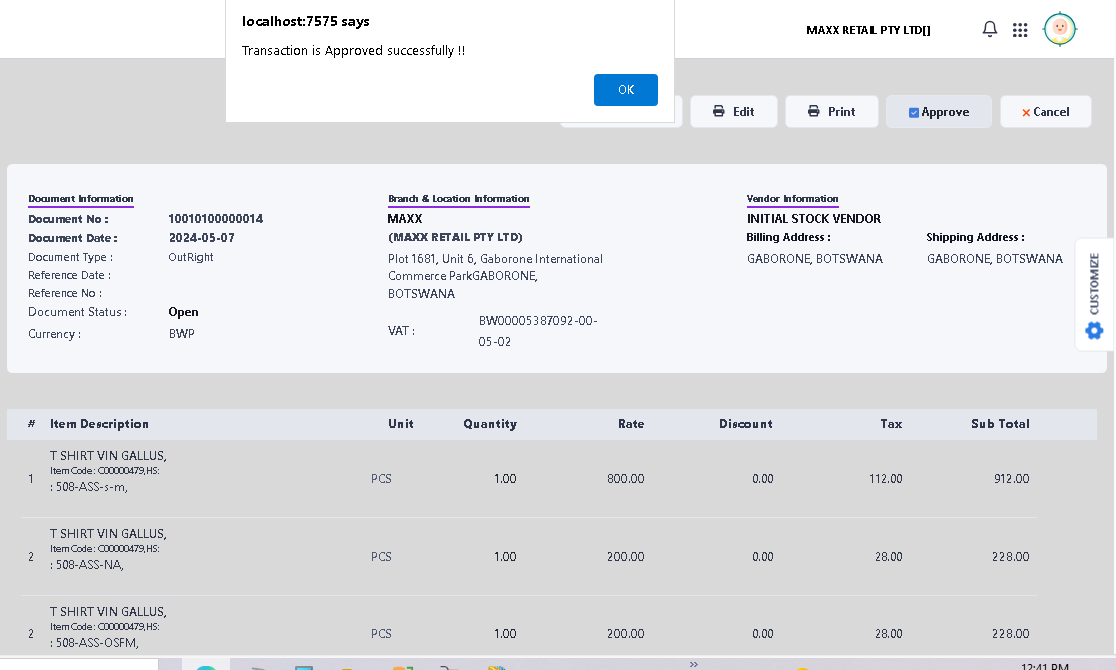
> After click ok, you will see the document showing Status Approved.
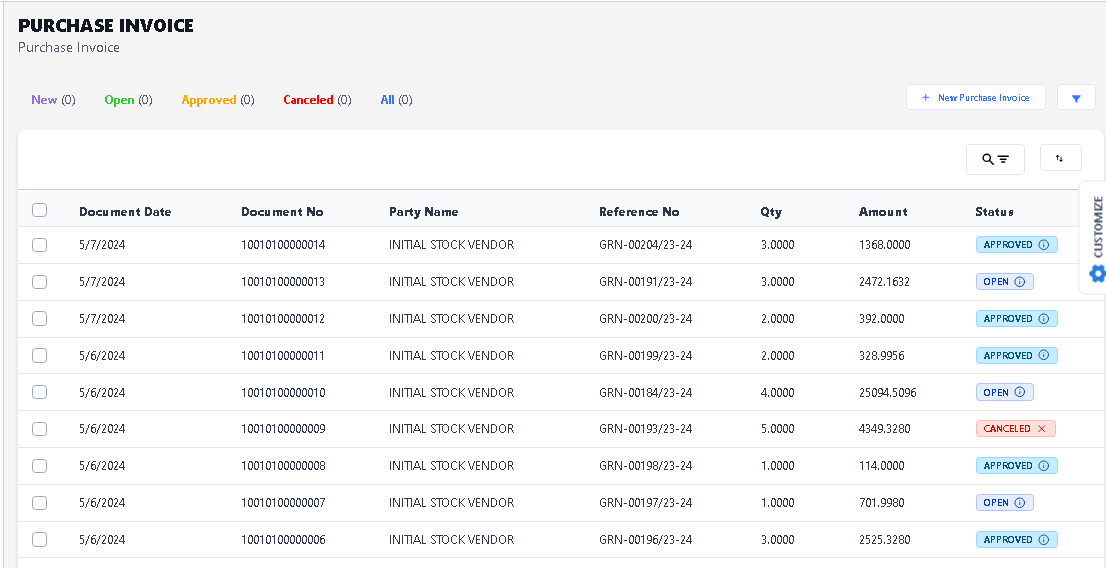
Now your Purchase Invoice created Process is complete….
Navigation – Finance – Transactions – Vendor Payment.
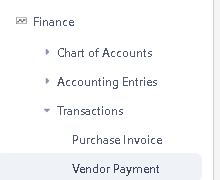 > After click on Vendor Payment function this window will appear.
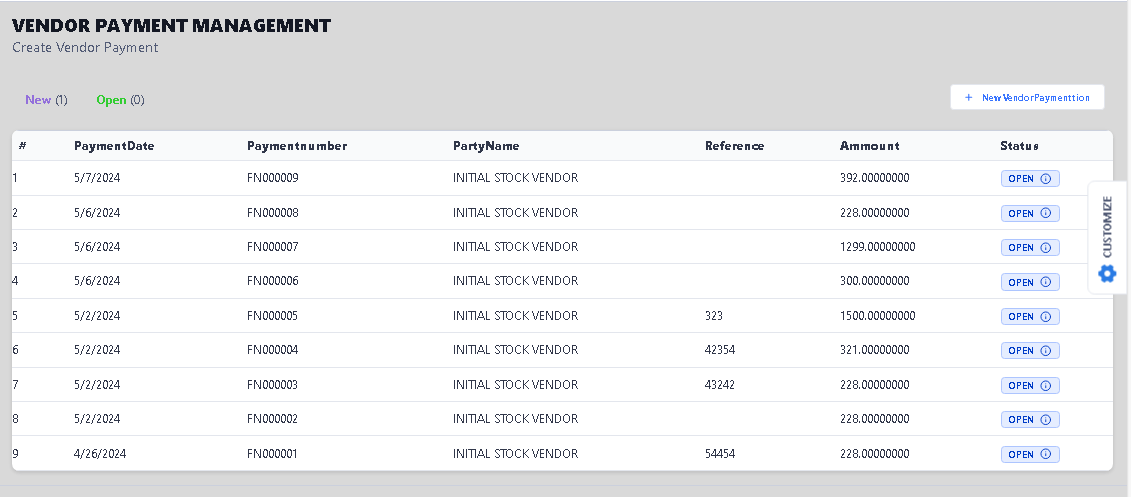
> Click on New Vendor Payment button.
>After click New button new window will be open,
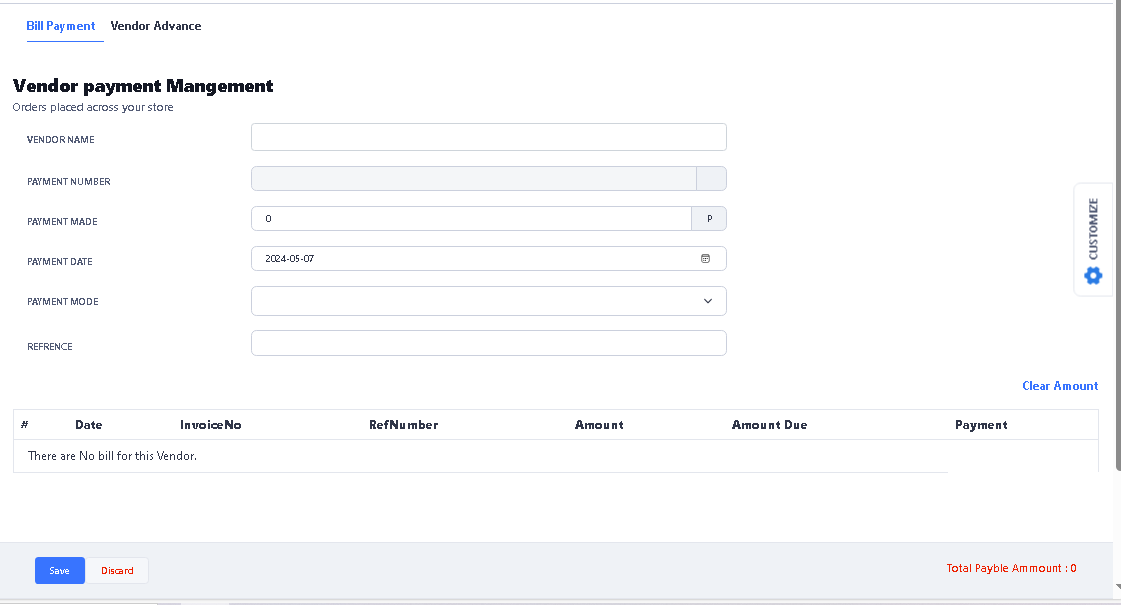
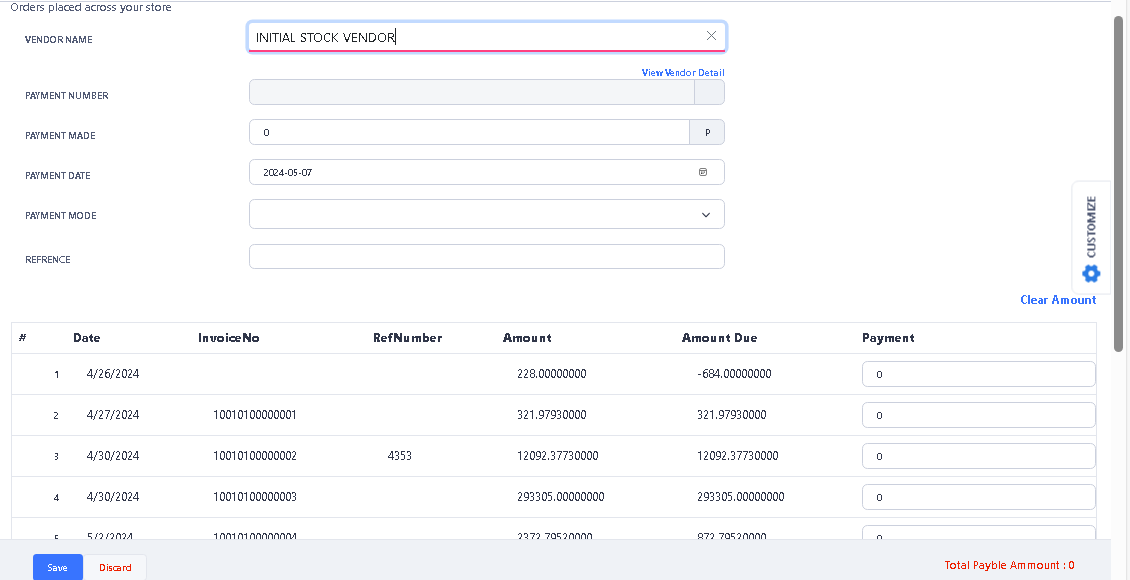
> First select the Vendor Name which you want to make Payment.
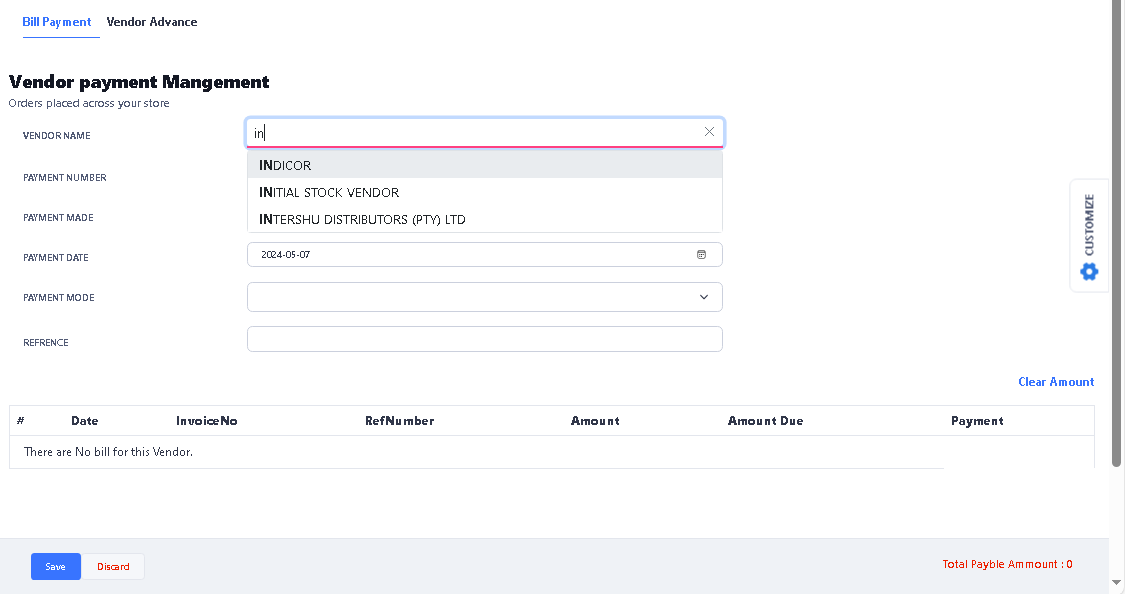
> After Select the Vendor Name, you will see all pending entries those whose payment is yet to be made or whose some payment is pending.