How Can We Help?
AR/WEB-007 Sales & Distribution-Sales Invoice
- Navigation & List of Sales Invoice
-
1. Navigation: Sales & Distribution >B2B Sales > Sales Invoice 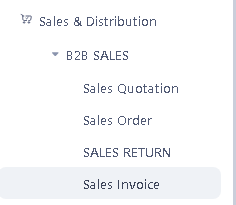
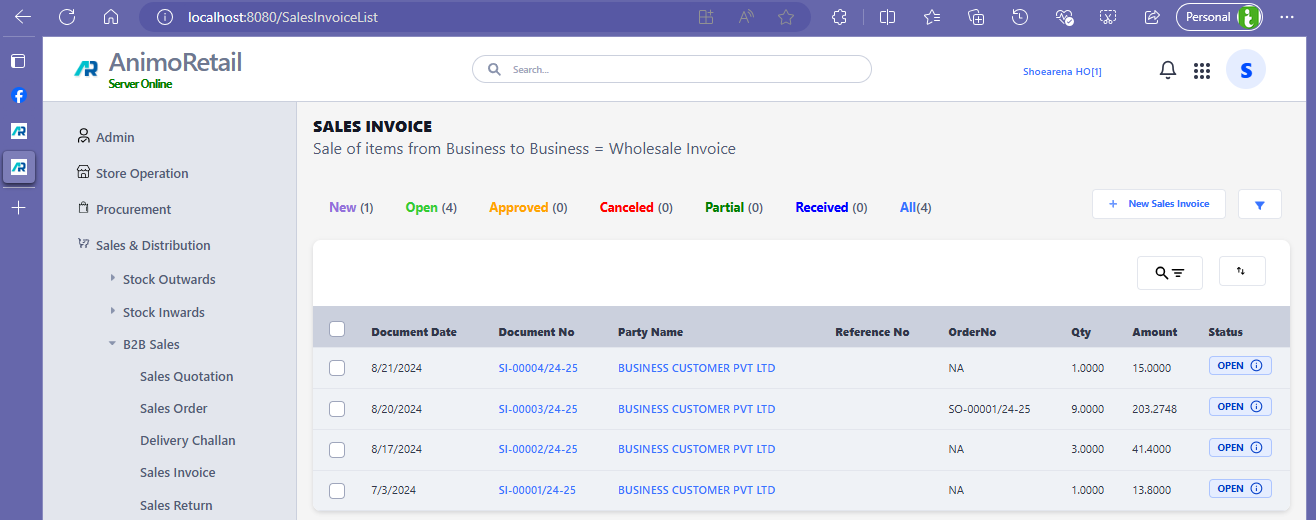
-
- Create New Invoice
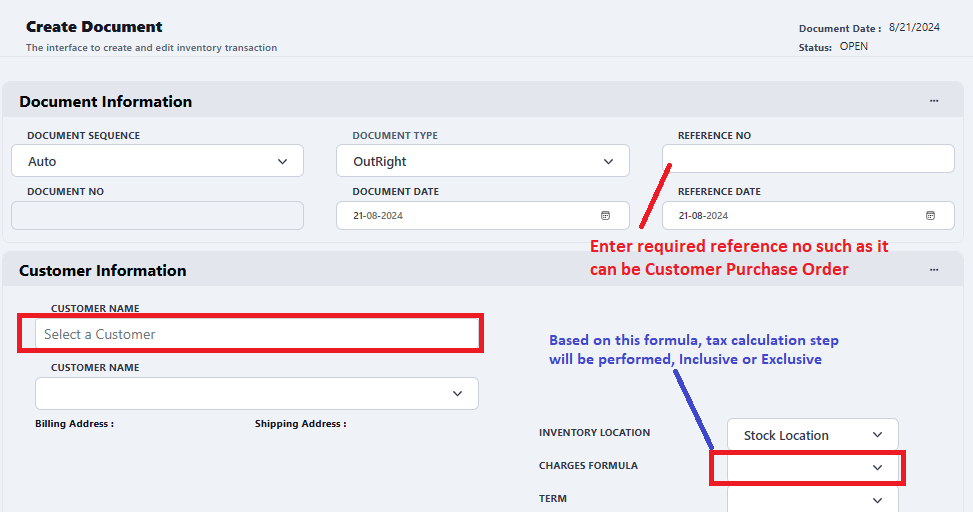
- An example of such is below
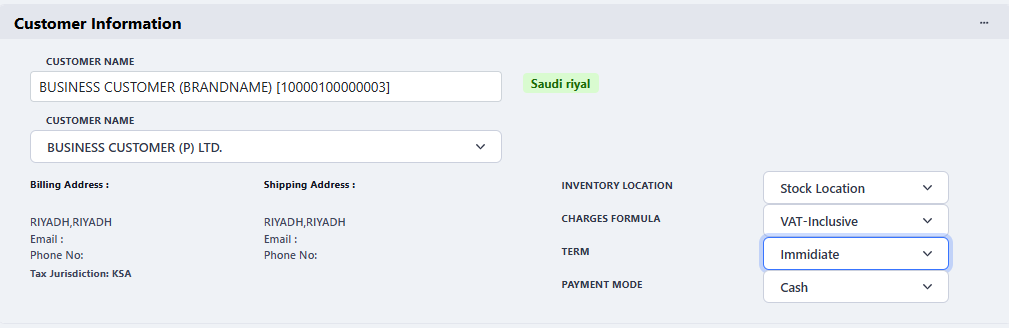
- Scan a barcode or use Item Lookup or Item Search Bar to select item
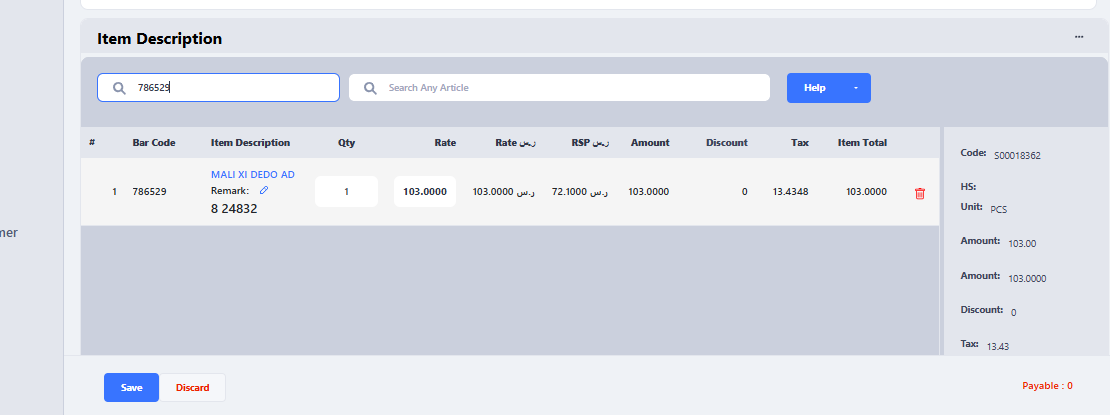
- Please cross verify if Tax is correct and it is inclusive or exclusive as per the requirement
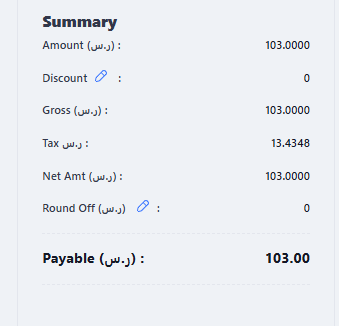
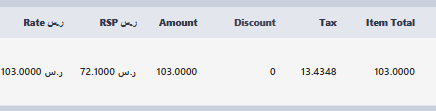 , For additional Charges you can click on Summary Information and enter it, Item Level Discount is already available in the item grid please see the image above, all other charges will equally proportionate and will be applied on all items except tax and discount.
- Use Save button to save the invoice
- After saving the document it will appear in top in Sales Invoice list

- Select the document and approve it if everything is ok, but please remember that once it is approved it can not be edited or canceled, it can be returned only
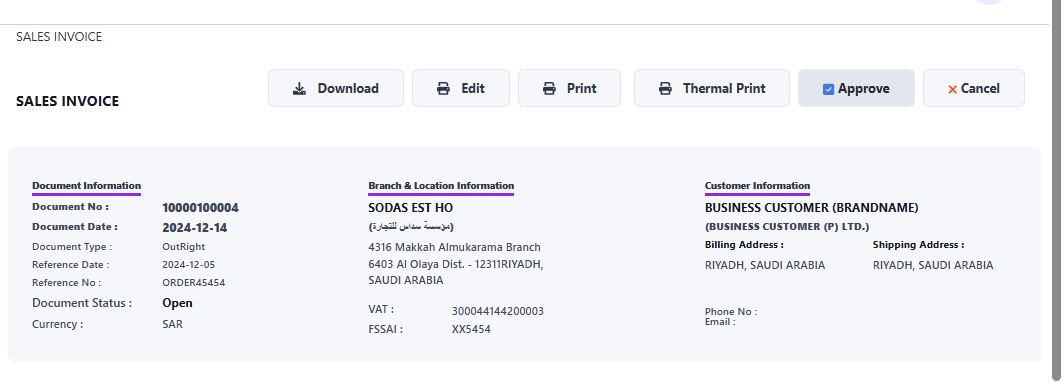
- To approve the document, click on Document No in above list and following interface will appear, Click on Approve Button to approve it