AR/WEB-006 Inventory-Stock Audit
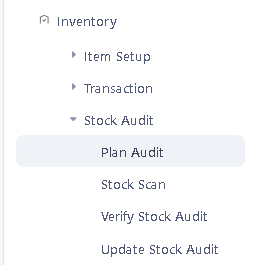
>Navigation: Inventory > Stock Audit.
> Here are Four step to do Stock Audit.
(I) Plan Audit
(II) Stock Scan
(III) Verify Stock Audit
(IV) Update Stock Audit
>> Now start with Step-I (Plan Audit)
> First click on Plan Audit function
>After clicking Plan Audit this window will appear
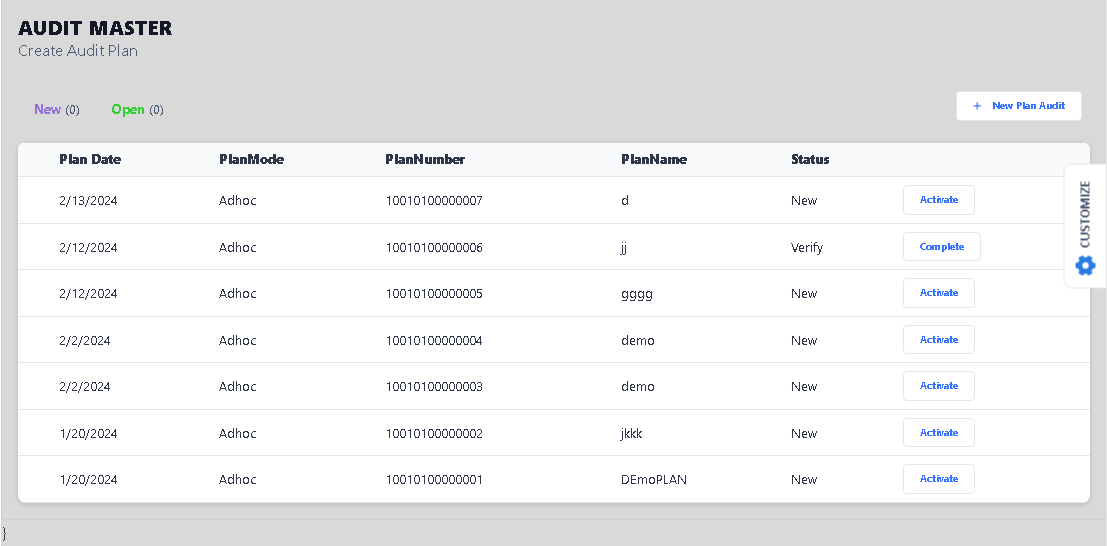
>Click on New Plan Audit Button option.
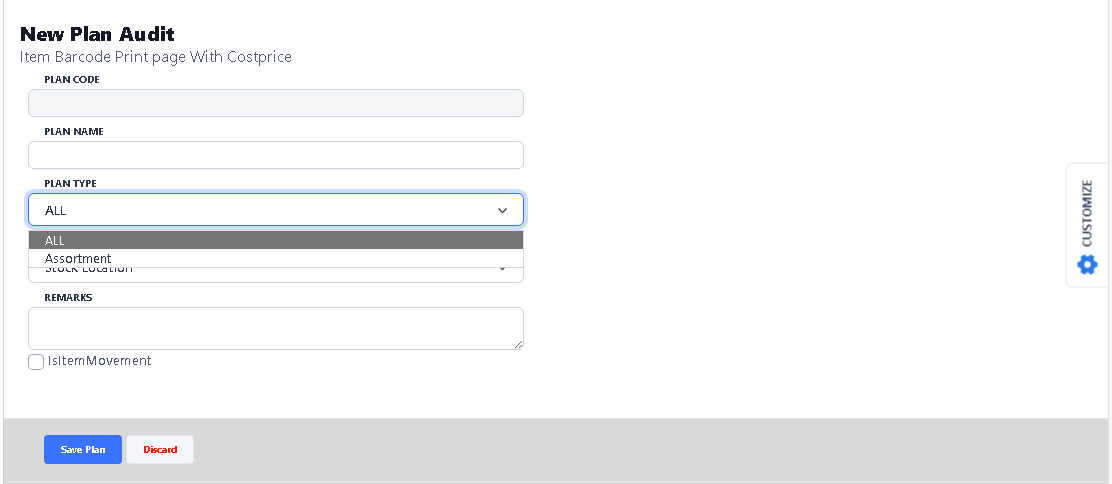
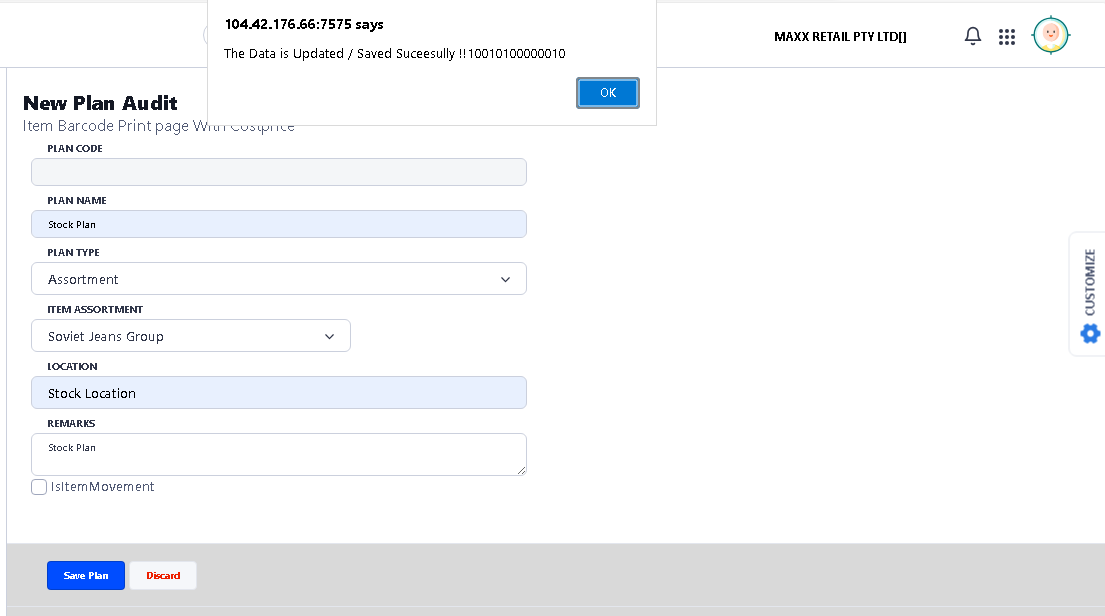
 >Enter the details like Plan Name, select the Plan Type, if you want to plan all stock audit then select All option in Plan Type, and if you want to do only promotions item stock audit then select Assortment option in Plan Type.
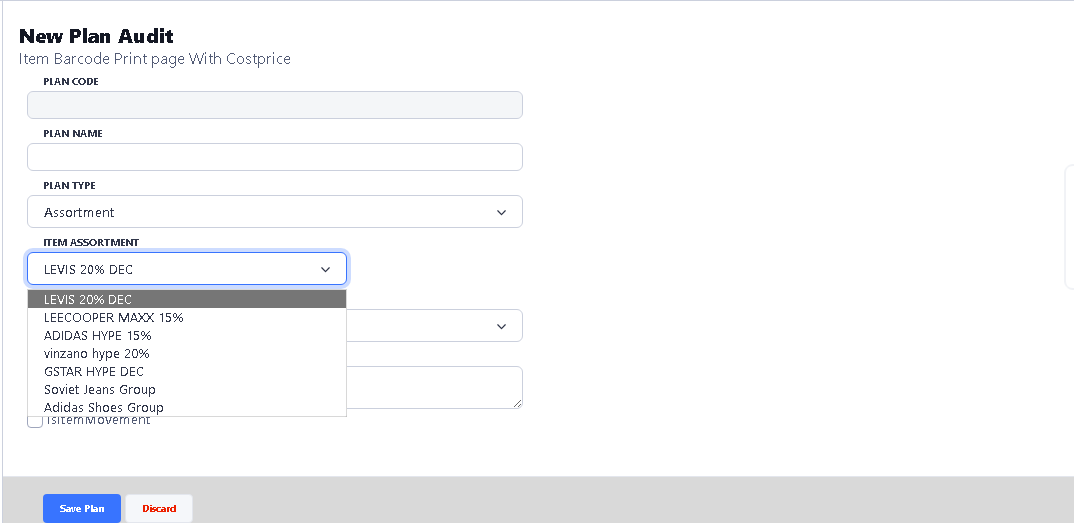
> If you select Assortment option, then select the Assortment here
>After enter Plan Name and select Plan Type click on Save Plan Button.

> After click on Save Plan button this message will appear on screen, click ok button.
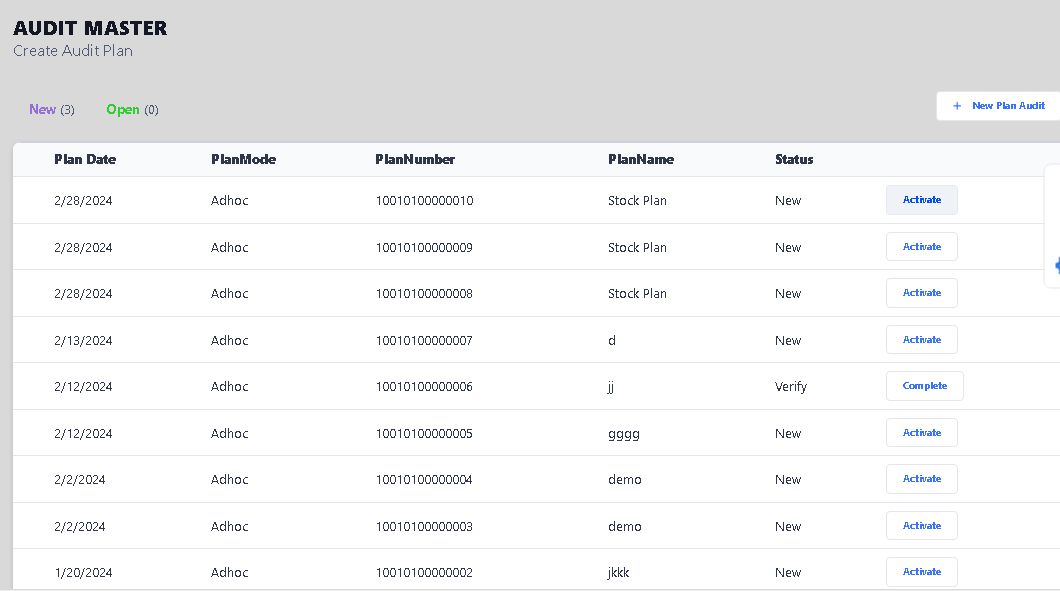
>After click on ok button, this window will appear on screen, click on Active button to start Stock Audit.
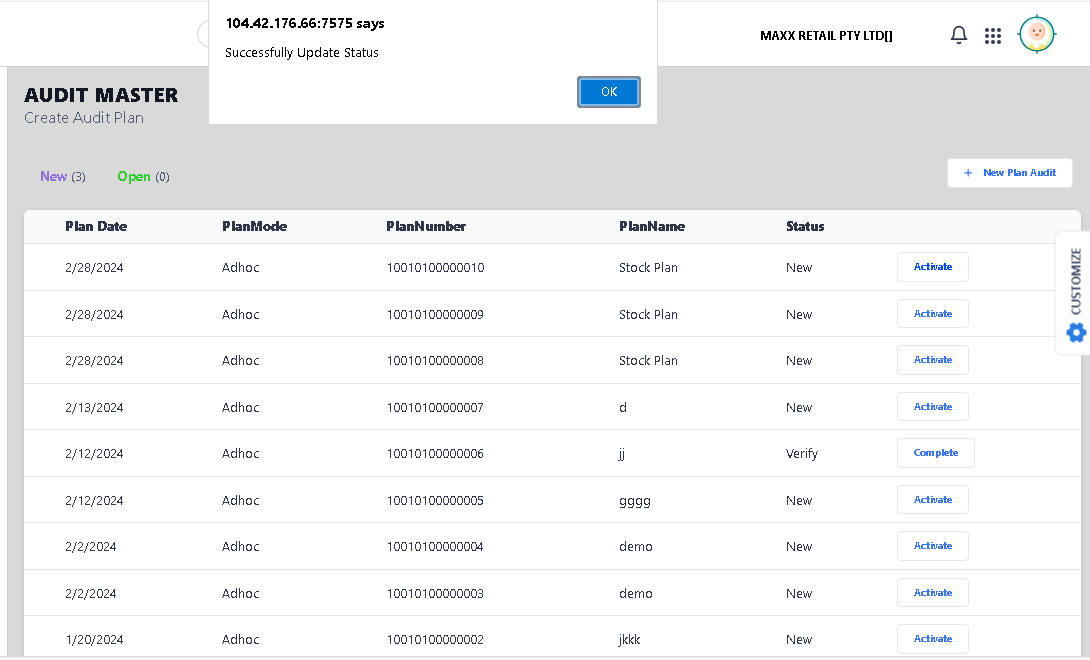
>Once you click on Active button, it shows a confirmation message.
>Now your Step – I Process is complete.
>> Now start with Step-II (Stock Scan)
> First click on Stock Scan function
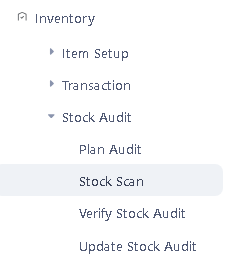
>After clicking Stock Scan this window will appear
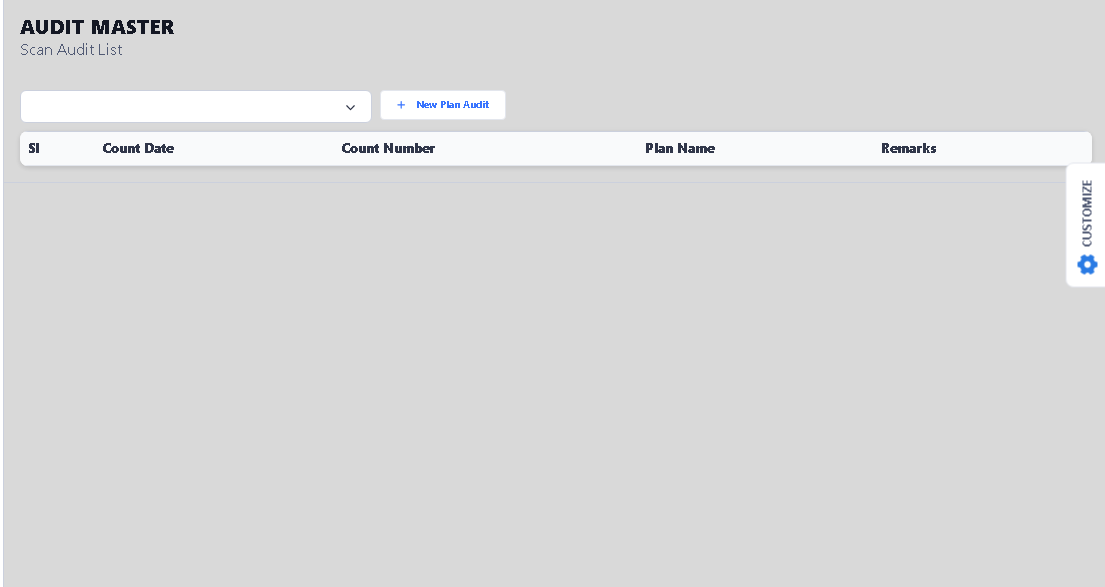
>Click on New Plan Audit button.
 >>After clicking New Plan Audit this window will appear, please select the plan in Plan Name option.
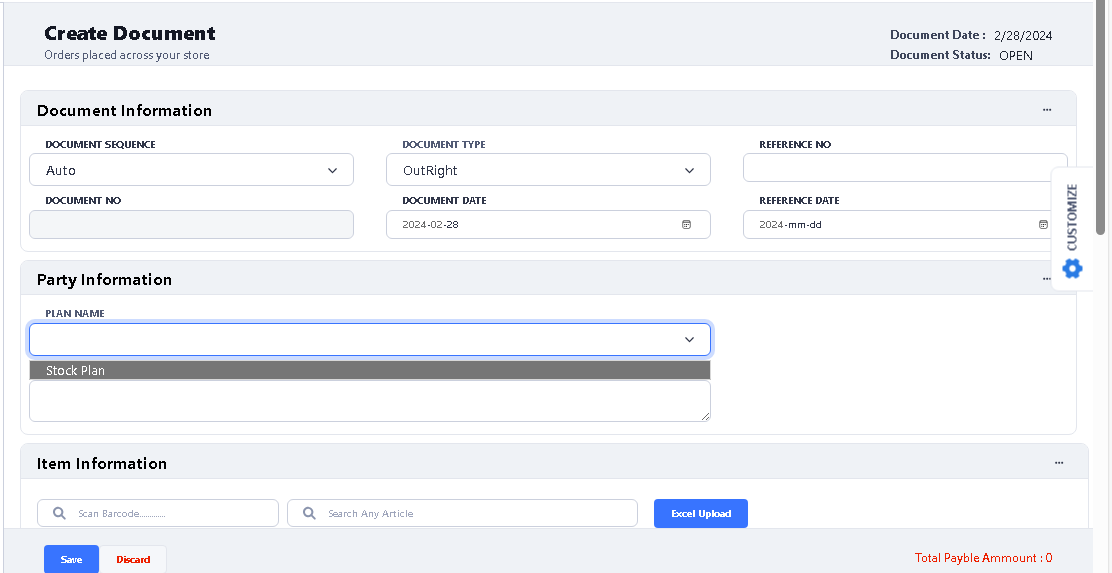
>After select the plan start scanning by clicking in the Scan BarCode box, you can also use excel upload option.
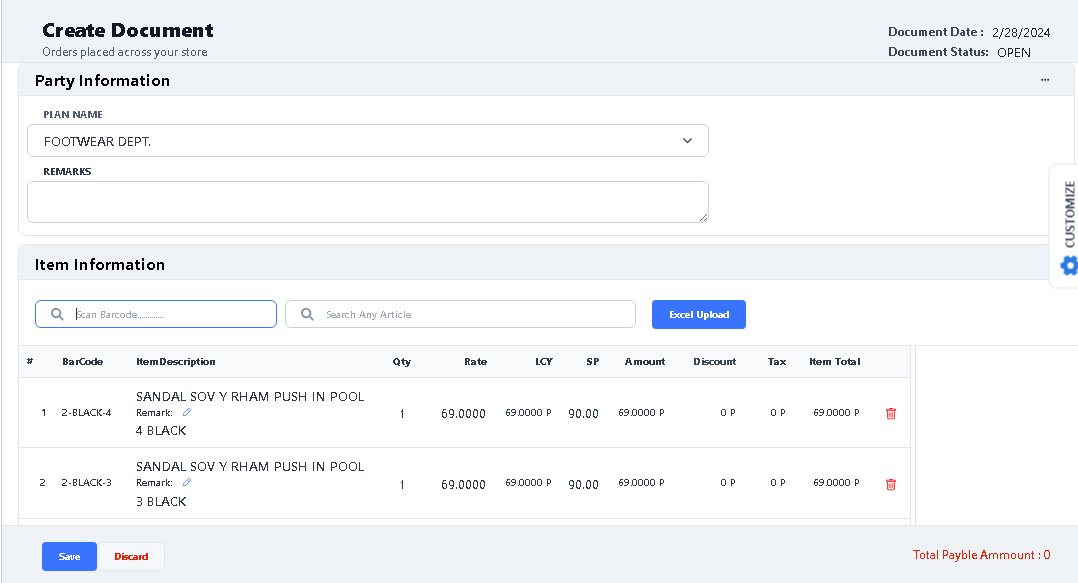
> After scanning click on Save button, once you click on Save button, it shows a confirmation message.
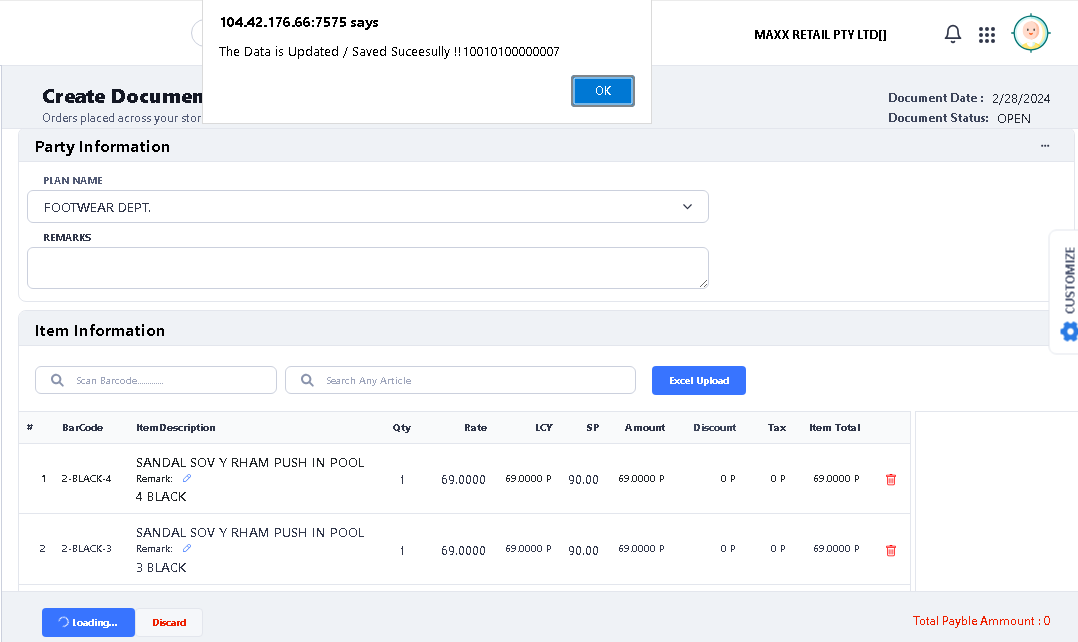
> you can also save more entries from same process in the same way like this
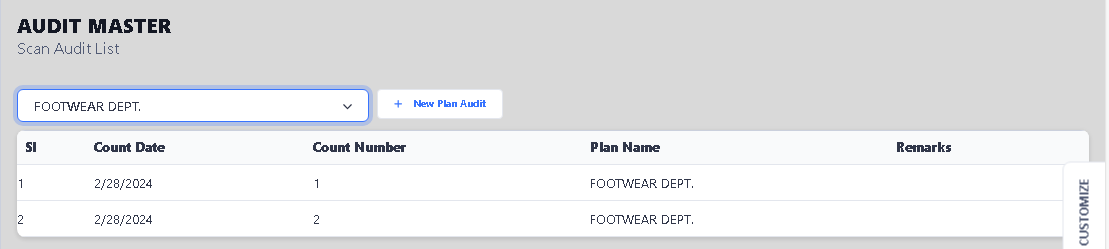
>After complete Stock Scan, open again Plan Audit option to Verify Plan.
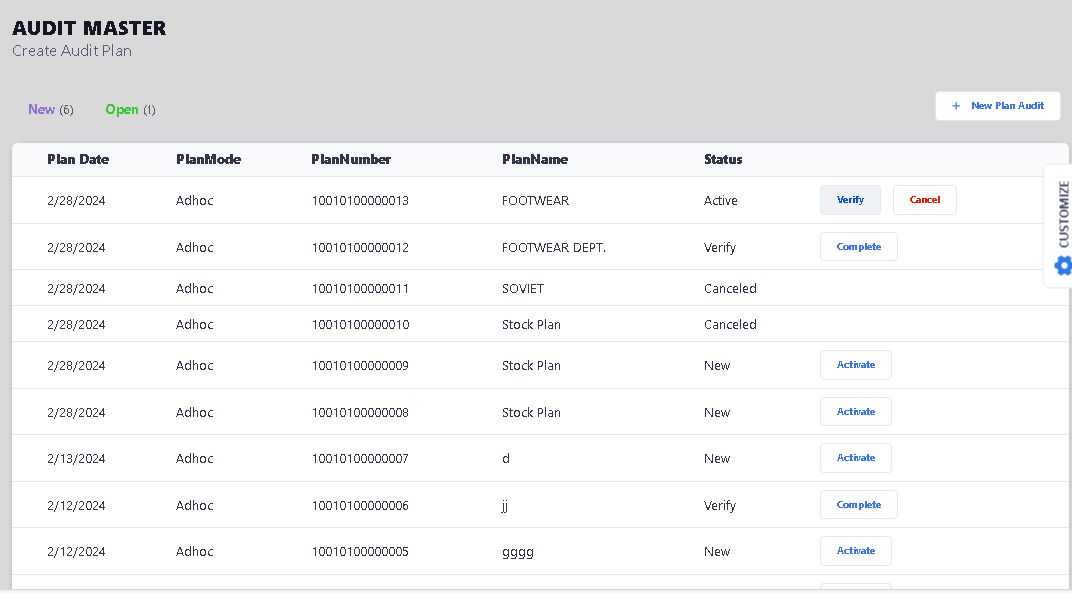
> Click Verify button to Verify Plan, after click you will see the confirmation message.
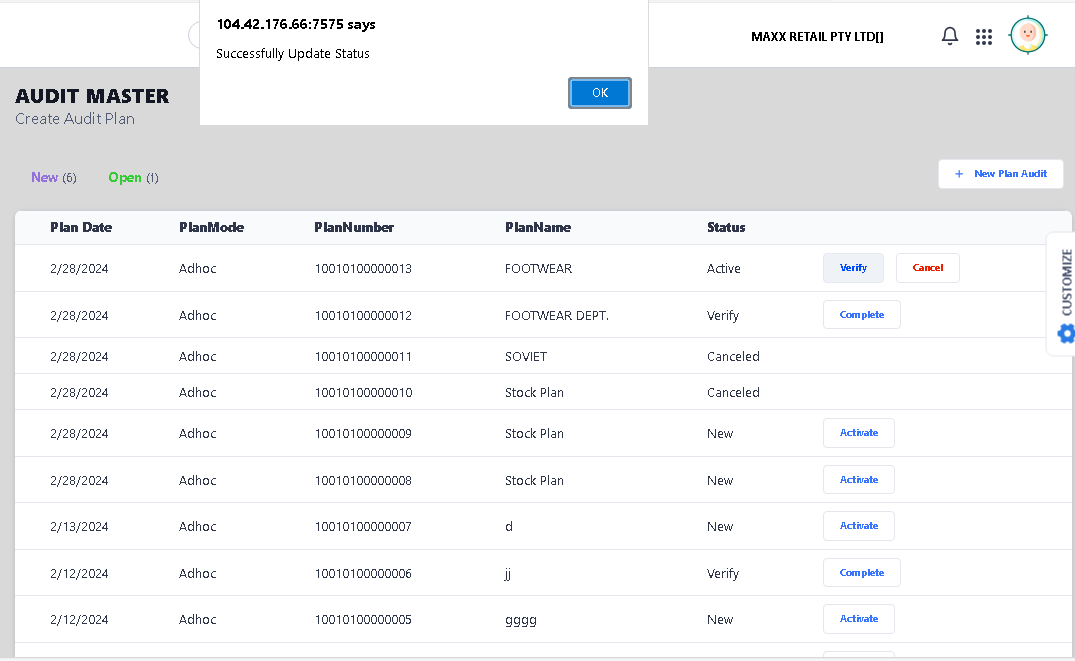
>Now your Step – II Process is complete.
>> Now start with Step-III (Verify Stock Audit)
> First click on Verify Stock Audit function
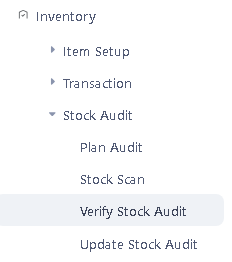
>After clicking Verify Stock Audit this window will appear
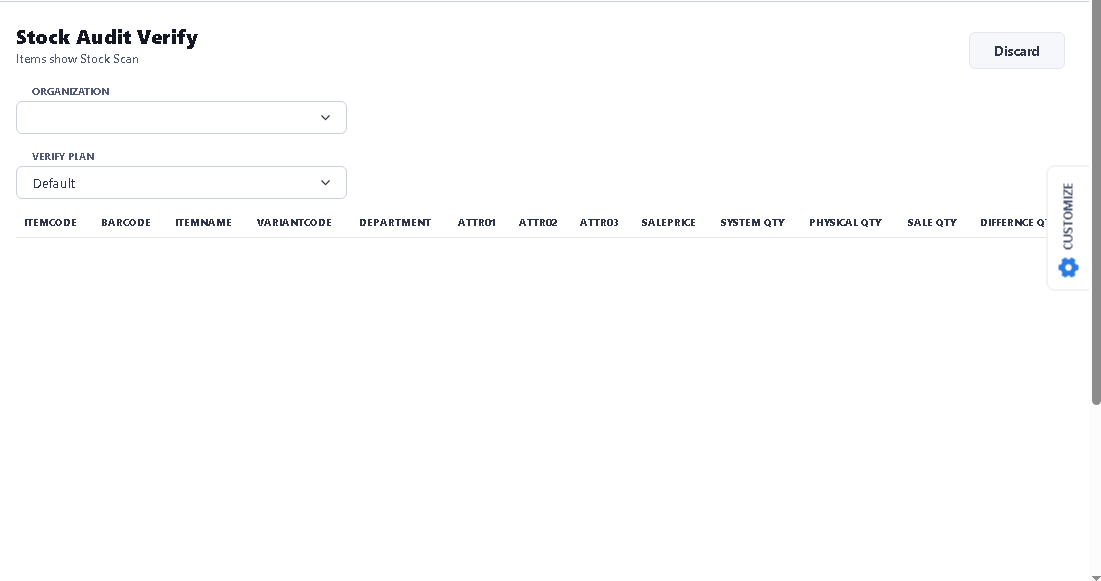
>Select Organization and Verify Plan by choosing drop down option.
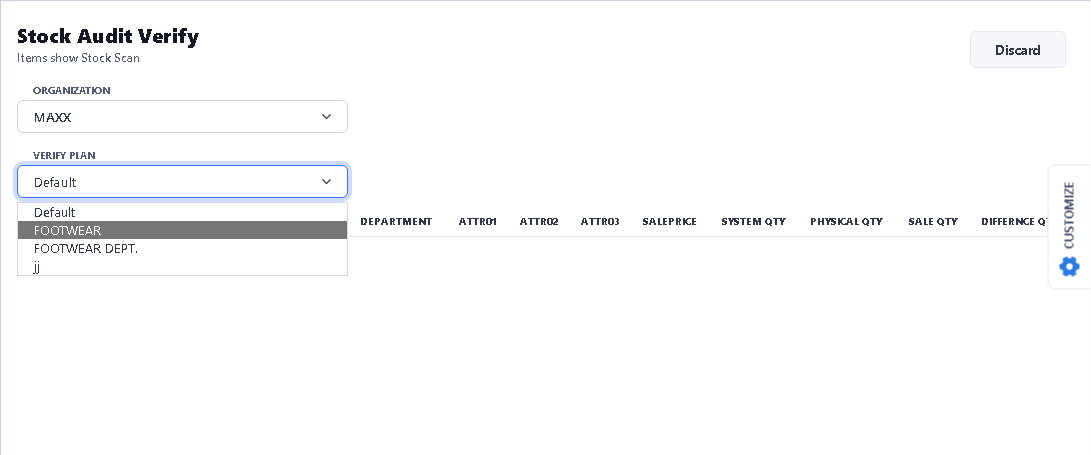
> After select, you will the records.
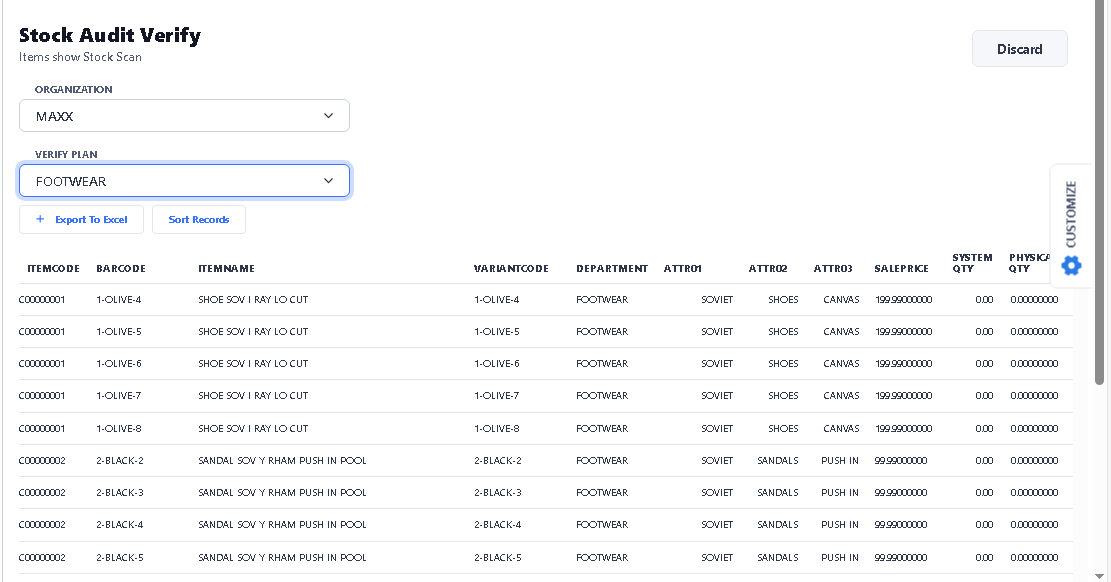
> Click Export To Excel option to save the record in excel.

>After Click Export To Excel, you will see the record is saved in excel.
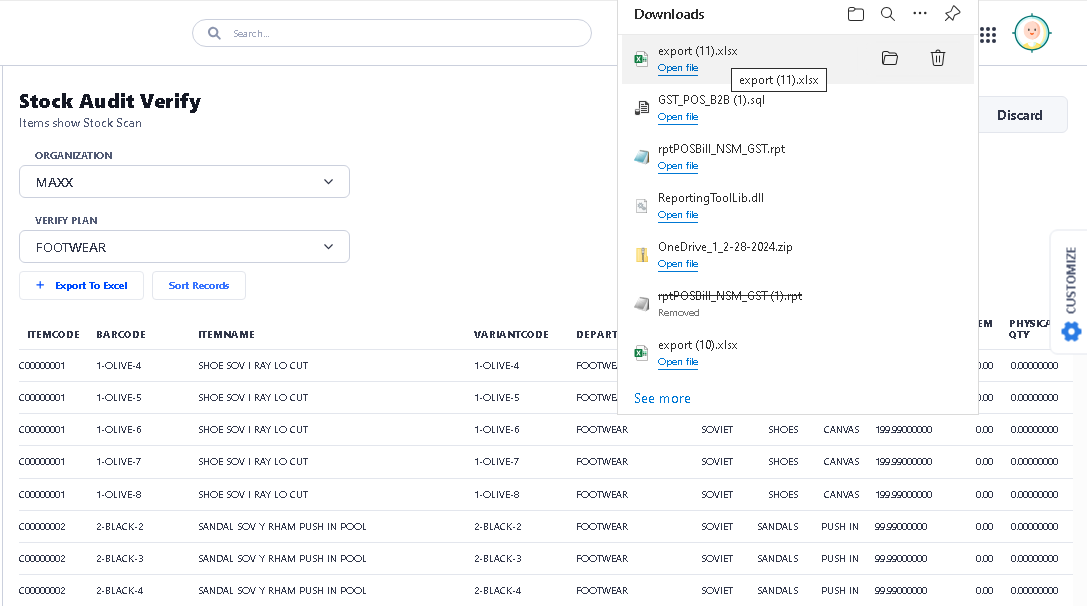
>Now your Step – III Process is complete.
>> Now start with Step-IV (Update Stock Audit )
> First click on Update Stock Audit function
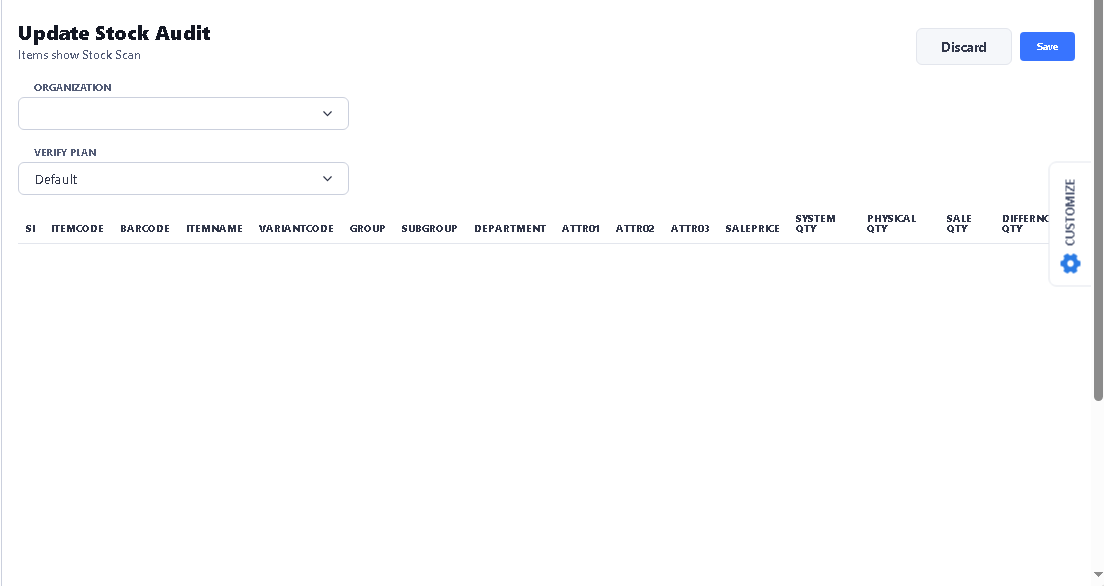
>Select Organization and Verify Plan by choosing drop down option.
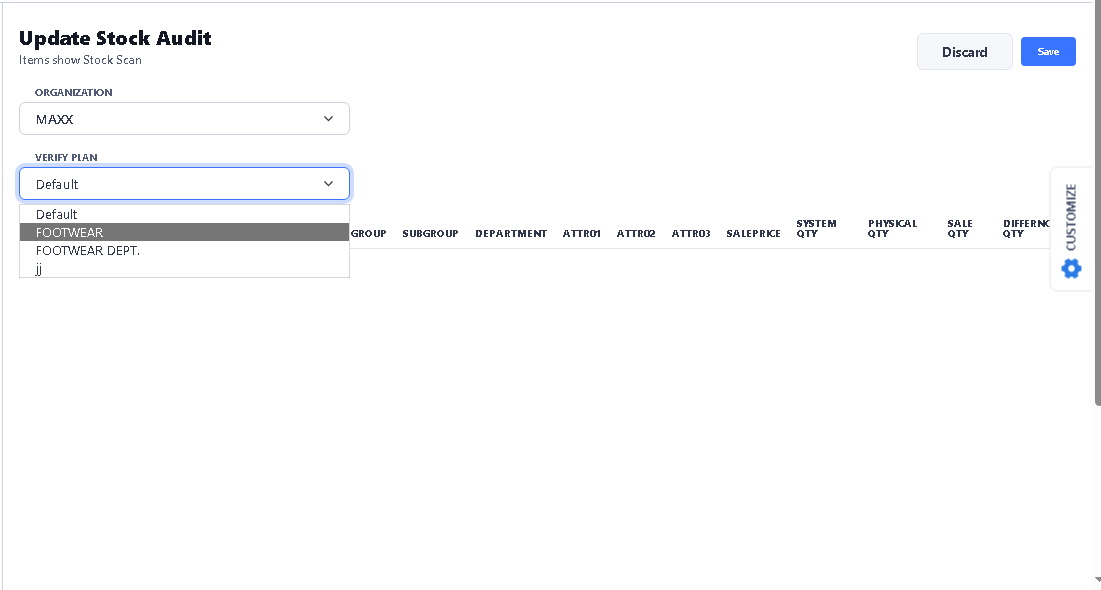
> After Select Verify Plan, you will see all audit summery related to this plan.
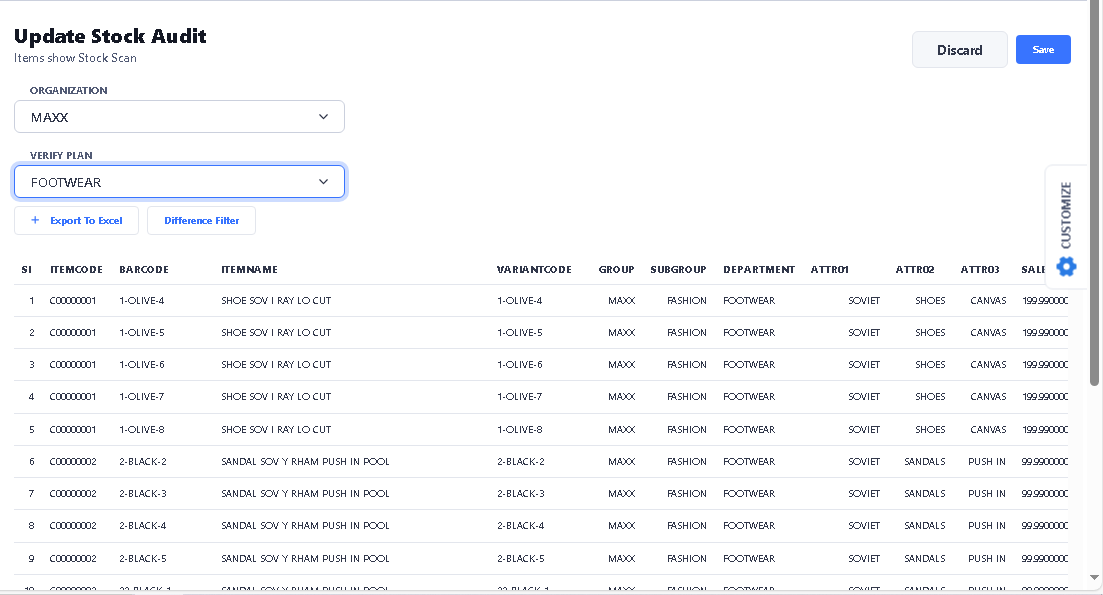
> Now Click to Update button to update the Plan.
>Now your Step – IV Process is complete.
>> Last Step, open Plan Audit option again and click to Complete button to complete the whole Stock Audit Process.
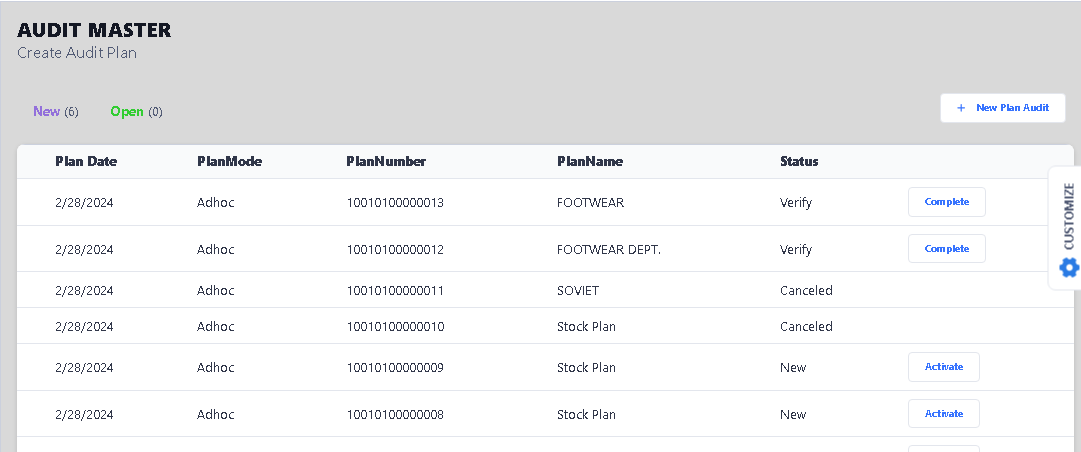
>> Now your Stock Audit whole process is completed now…..