How Can We Help?
How to Return Goods to Supplier
Purchase Entries can be made by following
- Procurement -> Goods Return Ad-hoc (Without any reference)
- Navigate to Goods Return and create a new Document
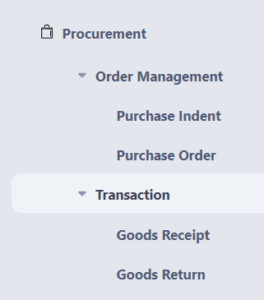
- Procurement – Transaction – Goods Return
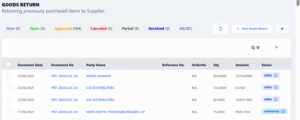
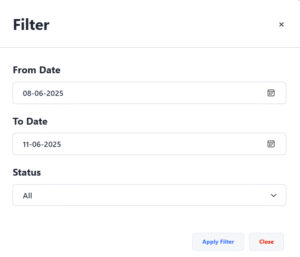
- A list will appear when you click on Goods Return which shows by default recently made documents, filter option is available for old records
- List
- Filter

- Print / View or Edit
To print, view or edit a document click on the Document No- A new interface appears which is view of Document with all details, there is a toolbar on top with action buttons such as EDIT, PRINT & APPROVE
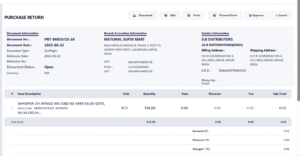
- A new interface appears which is view of Document with all details, there is a toolbar on top with action buttons such as EDIT, PRINT & APPROVE
- Please note a document is editable until it is not approved, an approved document is not editable
- List
- Create a Return

- Click on New Goods Return
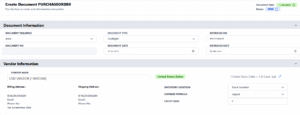
- Enter Reference Date and Reference No which can be Bill / Reference Details of Supplier Document etc.
- Select Vendor
- If it is a foreign currency (overseas) vendor, please check and edit Exchange Rate, to edit exchange rate use Pencil icon next to Ex Rate.
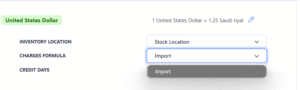
- Be cautious about Formula
At time of implementation Animo RETAIL configure multiple formulas as per requirement as some may have VAT/GST and some may not have it, some Tax Calculations may consider Additional Charges such as discount and freight too and some may not, so choose it wisely.
- Item Information
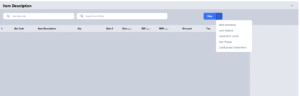
- Scan a barcode
- Item Help or Search by Article, incase barcode is not available.
- There are some other options like
- Excel Upload –
- Excel Sheet with columns
Barcode , Quantity , CostRate, SalePrice - Excel Sheet with columns
Barcode, Quantity
- Excel Sheet with columns
- Excel Upload –
- Scanned Item will appear in Grid
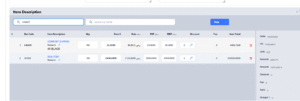
- Change the Quantity
- Change the Rate (if overseas, enter foreign currency rate and system calculates and put rate as (Rate in Vendor Currency) * Ex Rate
- If required change RSP and Listed Price (MRP)
- Discount on Item Level, recommended to use only if for every item there is a different discount to be applied
- Tax Calculation will be done automatically by system
- Once all items are scanned scroll down to summary block and enter additional charges as per requirement
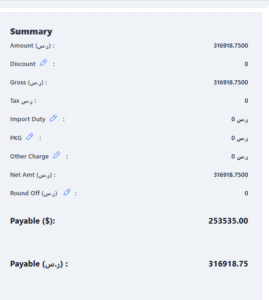
- any of these charges can be entered as amount or % To edit the charge click on Pencil icon
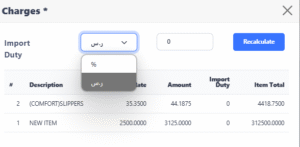
- Do note if Discount is edited here it will impact on all items and override discount entered on Item Level.
- any of these charges can be entered as amount or % To edit the charge click on Pencil icon
- Click on New Goods Return
- Verify if all information is filled correctly save it
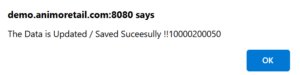
- Once you click on OK it will redirect to Goods Return list
- Procurement – Transaction – Goods Return
Need more help?
If you have questions or need further assistance, feel free to create a ticket https://animoretail.raiseaticket.com/ or browse our other help articles.