AR/WEB-002- How to create New Items.
> Navigation: Inventory > Item Setup > Item Manager.
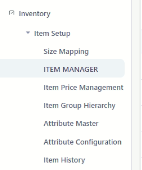 > After click on Item Manager function this window will appear.
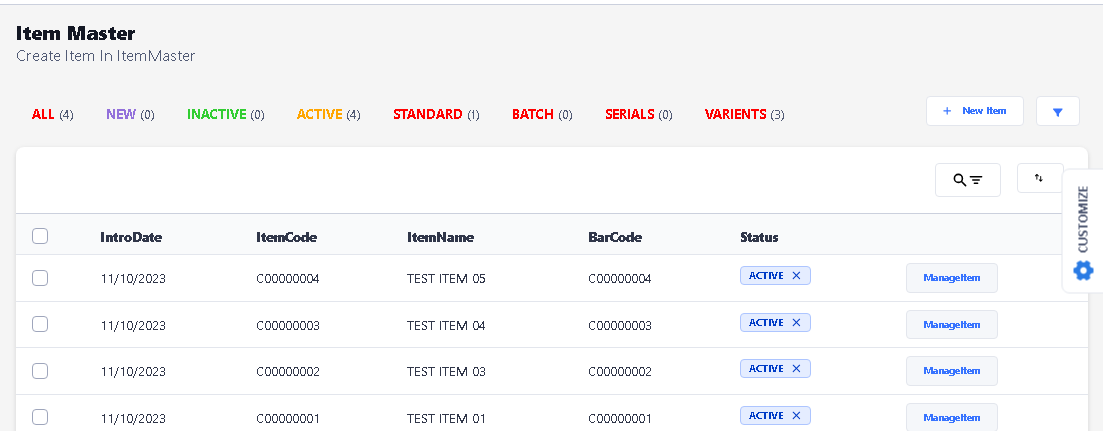
> For Create New Item, click on New Item button.
> After click on New button the new window will be open.
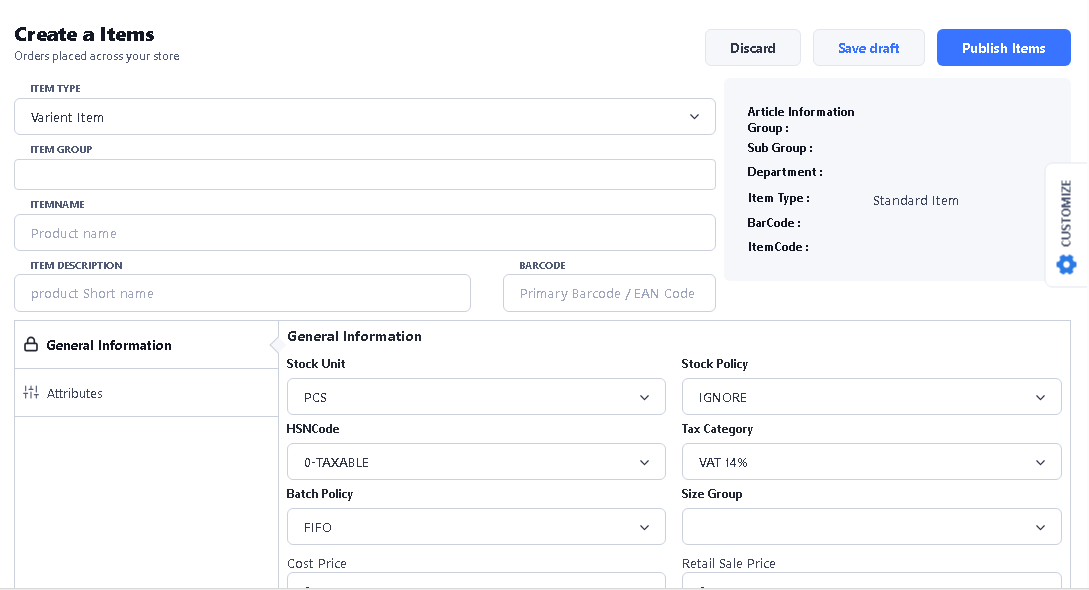
> For Standard Item Creation, please select Standard in Item type option, same if you want to create Variant Item then select Variant Item option.

> After Select Item Type, please select the Item Group by typing.

> After select Item Group, type Item Name in Item Name option, Item description is automatically pickup from item name, if you want to change the Item description name, then you can do it by clicking on that option and change it.
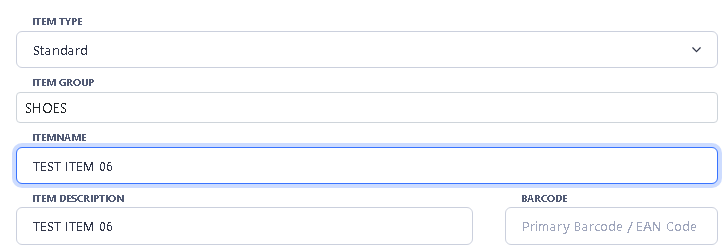
> Now here you see two options there one is General Information and second is Attribute option, by default first it is selected on General Information option.
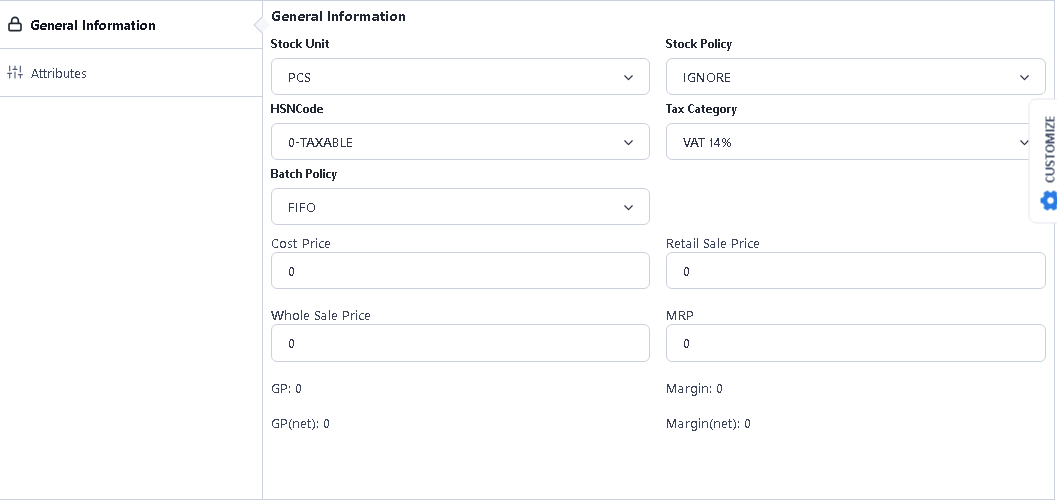
General Information
> Now fill the details as per option.
1) Stock Unit – By default selected PCS option in that, if you required according to stock like (MTR, GRS, KG) then you can change it.
2) Stock Policy – By default it is selected IGNORE option, if you want to change it, you can see other two options is there one is STOP and other is WARNING, STOP means is the quantity of stock is showing 0 then you cannot scan the stock, and WARNING means if the quantity is showing 0 then at scan time showing warning message.
3) HSNCode – By default selected.
4) Tax Category – By default selected with VAT 14%, if you want to change, you can change it.
Other you can put the Cost Price / Retail Sale Price / Wholesale Price / MRP.
Attribute Option
> In Attribute Option, you can select the attribute related to the New Item by selecting one by one, for example, if you want to select Brand attribute then first click on Brand attribute option, then type and search the Brand Name.
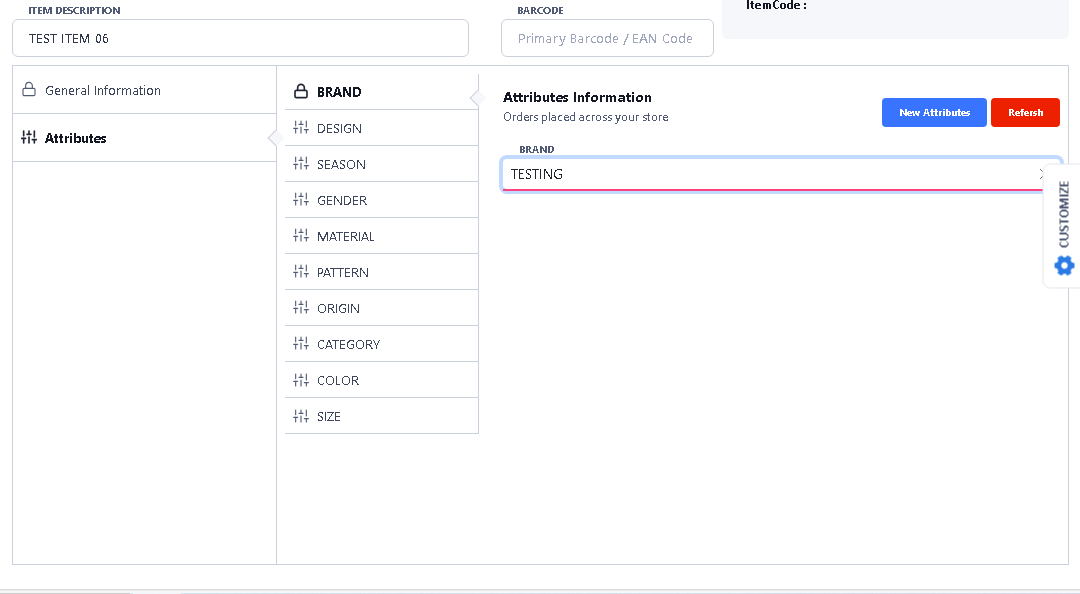
> If you want to create new attribute then click on New Attribute option, after click on New Attribute button this window will appear.
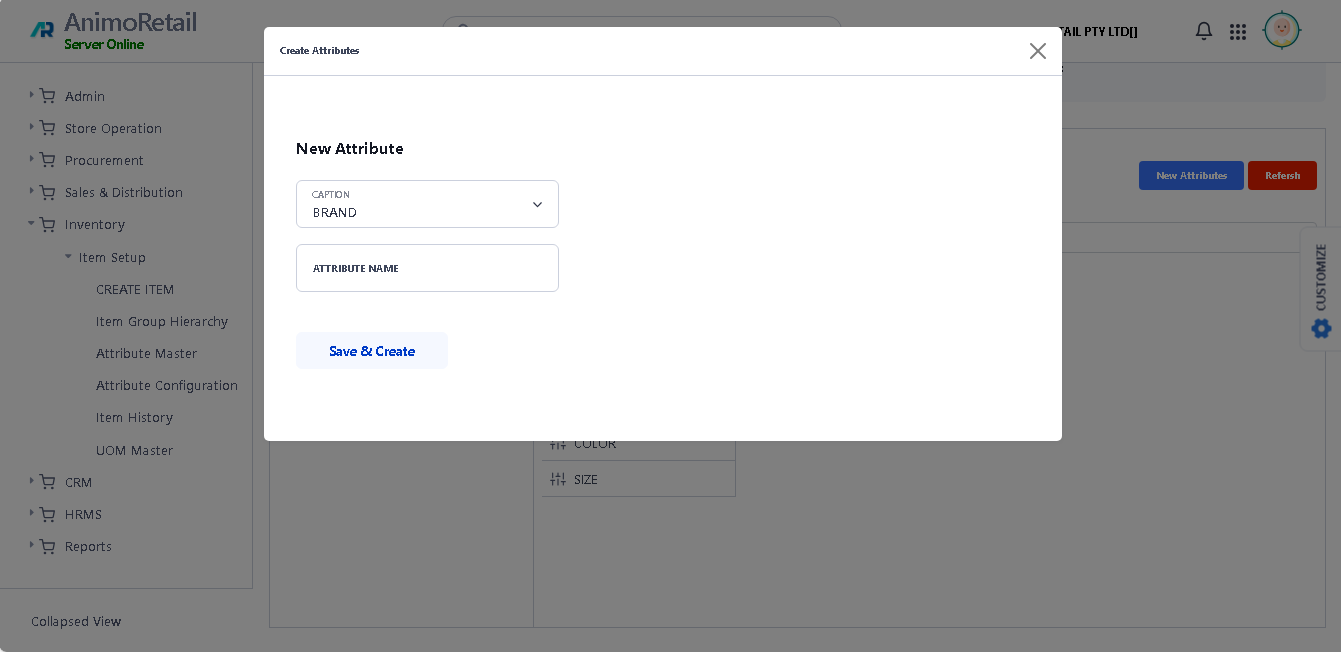
> Here first select the attribute option by drop down in which you want to create the New Attribute, then in Attribute Name, type the new attribute name here.
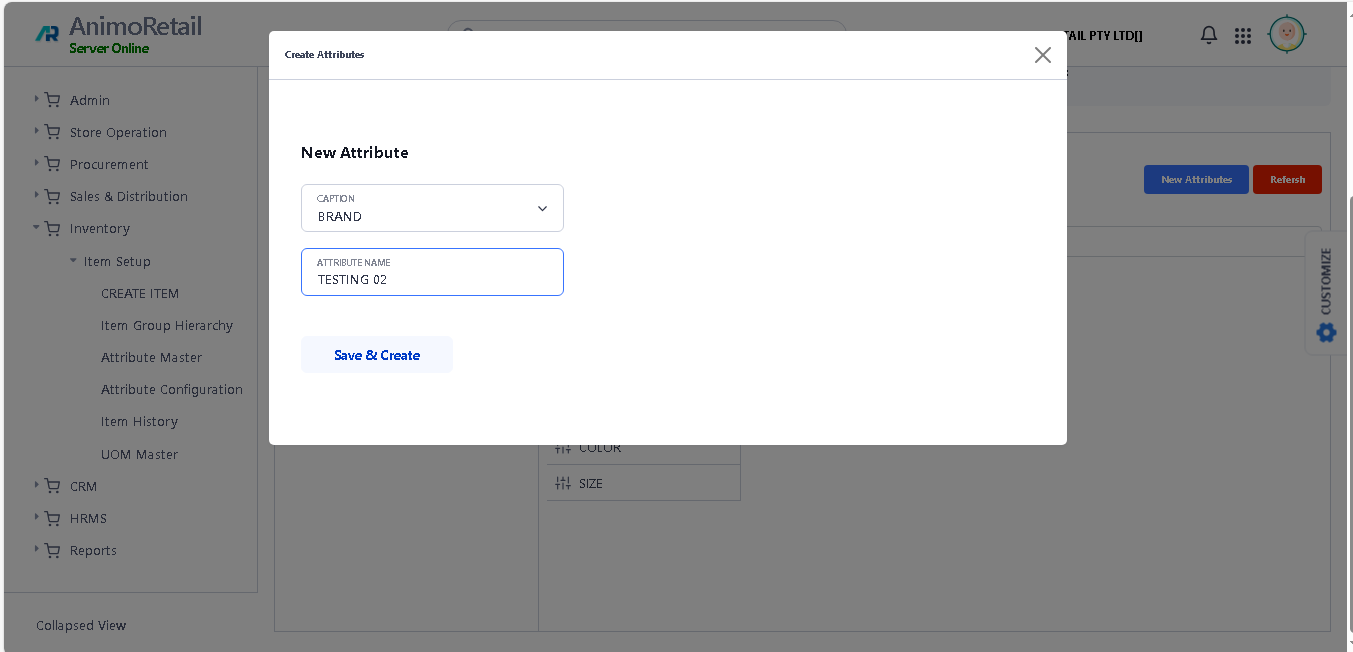
> After enter the Name, click on save button.
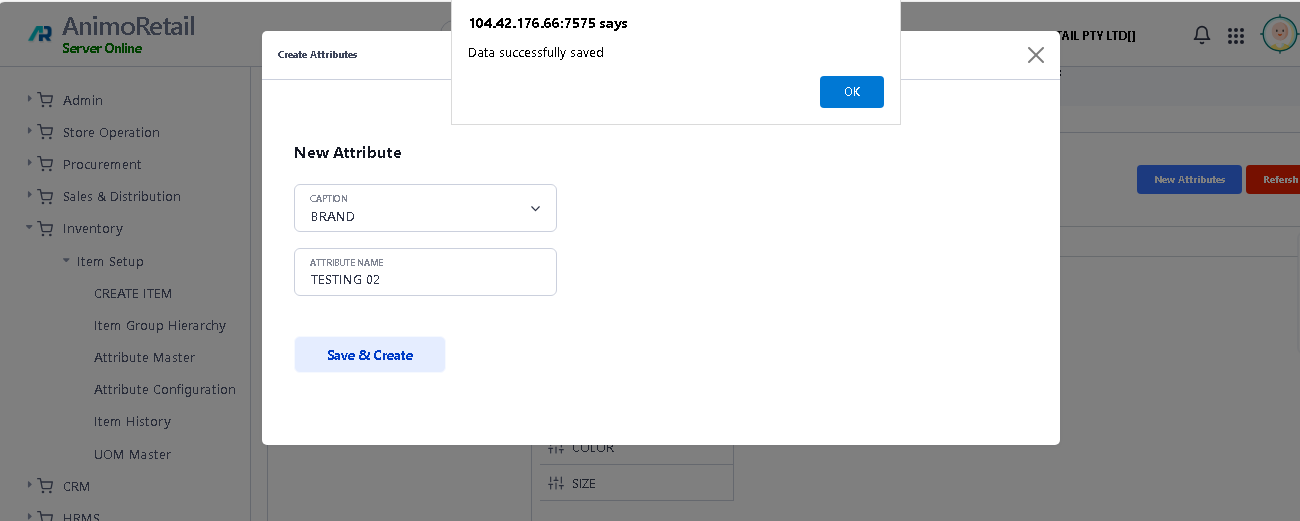
> After click on Save & Create button, you can see the confirmation message. click ok button to continue.
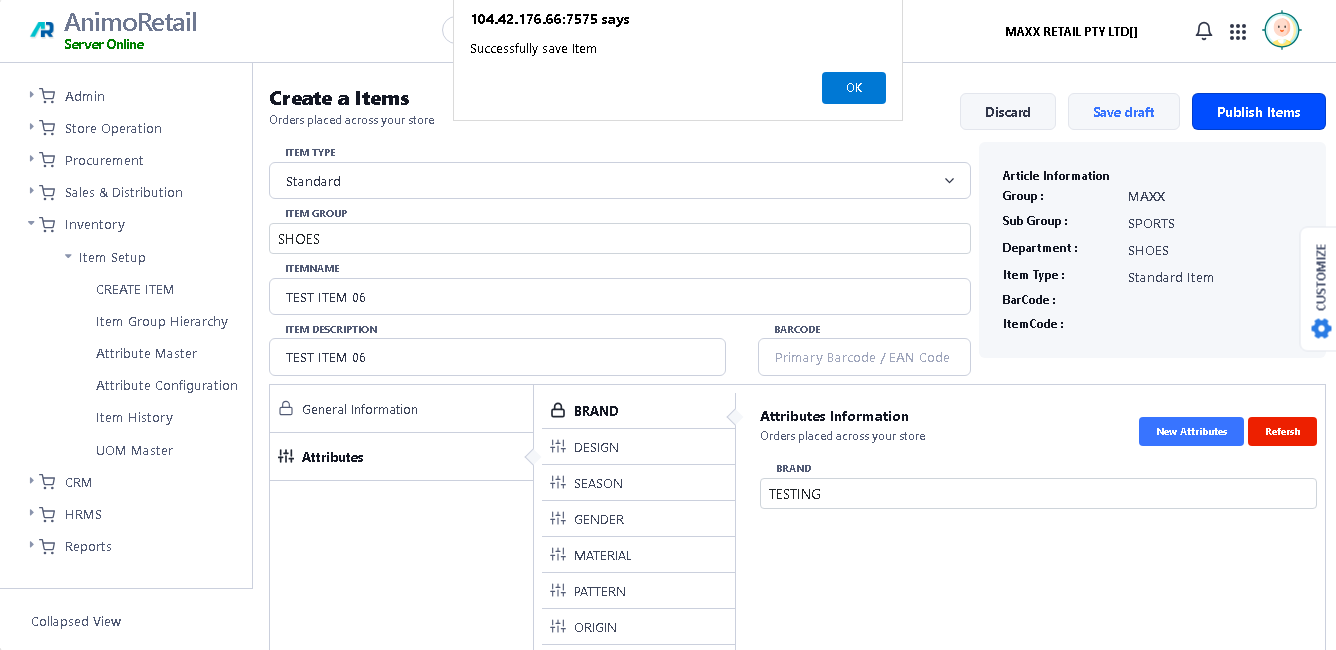
> After Fill all the details, please type the Publish Item button to Publish this Item.

> After click on Publish Item button, you can see the confirmation message.
>Now you can see the New Create Item will is showing in the list grid window.
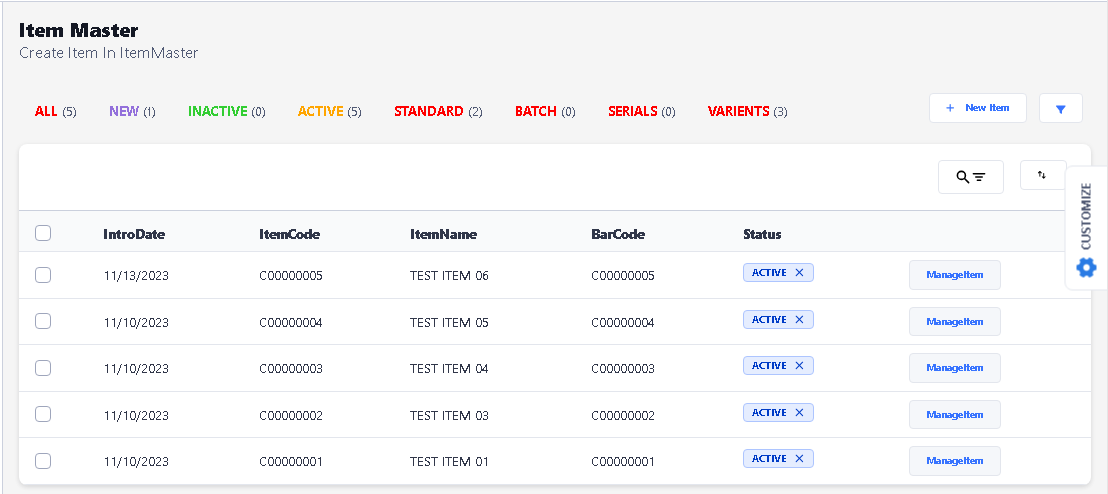
>> You can follow same Steps to Variant Items, but when you select the Variant in Item Type option, the Size Group option is enable in General Information. you can choose the size group according to Item requirement, and if you want to create New color and Sizes, please choose Undefined option in Size Group then click on Publish Item button.
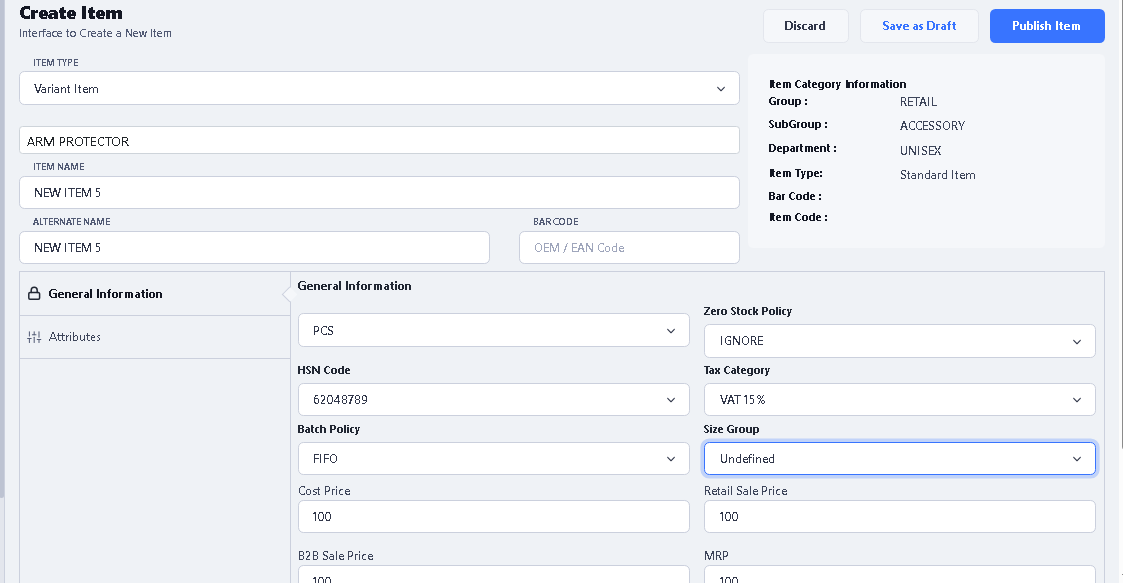
> After Click on Publish Item, you Can see the Variant Item is created, now you have to create Color and Sizes for this click on Manage Item button.
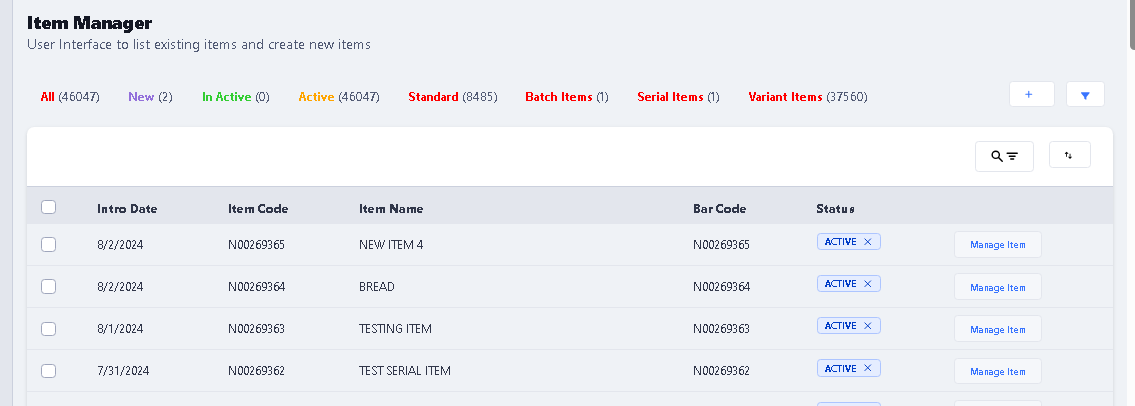
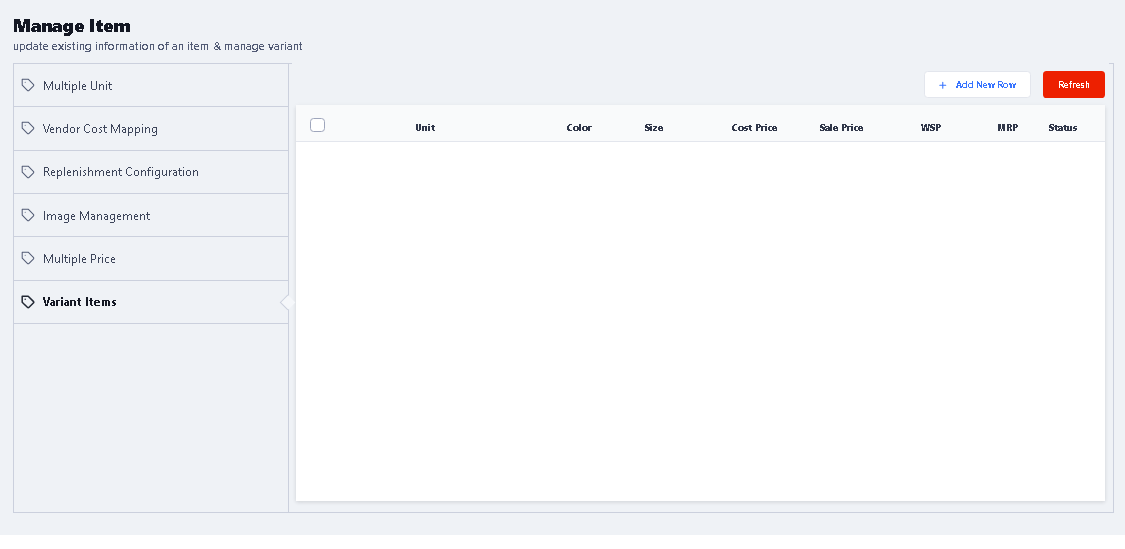
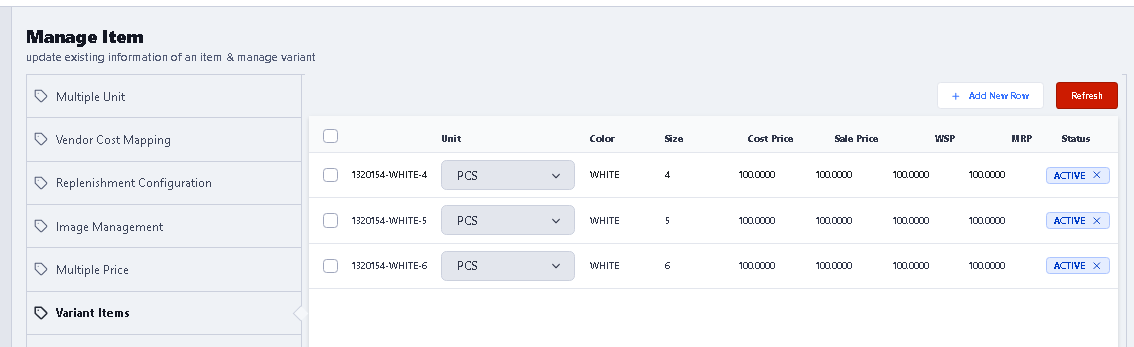
> After click Manage Item button, you will see this window, click on Variant Item option on the Left Side panel.
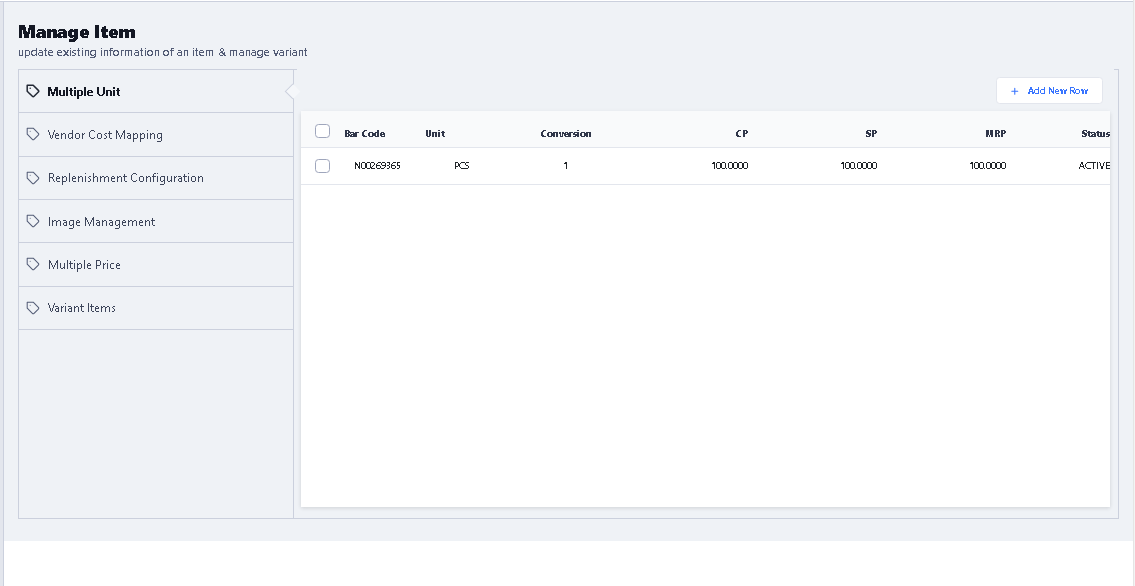
> After click on Variant Items option, you will see this window, click on Add New Row button.
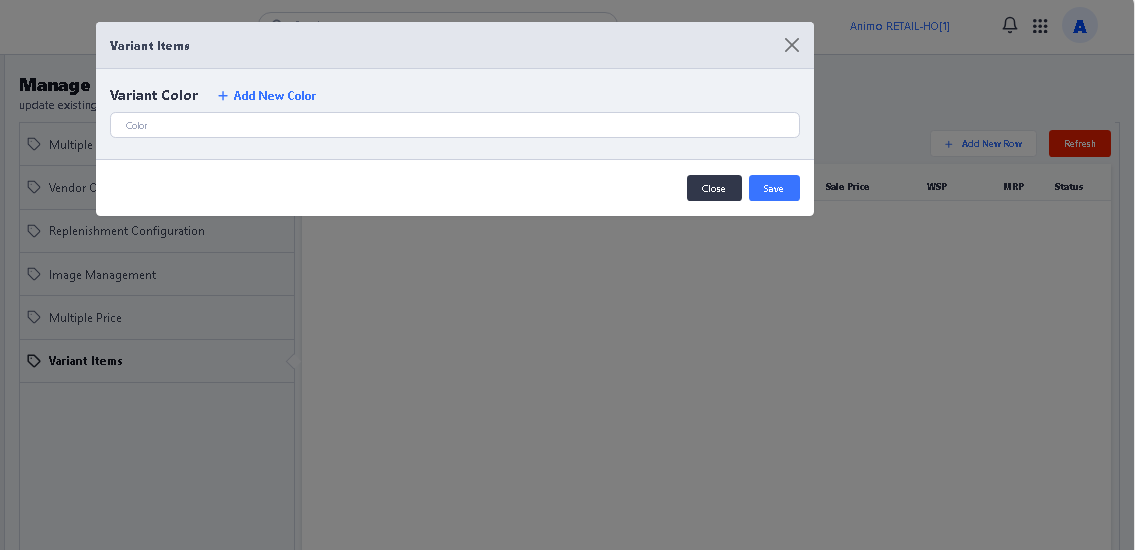
> After click Add New Row button you will see this window, Enter the color name in color column, then click on Add New color button.
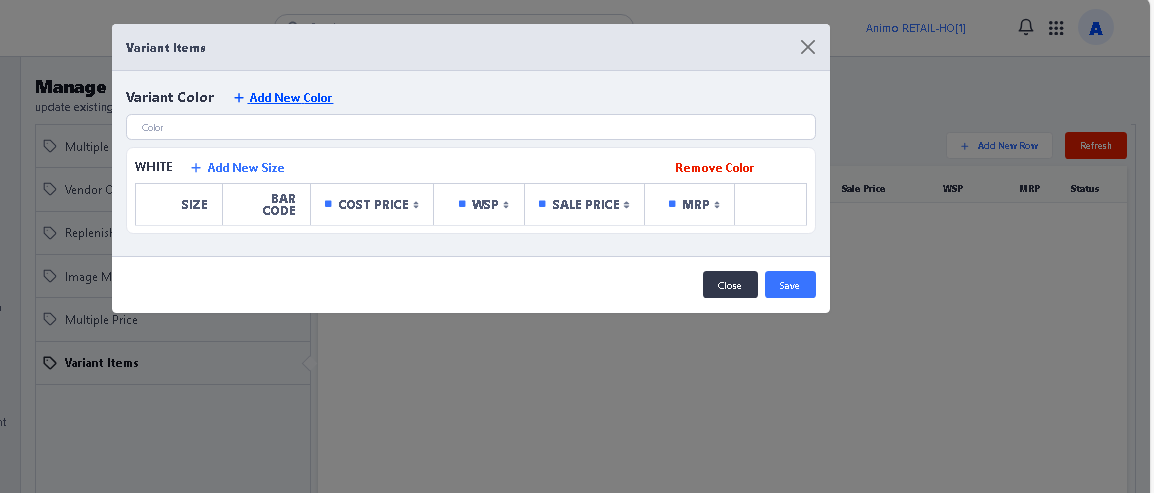
> After click Add New Color button, now you can add the sizes by click on Add New Size button.
> Like this
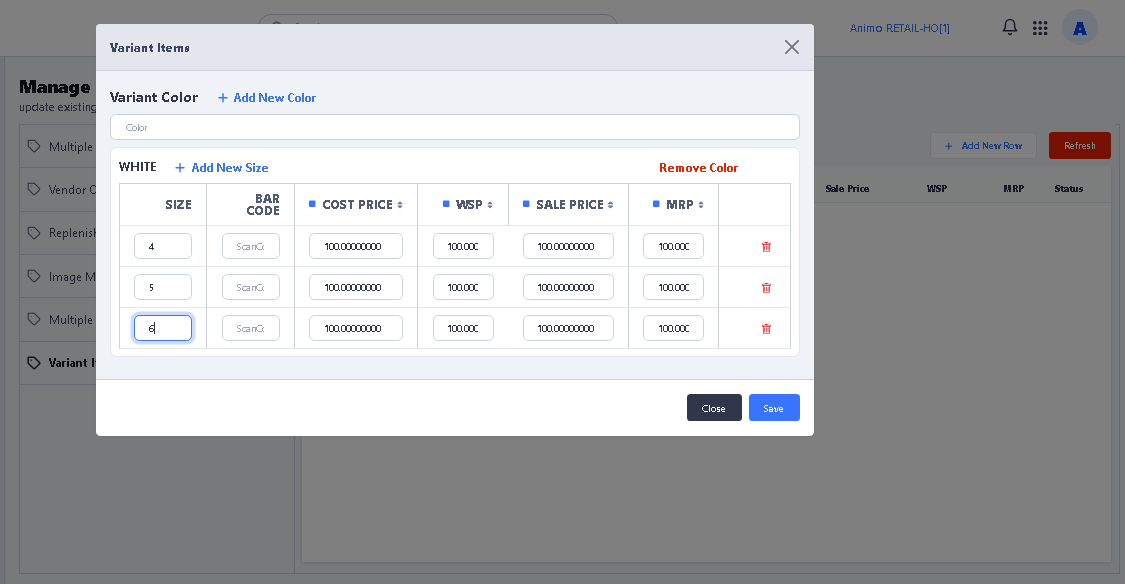
> After done all this, click on Save button, after click on Save you will see the confirmation message

> After click on ok button, click on Refresh button once. and you will see the created Color and Sizes are showing.
> And if you choose already created size group like (XS to 4XL), then after save when you click on Manage Item button then click on Variant Items and Add New Row, you will see the window like this, only you need to enter color Name and Save it
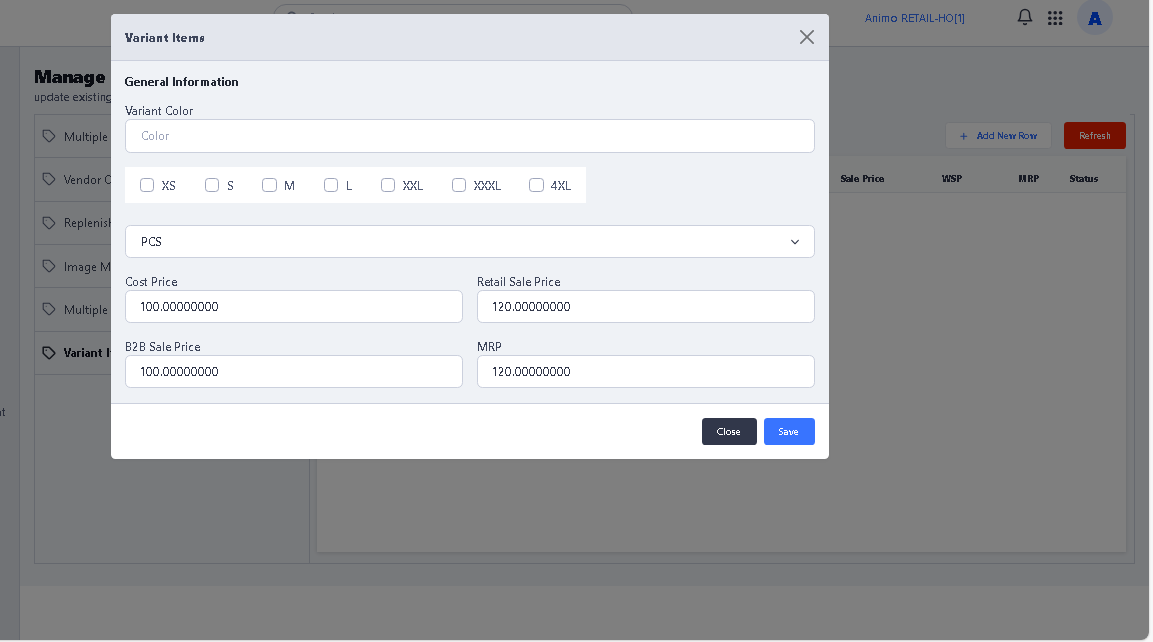
> If you want to create and other color in same size group, then after save click on again Add New Row button.
>> Now your Item Creation Process is Completed.