AR/WEB-003- How to create Goods Receipt.
Navigation – Procurement – Transaction – Goods Receipt.
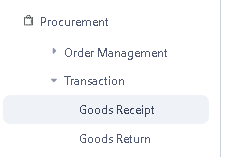 > After click on Goods Receipt function this window will appear.
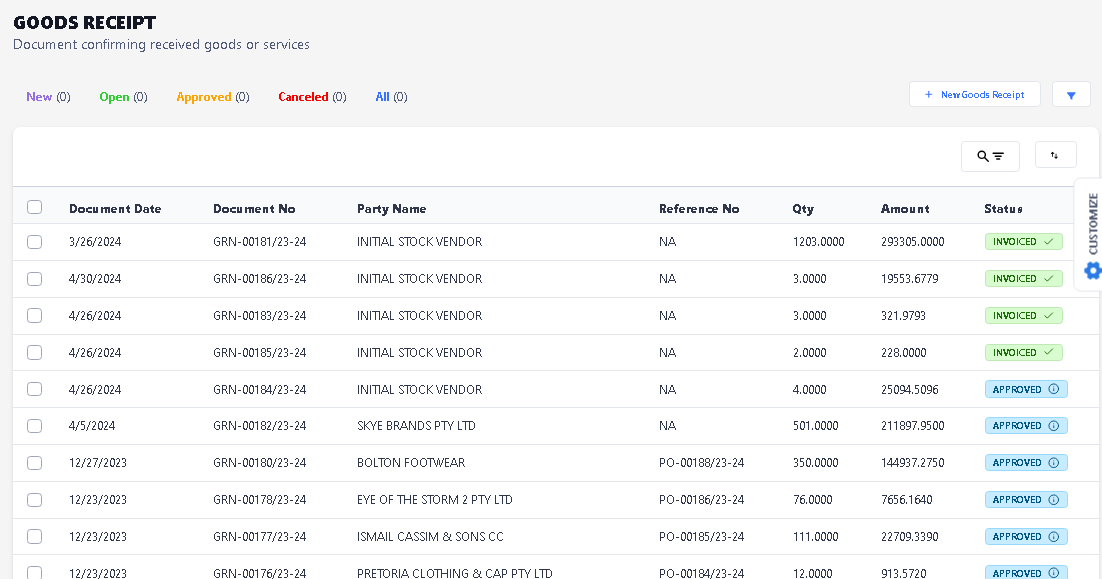
> Click on New Goods Receipt Button to Create New Goods Receipt.
>After click New button new window will be open.
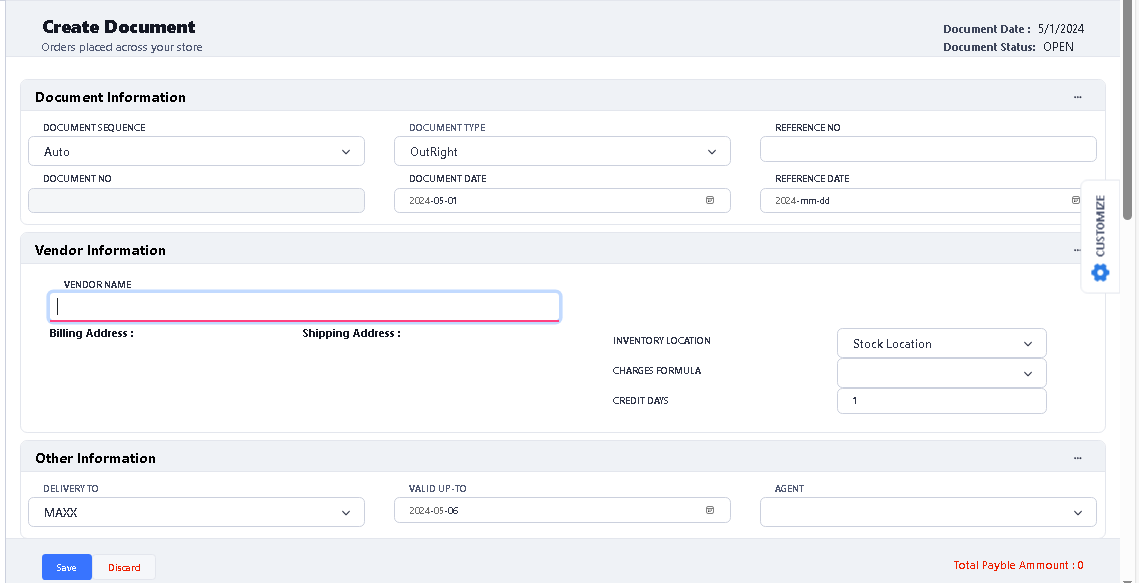
>In Document Information option- put the Invoice No in (Reference No column), Invoice Date in (Reference Date column),
>In Vendor Information option – select the vendor by typing.
> After select all information, you can see there are two option two select the Item,
1) Scan Barcode option
2) Search Any Article option.
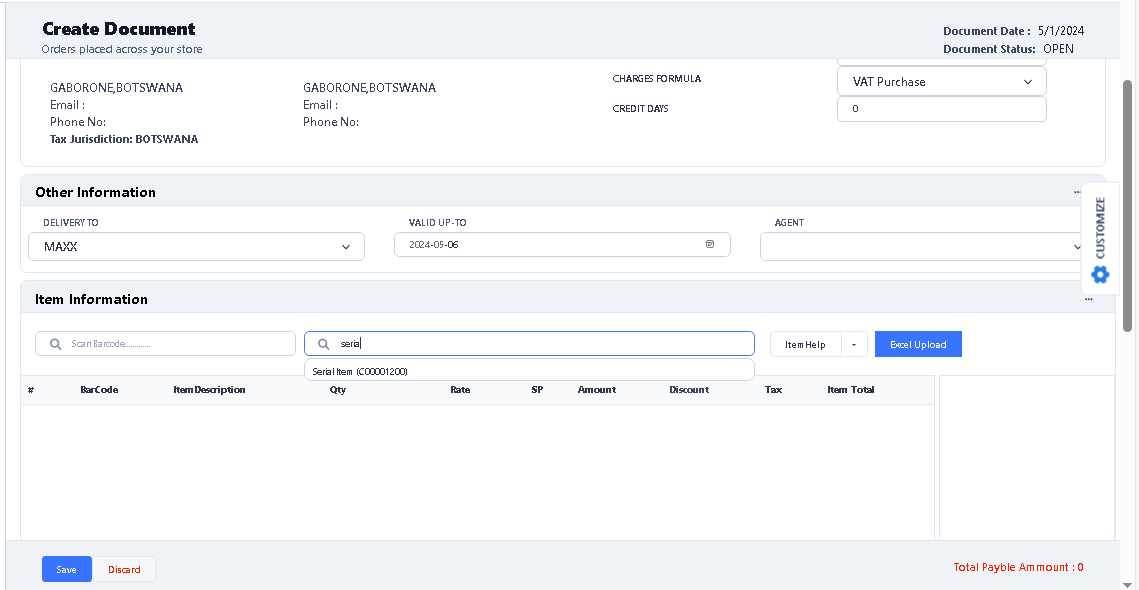
> For select the item, type the item name in search any article option, and select the item from the list.
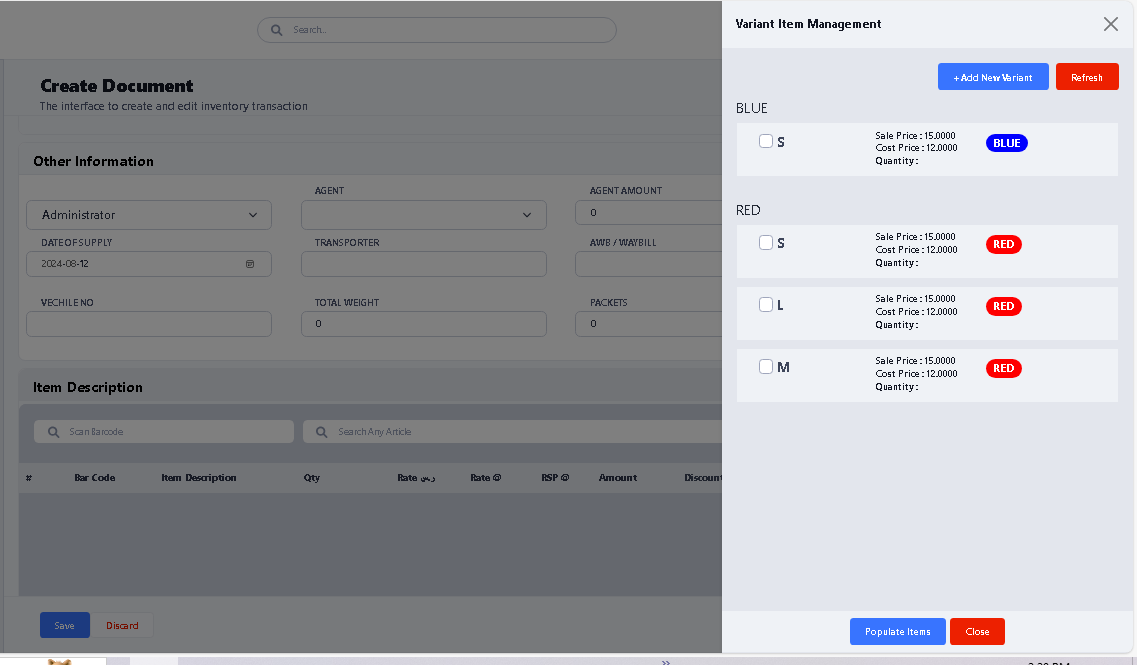
> And if you search any Variant Item then you will see this window appear to choose Color and sizes then click on Populate Items button.
> After select Serial Item, you can see new window will open.
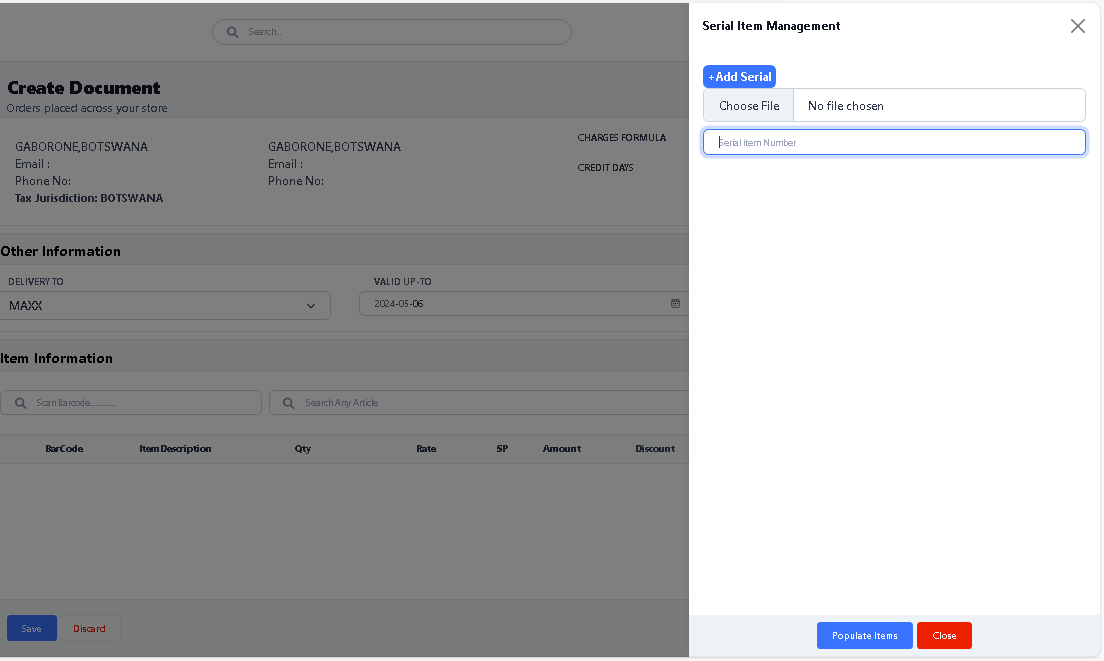
> Type Serial number in Serial Item Number column, if you add more number, click on Add Serial button to add new column to add another Serial number like this.
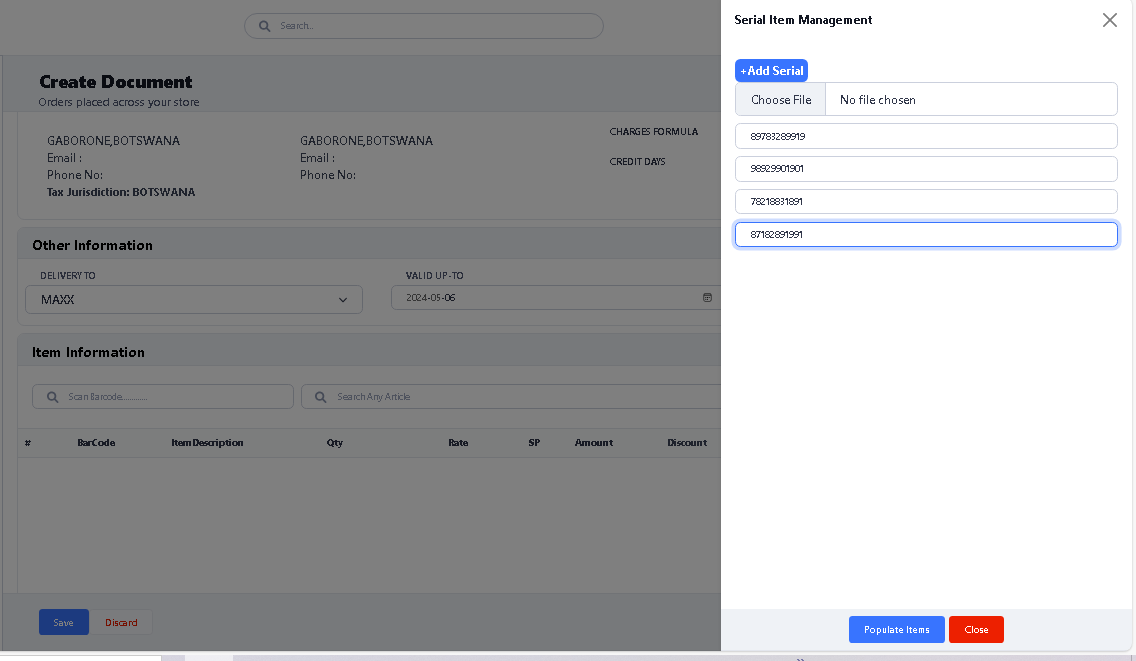
> After type all Serial Number, click on Populate Items button to populate in grid.
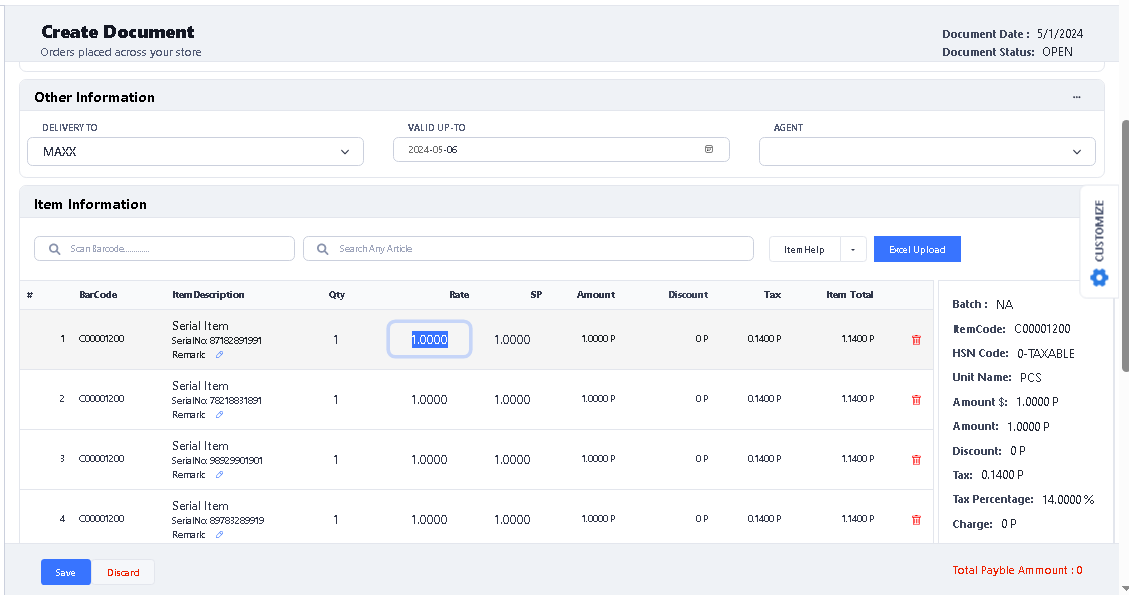
> After click on populate button, you can see all serial items showing in the grid, now if you want to change Rate , SP value you just click on that and change it.
> If you want to delete any item from the grid, click on delete option to delete

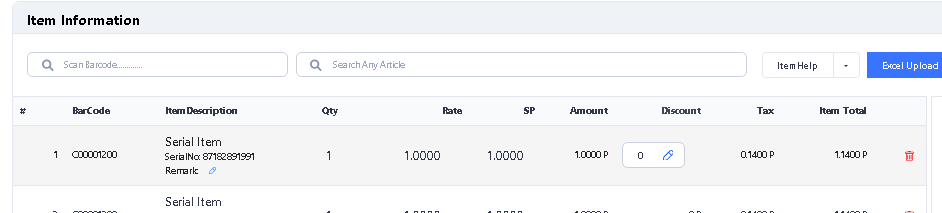
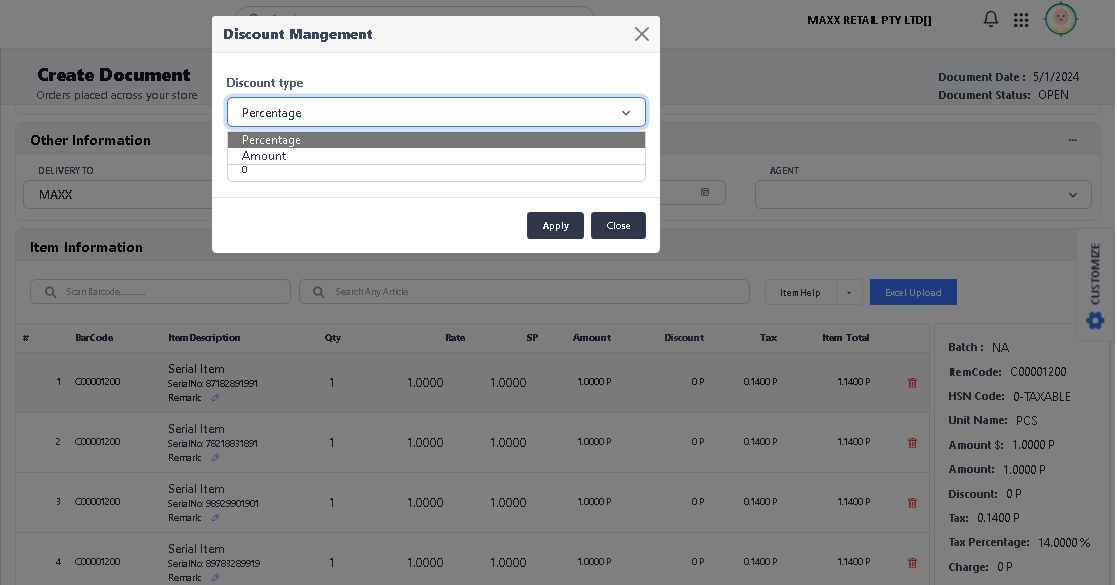
> If you want to put Item level discount, please click on discount option, and select the option (Percentage or Amount). and enter the discount amount or percentage.
> Click on Discount option like this.
> After click you will see this option select option and put the value.
> If you put bill level discount, click on Discount option by clicking on edit button, and select Amount or Percentage A means Amount or P means Percentage enter the value than click on Recalculate button then click on Close button to apply.
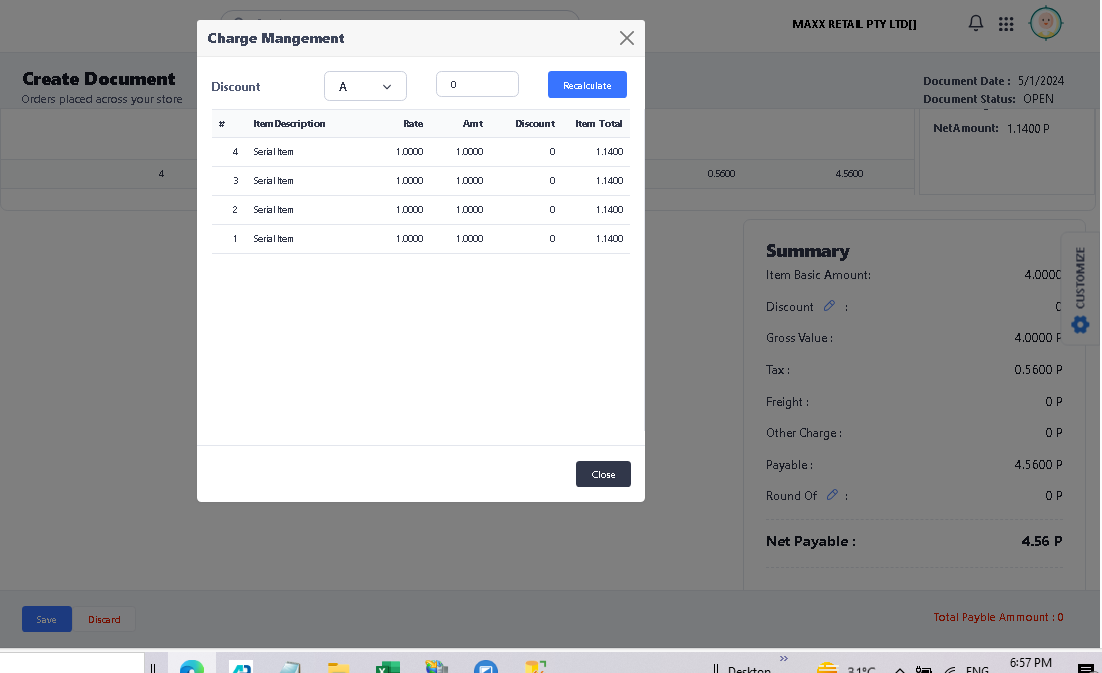
> After completed all charges then Click on Save button to save the Goods Receipt document.

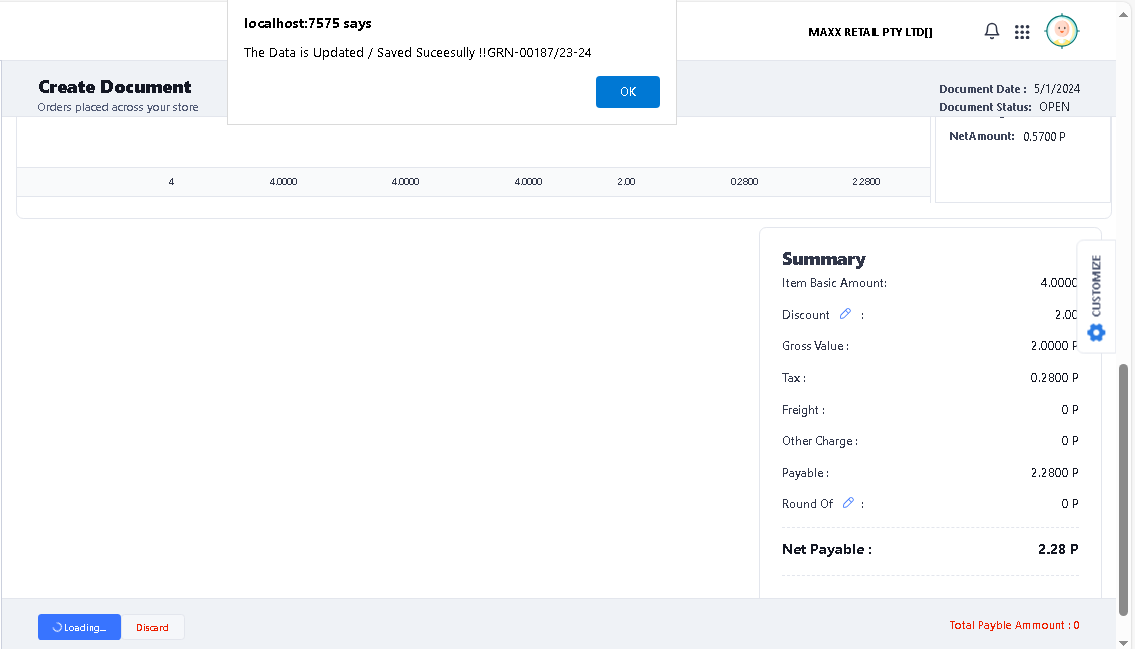
> After click on save, you will see the confirmation message. Click ok to continue.
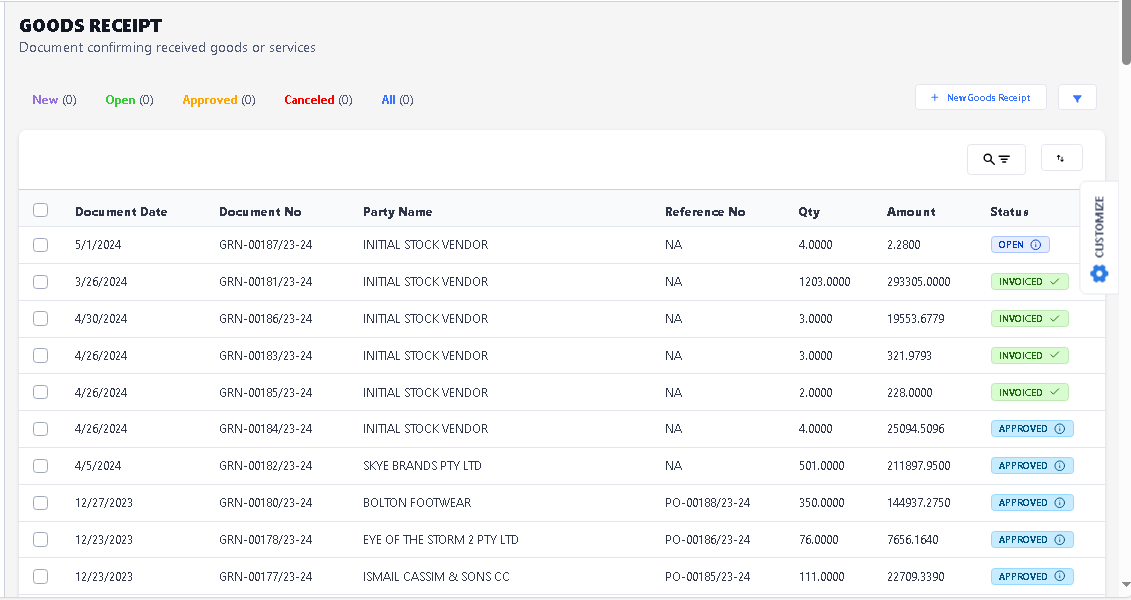
> For Approve the Goods Receipt, select the GRN which you want to Approve the click to open once,
> After open the Goods Receipt. Click on Approve button to Approve the Goods Receipt.
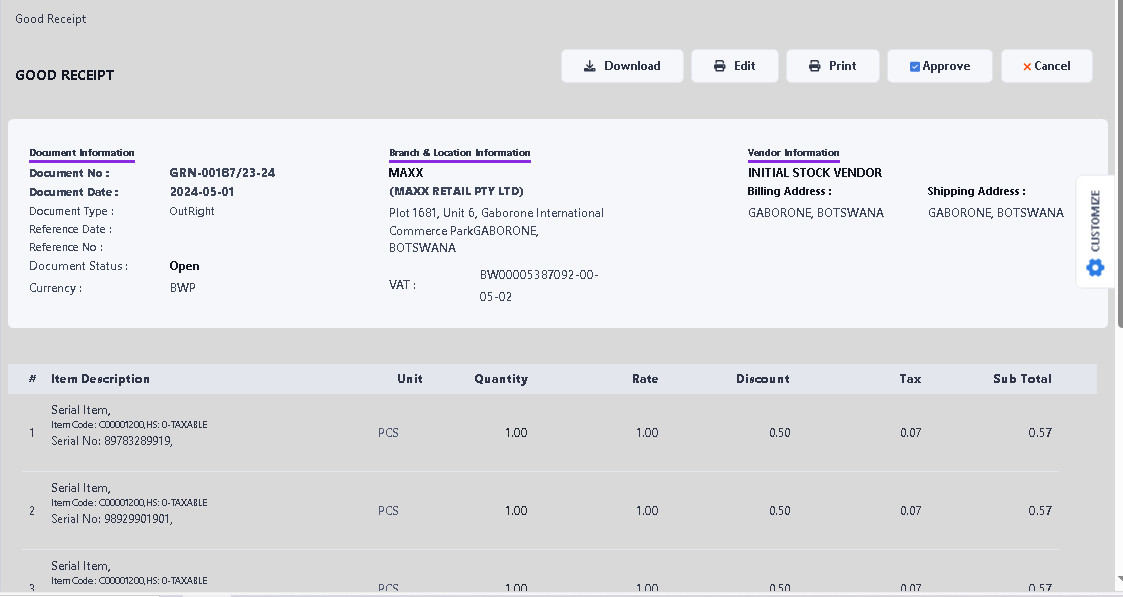
> After click Approve button, you will see the confirmation message. click ok to continue.
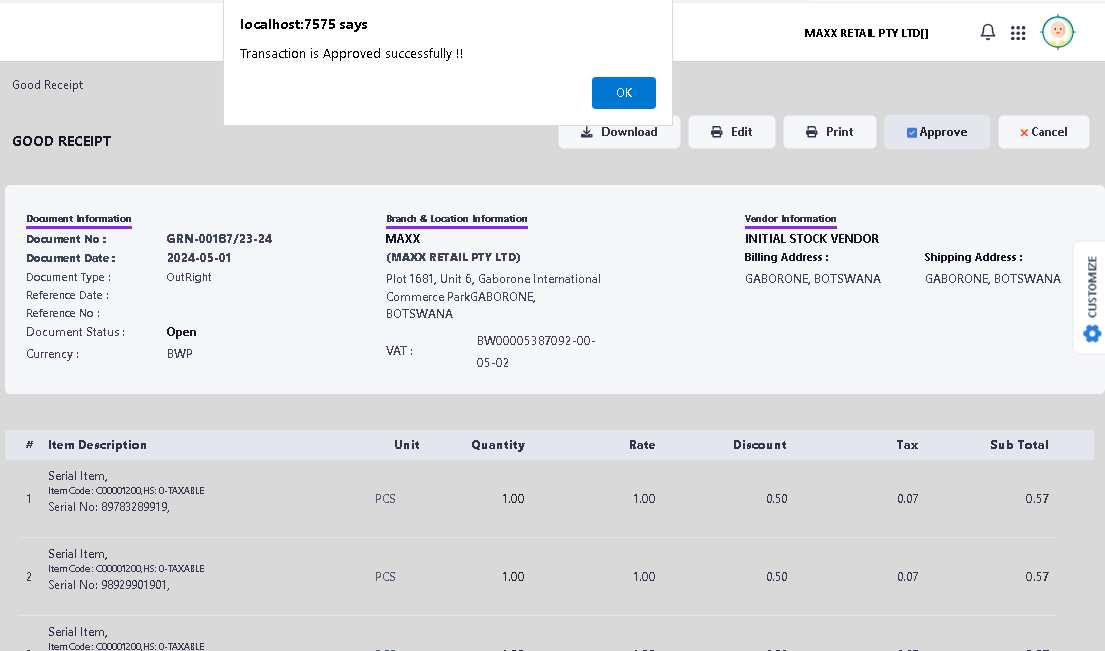
>> Now the Goods Receipt Create process is completed successfully.