AR/WEB-008- How to make a IBT Outward (Inter Branch Transfer) to other location
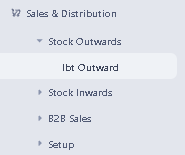
Navigation – Sales & Distribution – Stock Outward – IBT Outward
> Click on IBT Outward function.
>After clicking IBT Outward the window will appear. You can search IBT through IBT number and organization name by using search filter option, also you can check Approved IBT by using Approval option and you can check IBT status by using Order Status option.
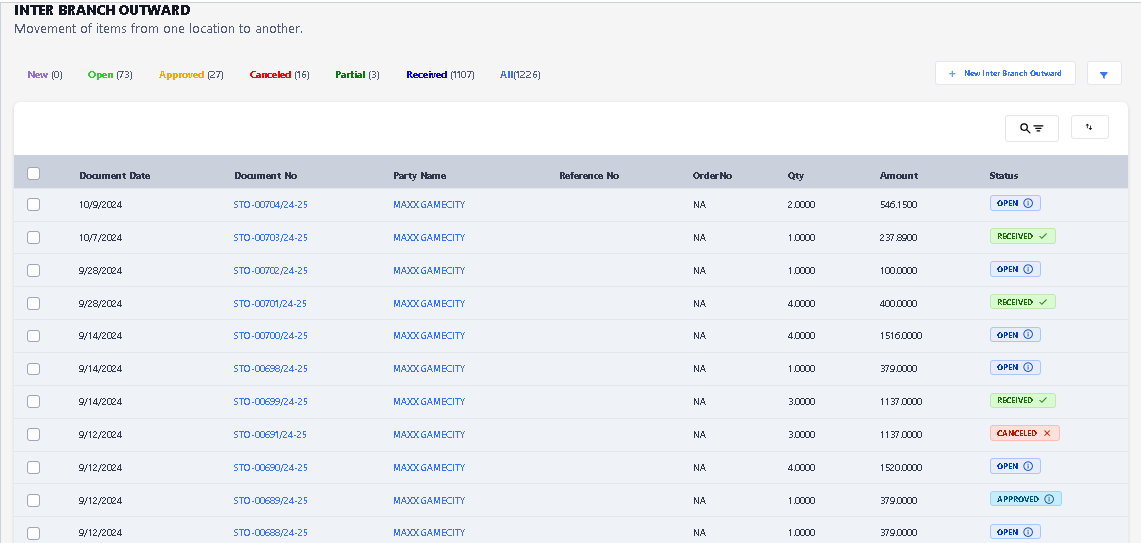
> Click on New Inter Branch Outward button
> Select your location where you want to transfer out.
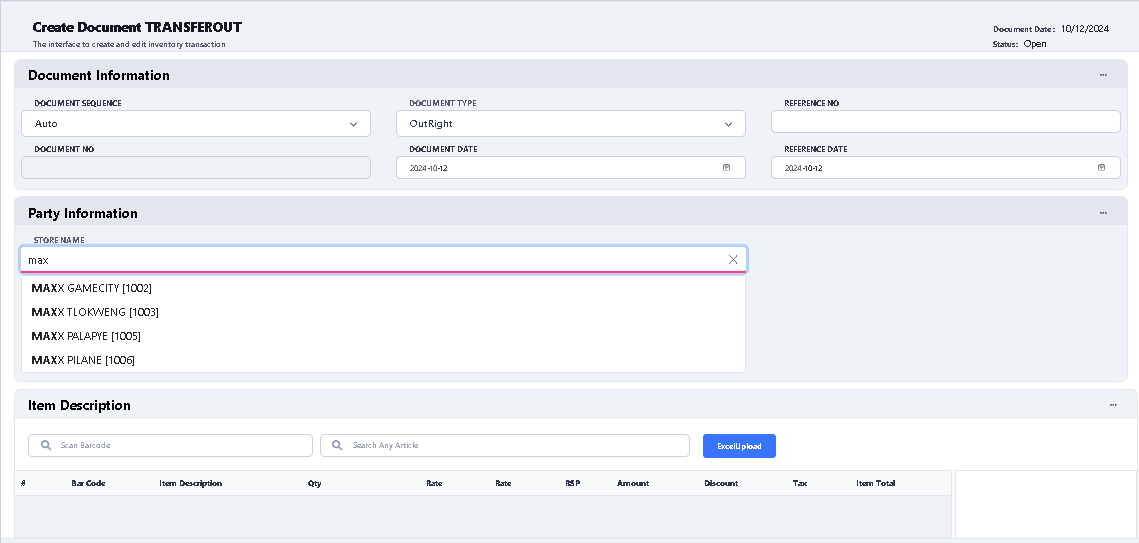
> After select the location you will see there are three option to select the items, if you have the Barcode so you can scan in Scan Barcode option, otherwise you choose Search any article option to select the items. the other one is excel upload you just make the excel with two columns Barcode and Qty, and upload it.

> After select all items click on Save button.
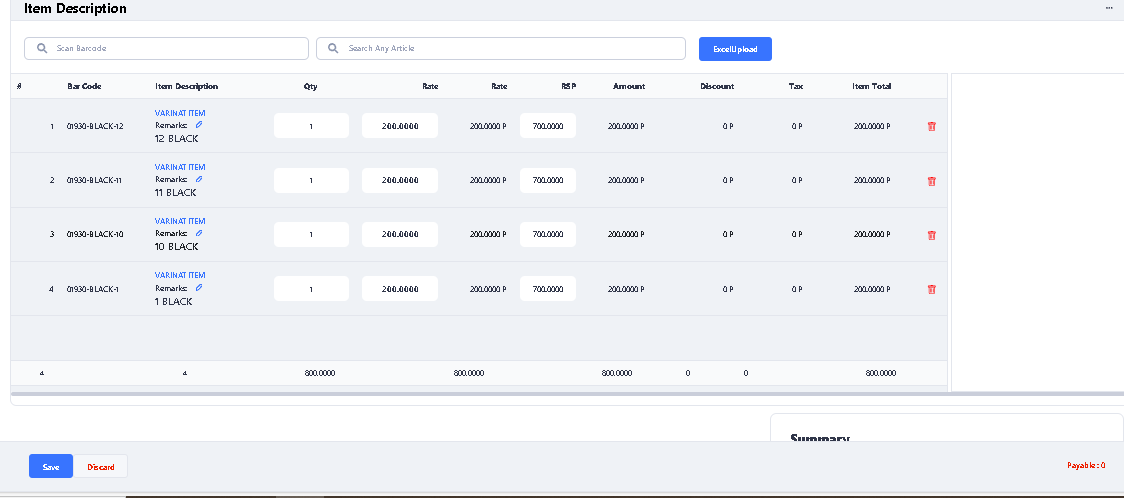
> Click on save button.

> After click on save button you will see the confirmation message, click ok and your IBT transfer will be saved.
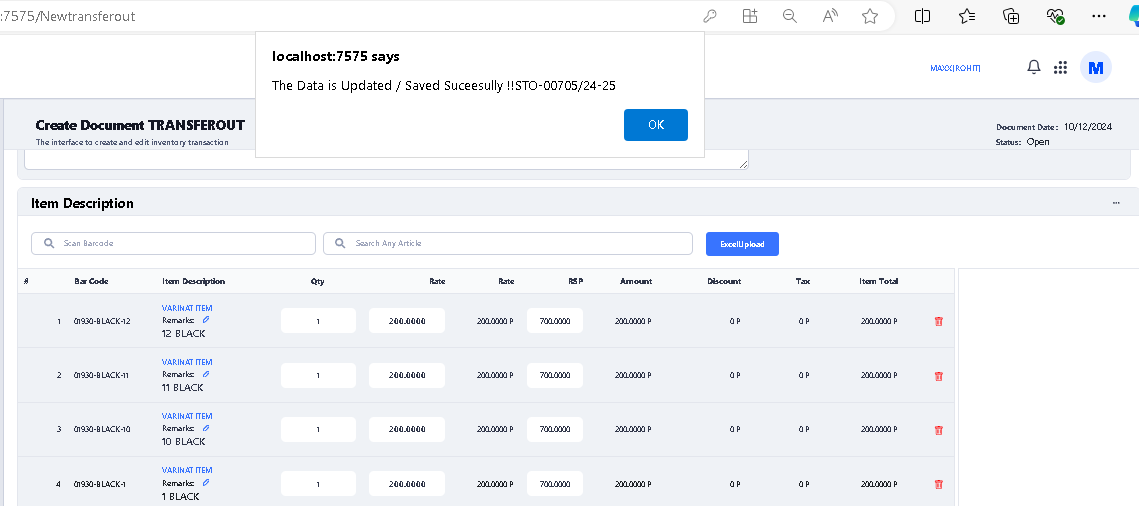
> The transfer needs to be approved after being saved, without approval it will not show in your selected destination.
> For Approved document click on document again
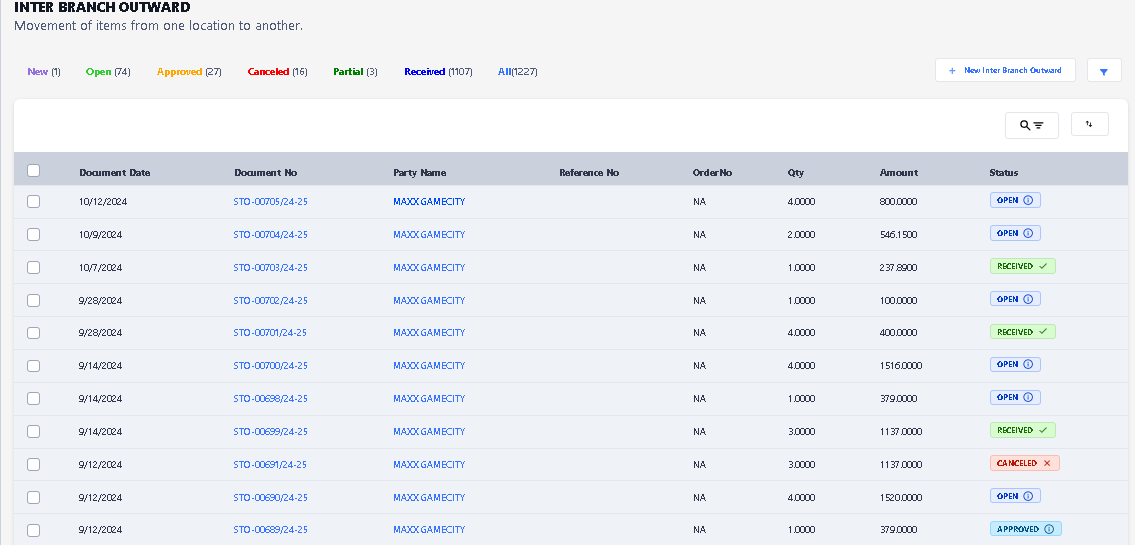
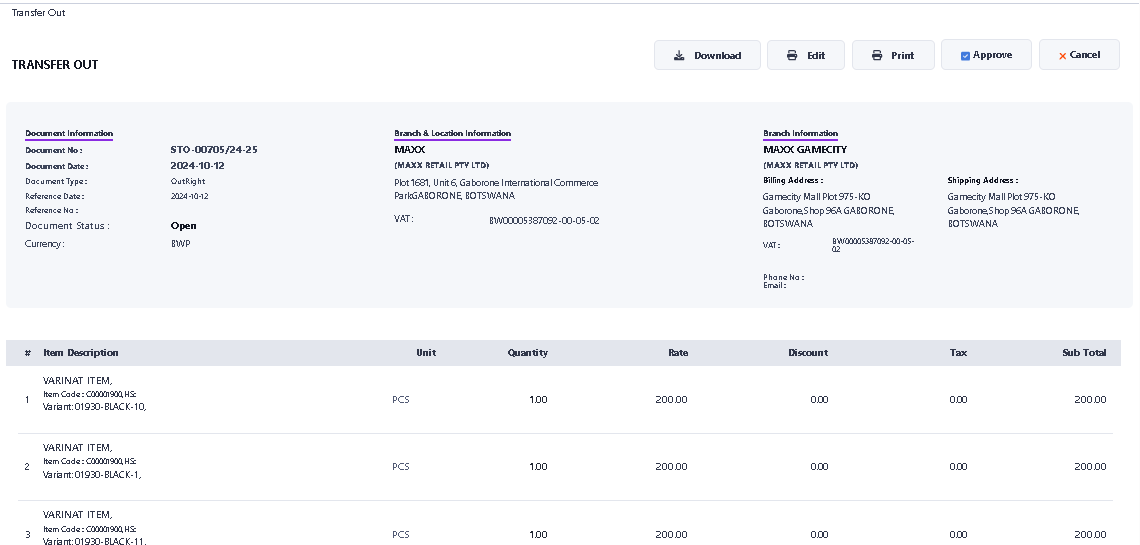
> After Click document, you will see the Edit, Print, Approve and Cancel options
> If you want to Edit this document, click on Edit button.
> If you want to approve IBT Outward, click Approve button and your IBT transfer will be Approved.
> If you want to Print this document than click on Print button,
> If you have become wrong IBT Outward due to wrong organization selection or due to any other reason, then you can also cancel it by click on Cancel button.
> For Approved IBT Click on Approve button, after click on Approve button, you will see the confirmation message
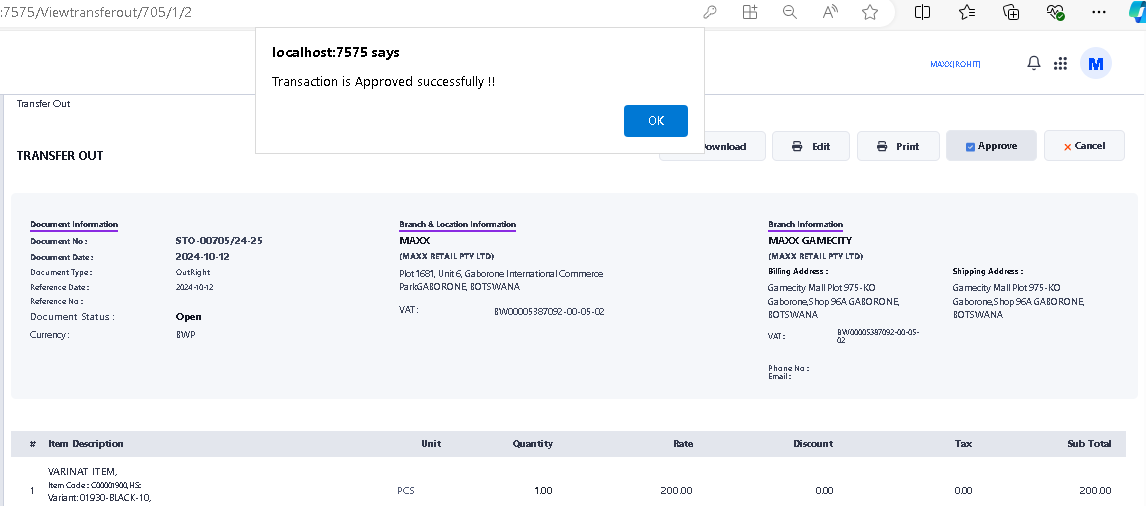
> Now your IBT Outward process is complete.