How Can We Help?
How to make Inter Branch Transfer Outward
- Navigation & List of Outward Documents
-
1. Navigation: Sales & Distribution >Stock Outward > IBT Outward 
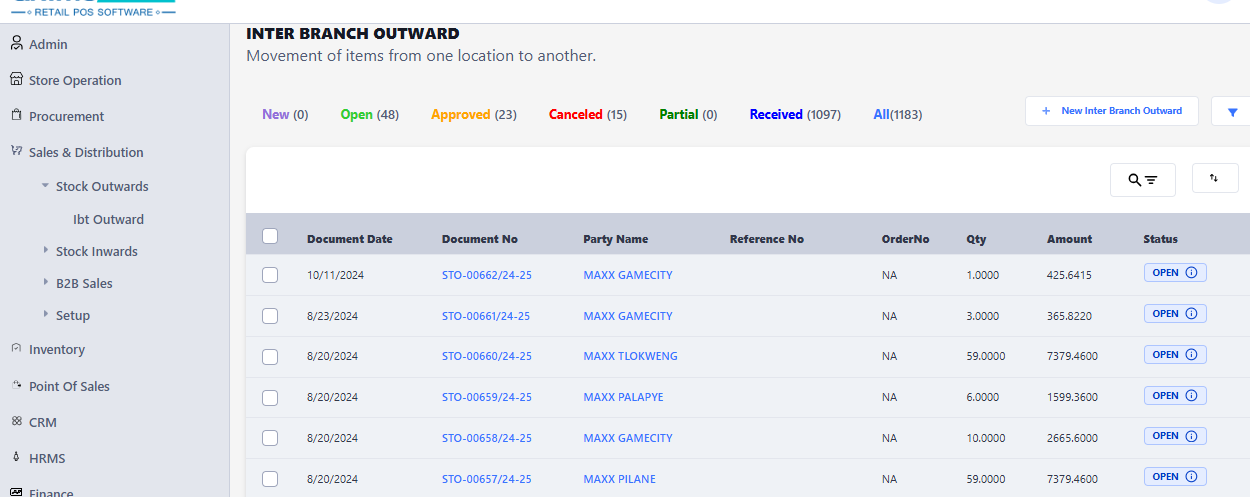
-
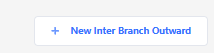
- Create New Document
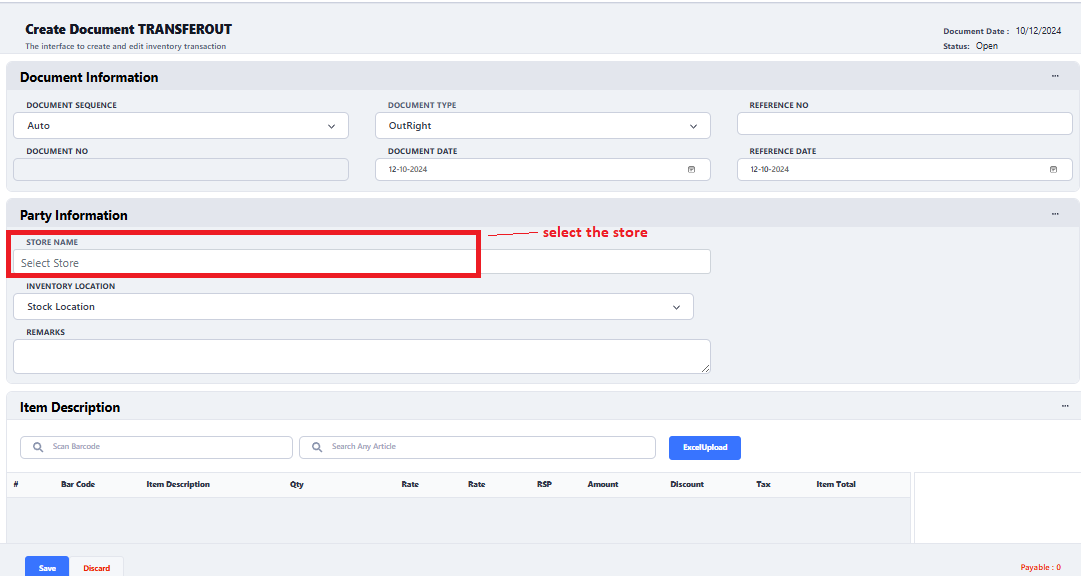
- New Interface appears, select the store
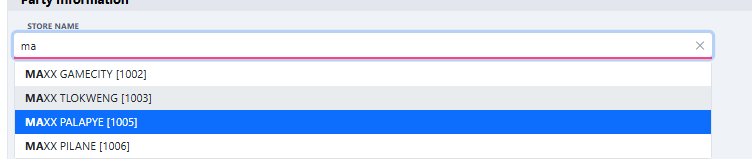
- To select store, start typing organization name or code in search bar. This store is considered as destination store.
- Once a destination store is selected, either you can scan a barcode or can use search item option next to scan option. Except these two options you also may use Excel Upload

- Scan Barcode

Once a scanner process it, it will come to the grid
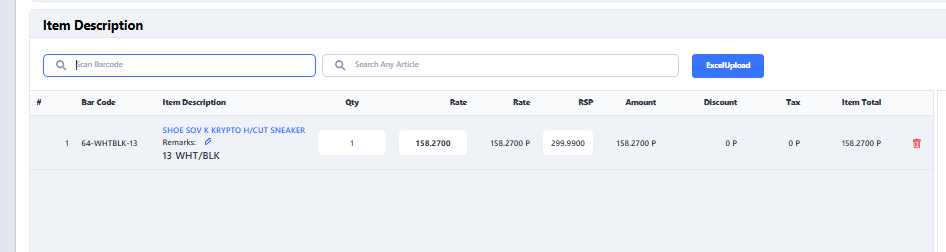
- Search by Item Name
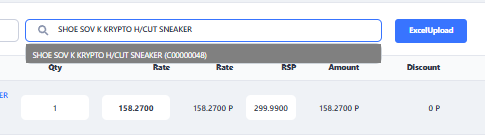
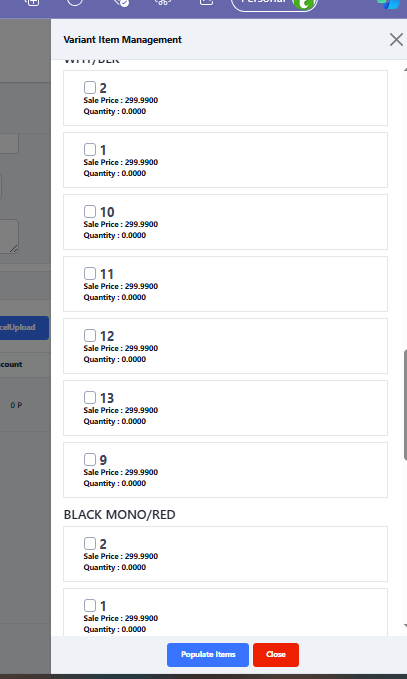
- If it is a variant item a new interface opens with selection of item variant e.g based on color and size
- For example, 10 and 11 size is selected here and now click on populate
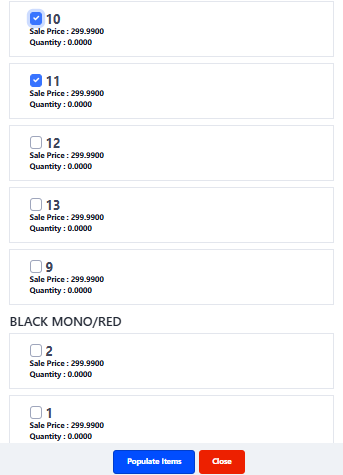
- And all items are populated in table
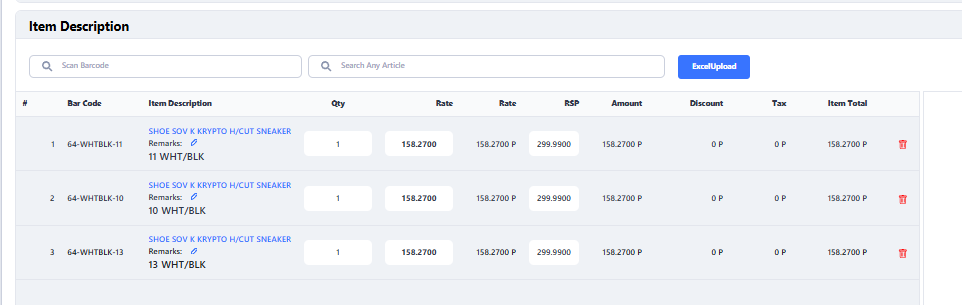
- Scan Barcode
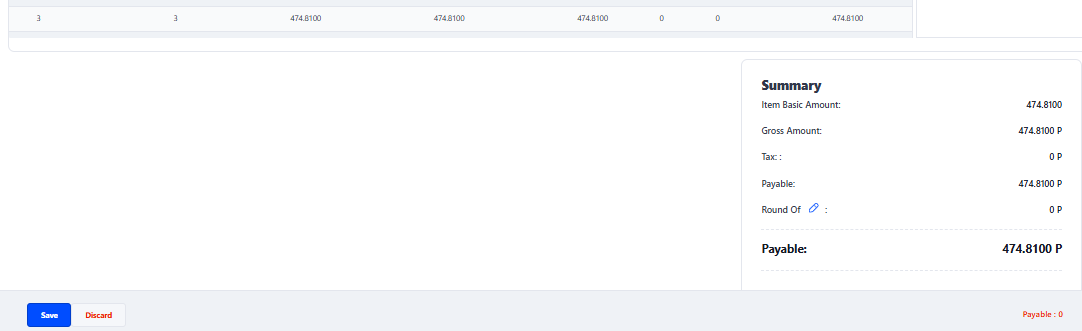
- Verify if allis ok in Grand Total
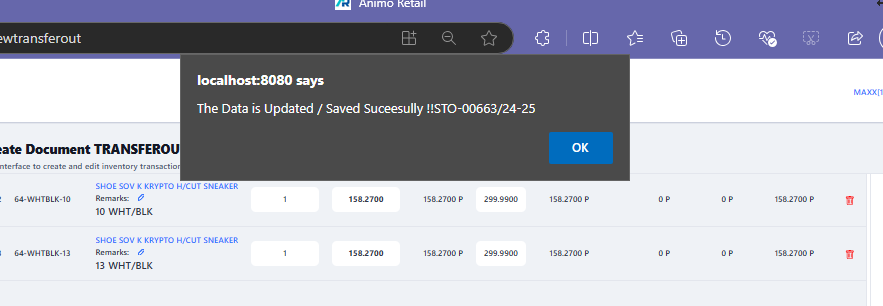
- Once you save a document a message box appears with saving information
- Once a document is saved you can see it in list
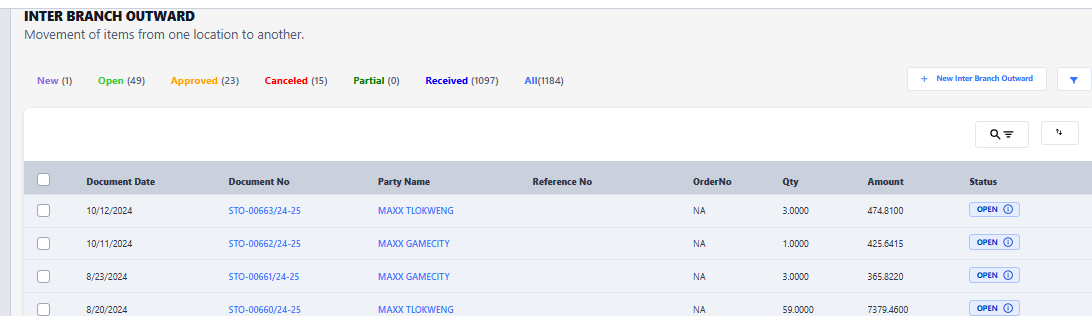
- Approve the document only if every thing is okay, as once it is approved , editing is not allowed
- To approve document click on the saved document and a view will be opened
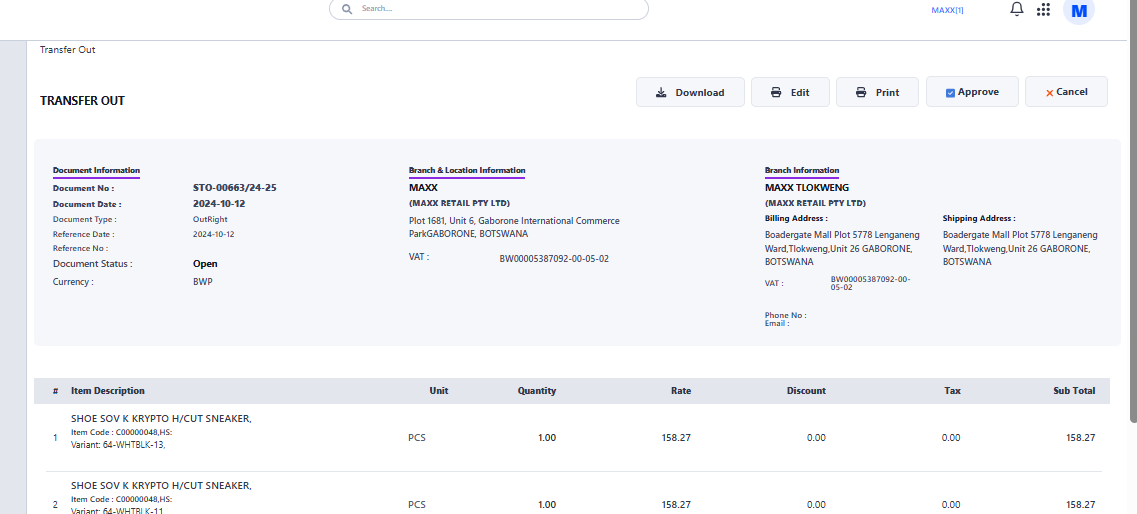
- Press on Approve button to approve this document
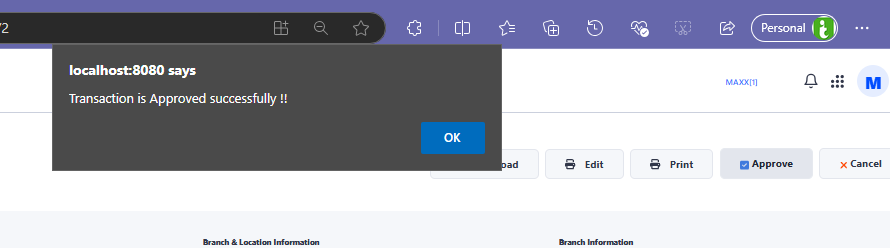
- To approve document click on the saved document and a view will be opened
- Now this document is pending to receive at destination