How to use Print Barcode Option by using Animo Application.
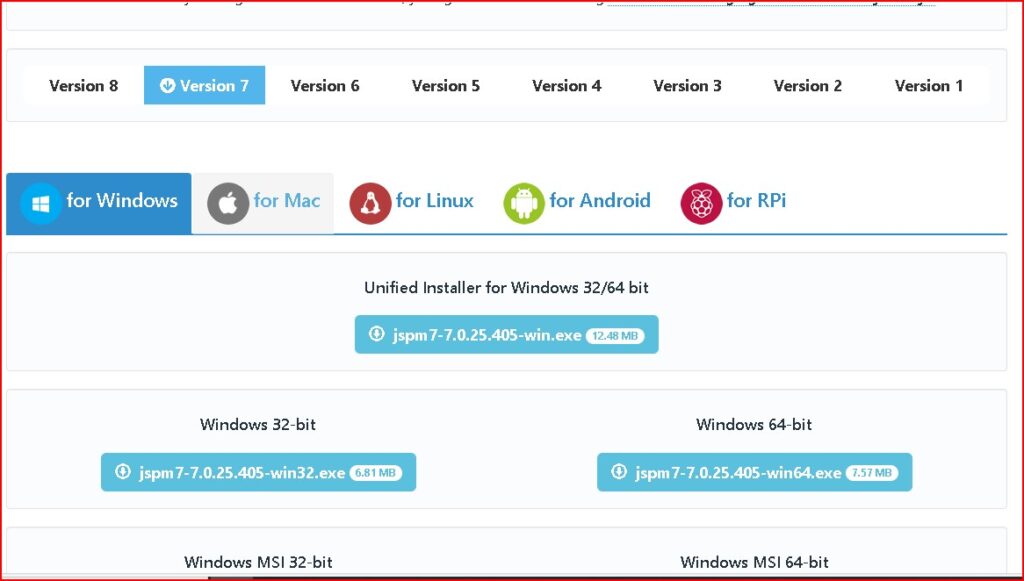
> Before Start Animo Barcode Print Option – First please install JSPrintManager Client App
Download Link
https://www.neodynamic.com/downloads/jspm/
Download Version 7 according to your system type, check your system type in System Information option.
> After installing it, please open Print Barcode interface in Animo Application
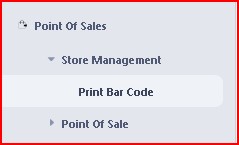
> After open, you will see this window,
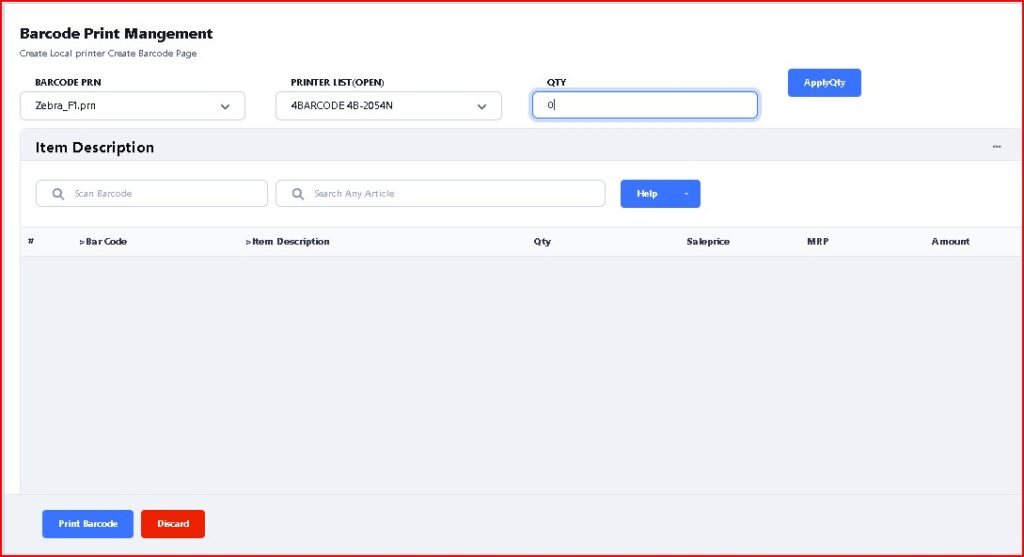
BARCODE PRN – In Barcode PRN option, please select the PRN file in which you want to print the barcodes.
PRINTER LIST(OPEN) – Select your barcode printer with the help of drop-down option.
Qty – In this option, whatever quantity you enter and click on Apply Qty button, it will be applied for all the items.
SCAN BARCODE – In this, you can scan the barcodes which you want to print, and after scanned all, click on Print Barcode button.
SEARCH ANY ARTICLE – In this if you do not have product barcode, then you can search by product name and select the items and print it.
> For Excel upload option, please use drop down option right side of Help button.

> After click Excel upload, you will see this window, select Barcode & Qty option for use excel only Barcode and Qty column wise.
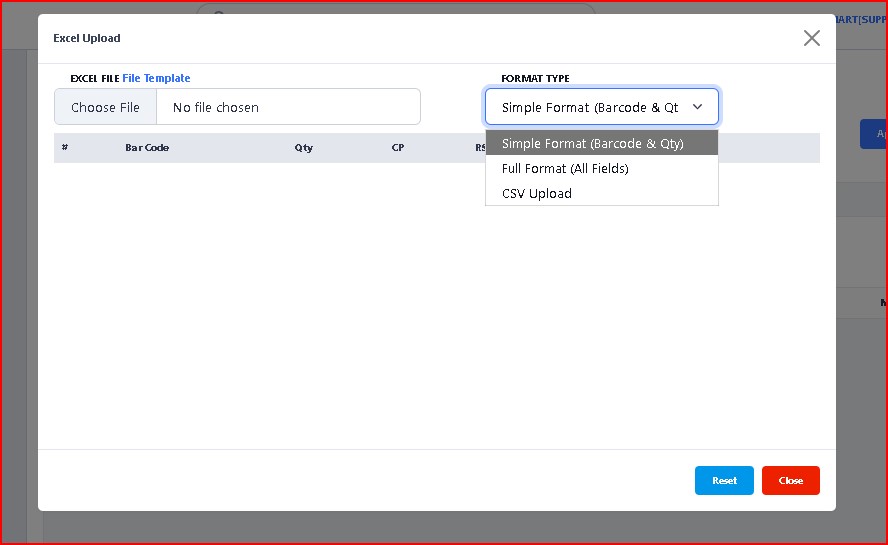
> After select the excel file, you will see the selected data showing in window grid. Click on Validate Data button.
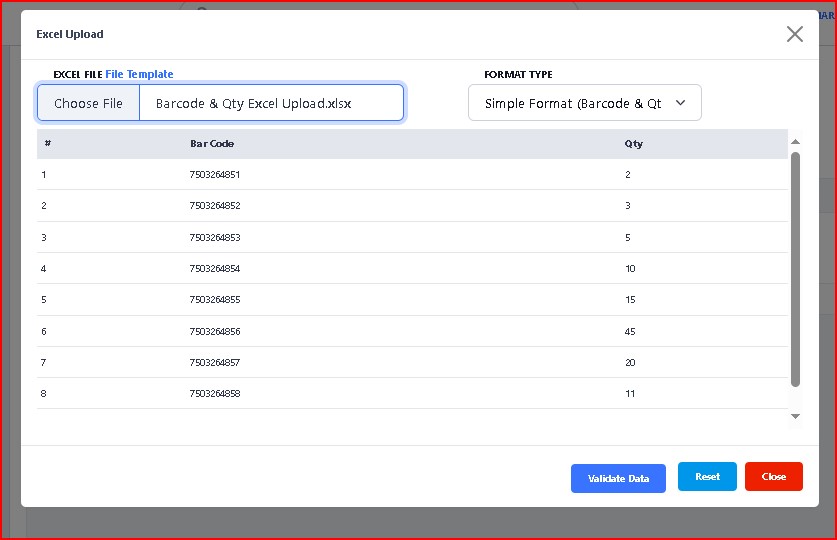
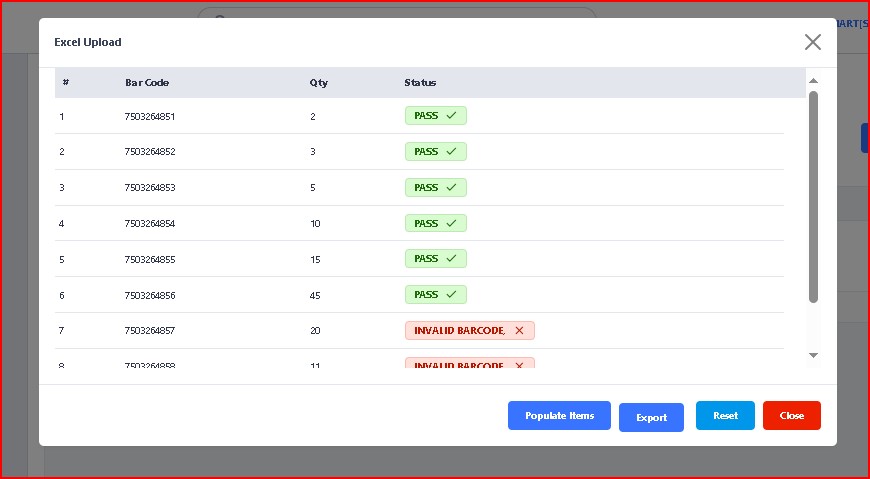
> After click you will see the status, if you type wrong barcode then it will show a message of INVALID BARCODE, otherwise if your barcode is correct then it will show PASS message, now click on Populate Items button to print barcode.
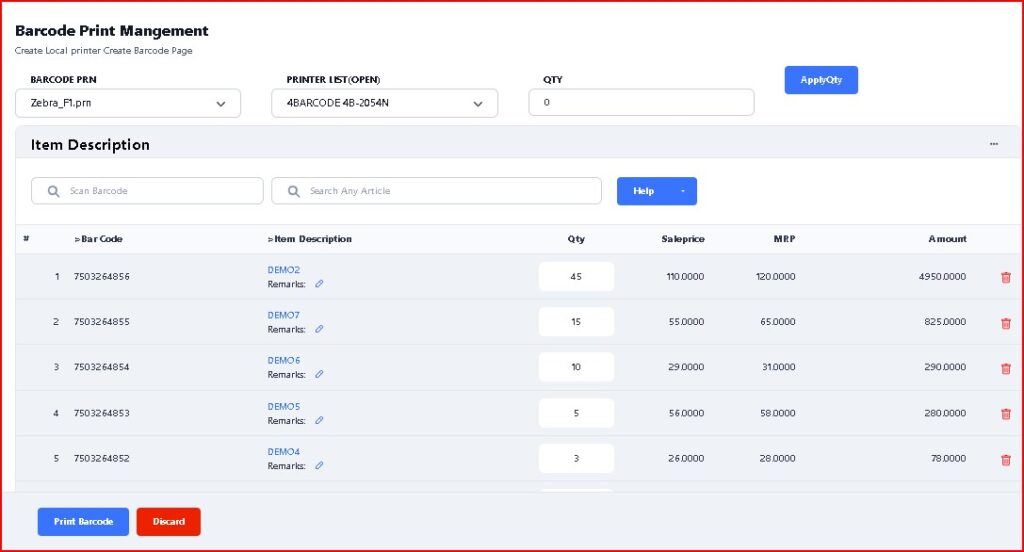
> After Click on Populate button, you will see all barcodes now showing in Print Barcode grid window, now click on Print Barcode button to print the barcodes.
> If you want to print barcodes through Transactions option like, Purchase order, Goods Receipt & Transfer out, for this click on Help button option.
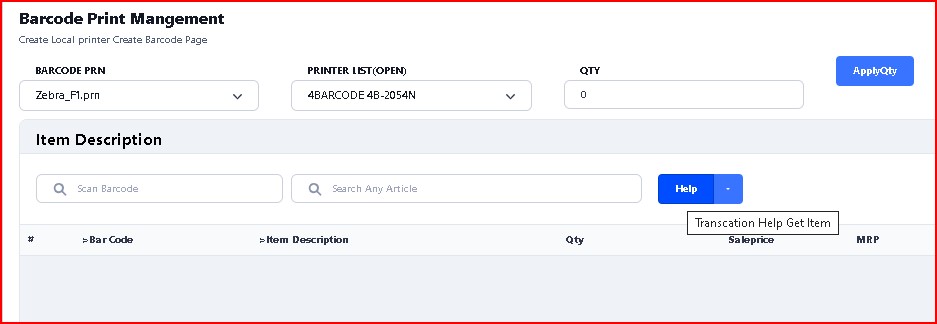
> After click on Help option, you will see this window, click on Help option in left side then select the transaction by using drop down option in Transaction option. you can also select Document From date and To date,
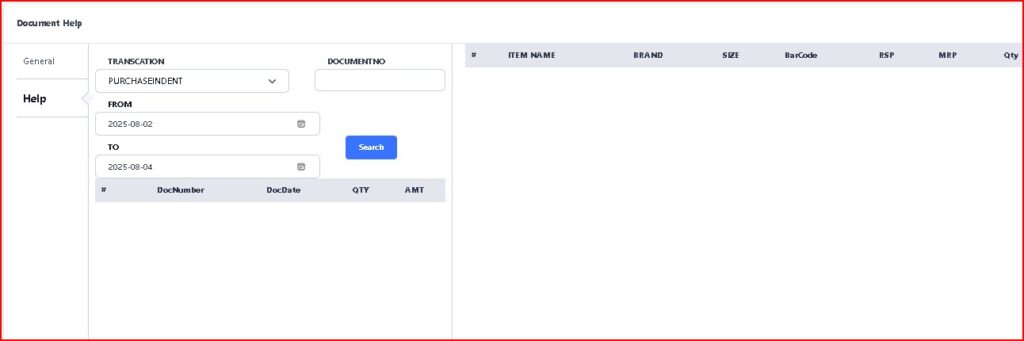
> After select Transaction and date range of document, click on Search button and select the document by click on check box in front of Doc Number. and click on Get Items button.
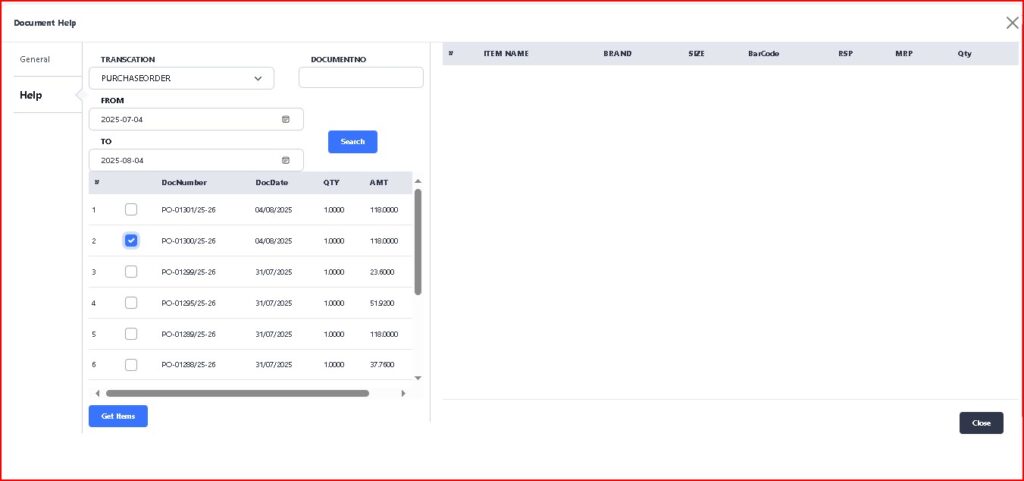
> After click on Get Items button, you will see the select document items will showing on right side grid. now click on Populate Items button to print the barcodes.
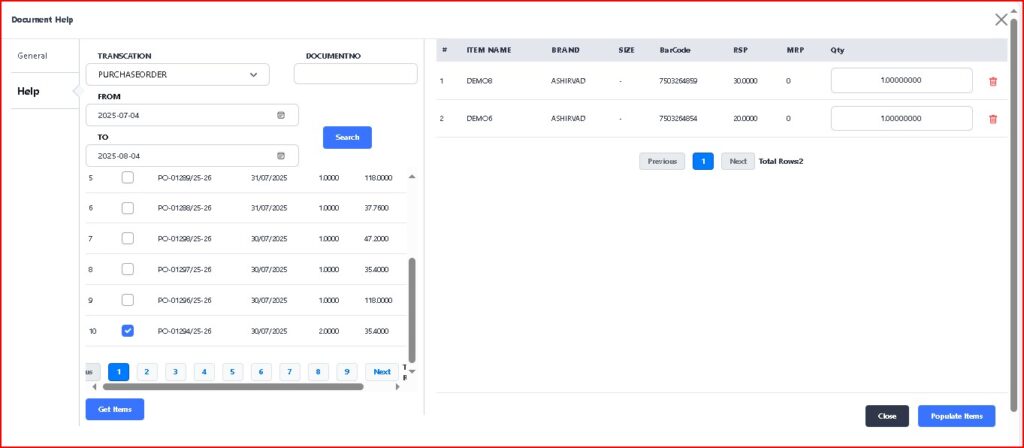
> After click on Populate Items button, now click on Print Barcode button print the barcodes.
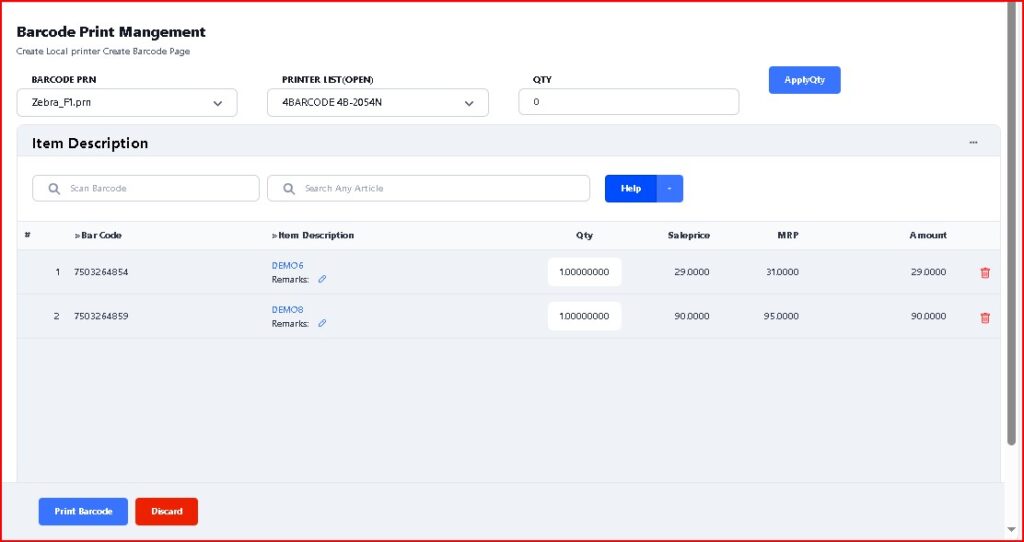
>>> Now Print Barcode through Animo Application process completed.