How Can We Help?
KB-0003-How to make POS-CreditBilling
How to make Credit Bill
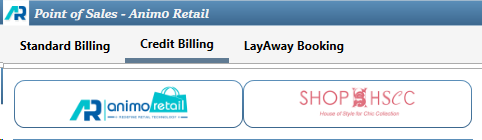
- There are three tabs available in Point of Sales Billing screen, Click on Second Tab Credit Billing which is highlighted in below image
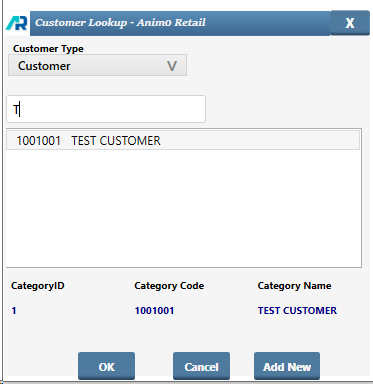
- To make a credit bill it is must to tag a customer in credit bill, Click on Customers Button to tag the customer

- Start Typing Mobile No or Name of customer and list will be filtered accordingly, click on desired row to select and press OK button
- Scan the barcode as it is shown below – N0000001
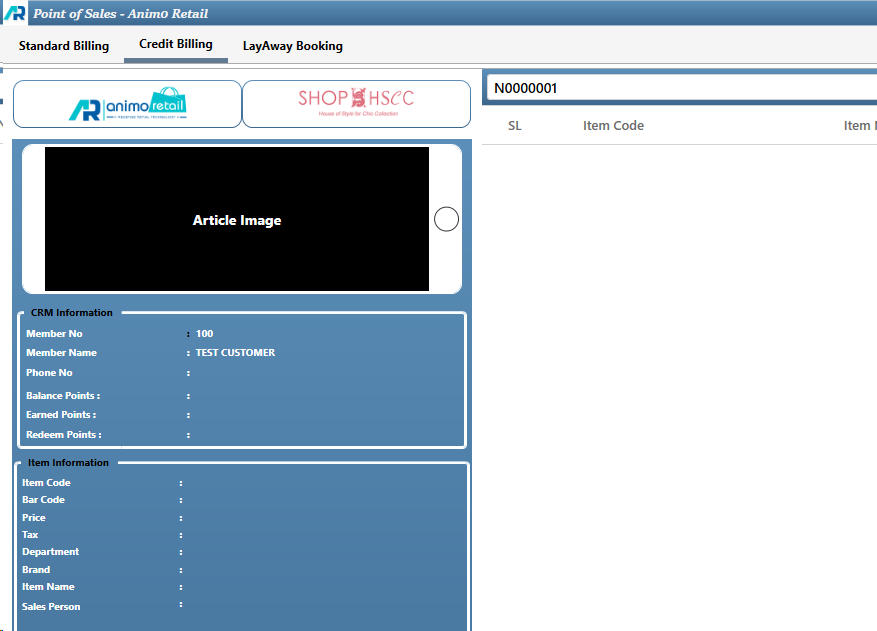
- After scanning all items press F5 or click on Apply Promo Button
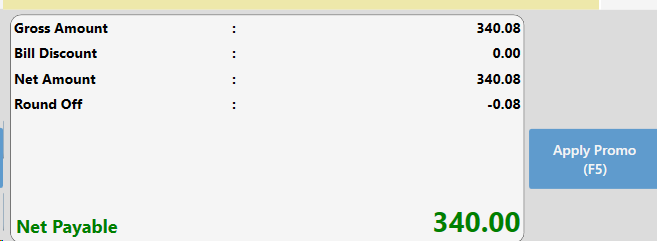
- If there is an active promotion the discount will be applied, Click on Save Button or Press F5 again
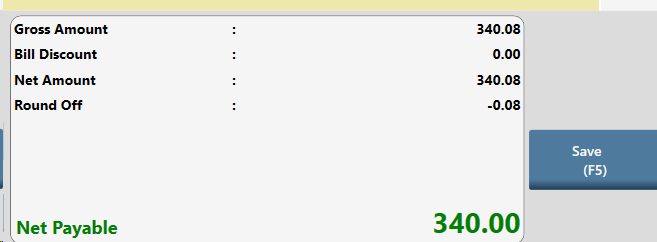
- Once the saving is complete system will display a message that the bill has been generated
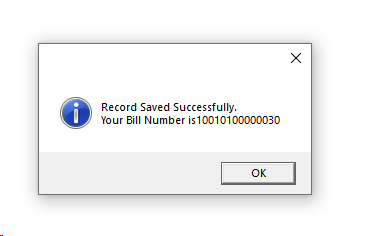
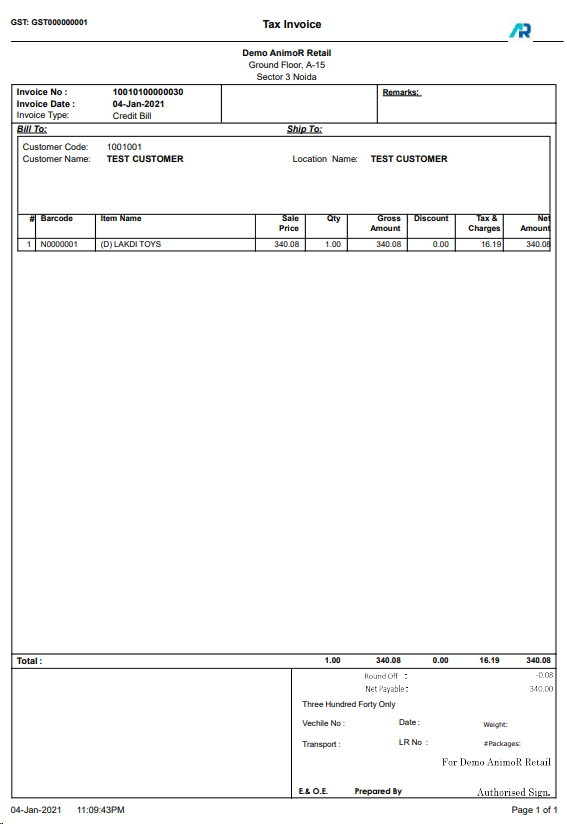
- Press ok button and a print out of A4 size will appear, the print out can be configured on Thermal Printer too.
How to Receive Payment against Credit Bills
- Click on Credit Billing Tab and then click on Payment Receive a button displaying in right pane of the windows
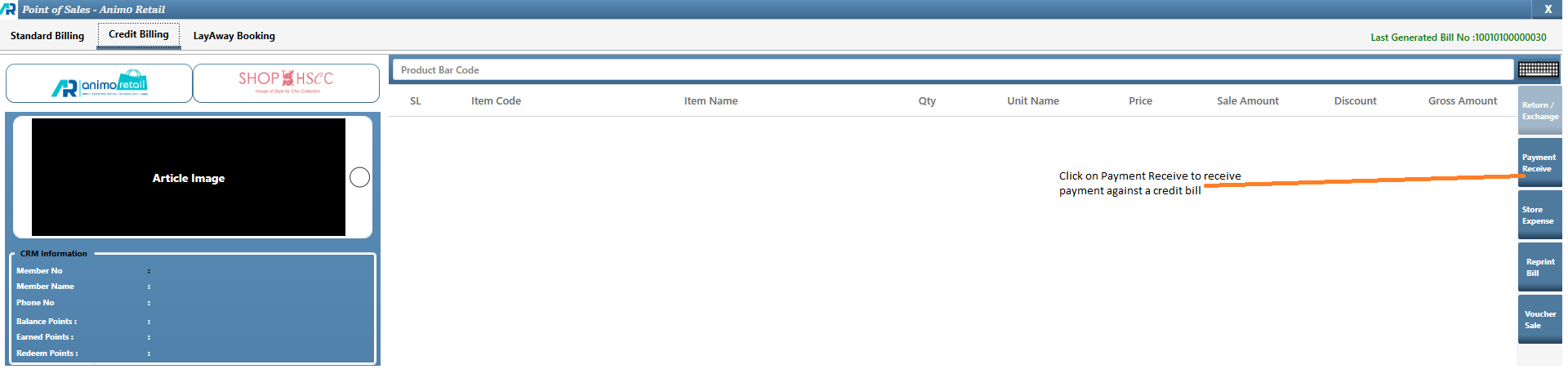
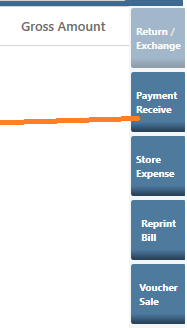
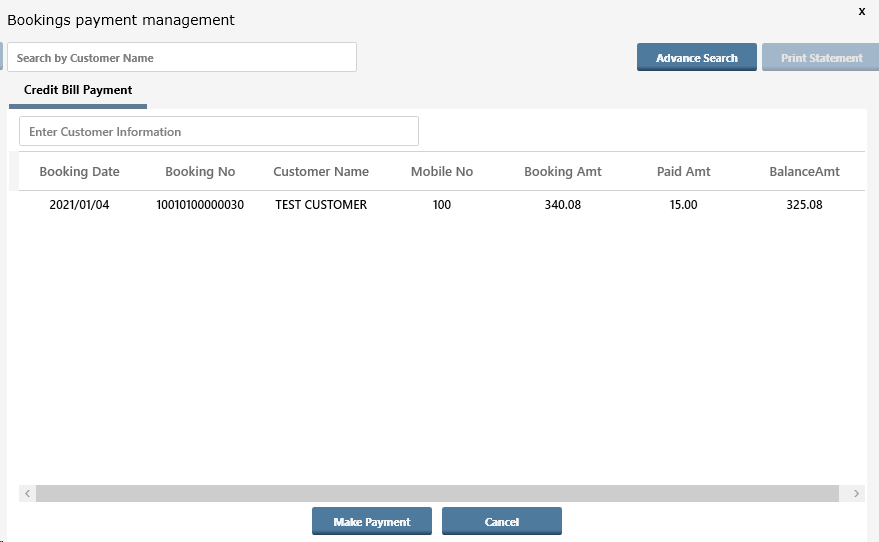
- A new window / page will appear with the list of bills, which can be filtered by typing customer name or mobile no too, it will show only pending bills
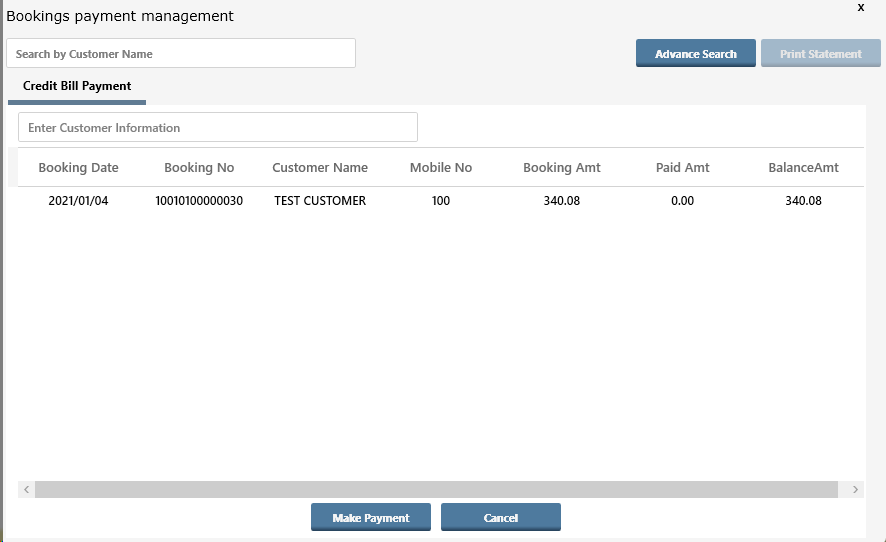
- select the row / bill from the list for which the payment has to be done, Click on button Make Payment
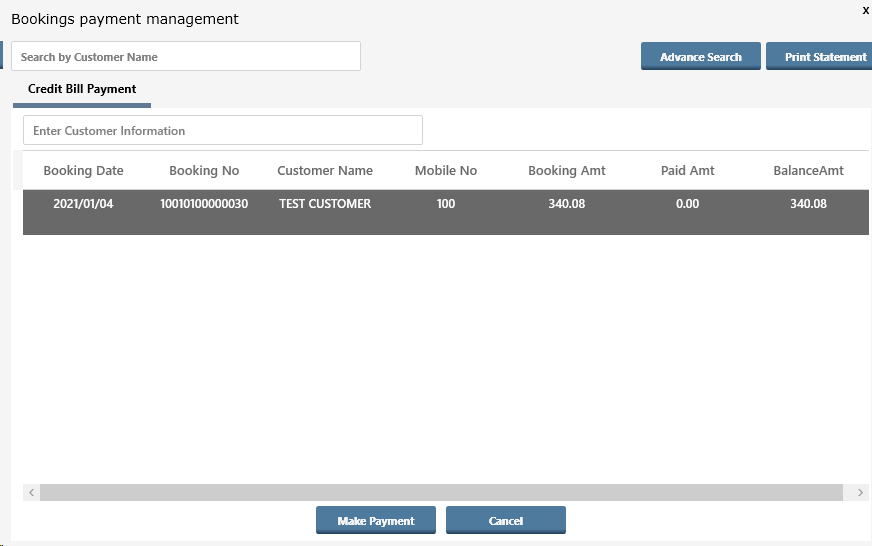
- Select the mode of Payment and enter the amount which is being receive from customer
Net Payable is 340.08 and customer is paying 15.00, Press ENTER Button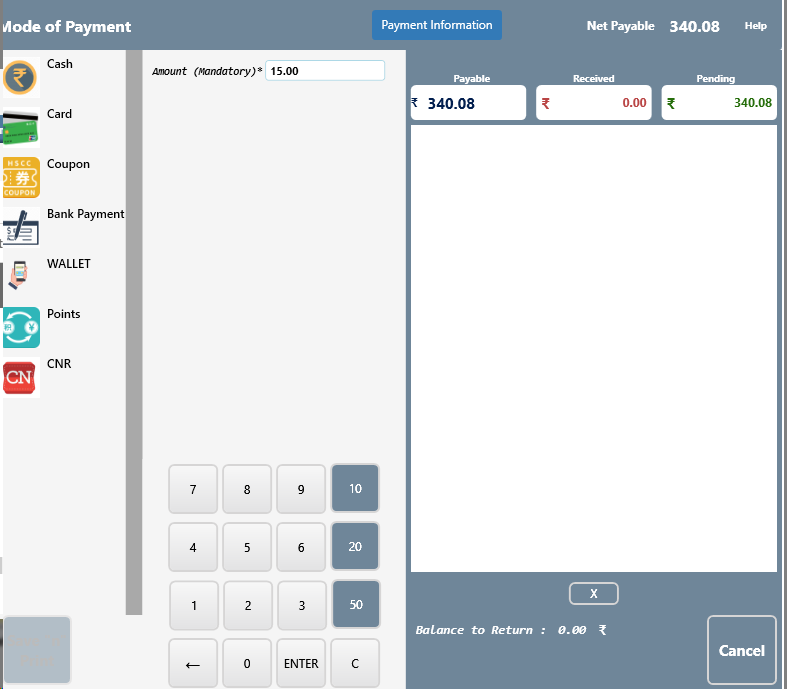
- Save “n” Print button will appear, click on it to save the document and print payment receipt against bill
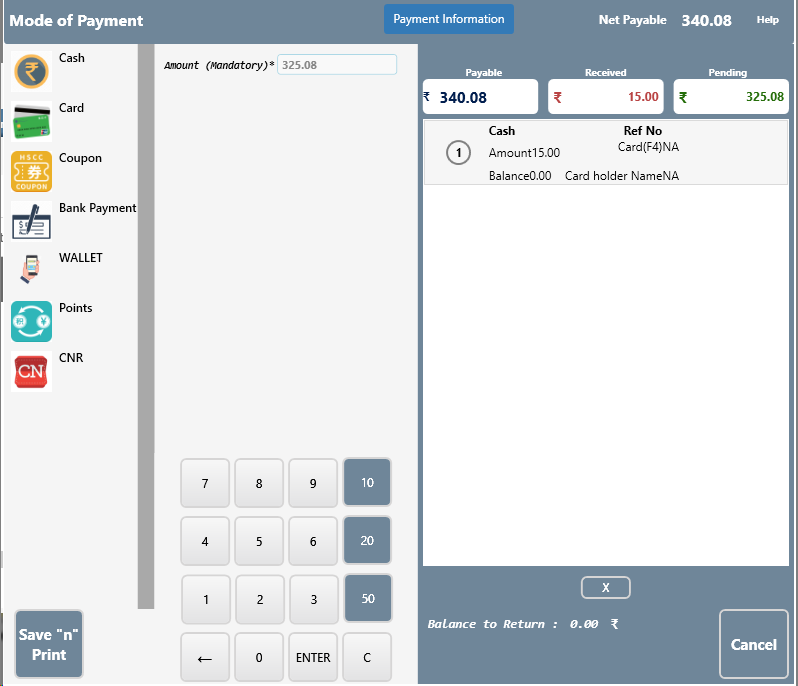
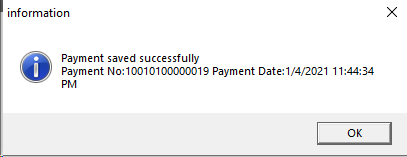
- System will show the saved document number, press OK button
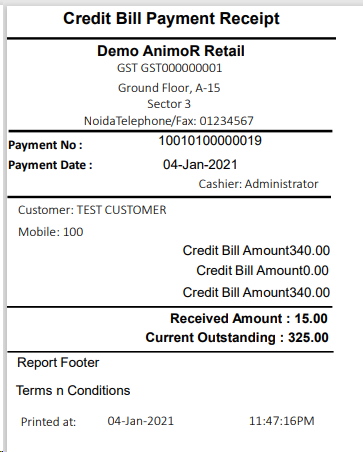
- Credit Bill Payment Receipt Print Out will come to the printer or PDF
- Once the payment is made the system will show it in Paid Amount and Balance Amount will also update accordingly