How Can We Help?
KB-0004-POS-LayawayBilling
How to Book an item on Lay-By / Lay Away/ Order
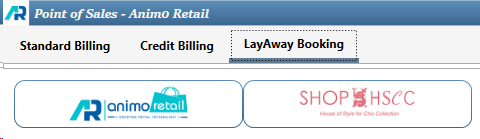
- Click on tab LayAway Booking
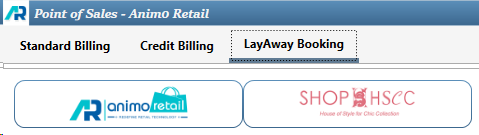
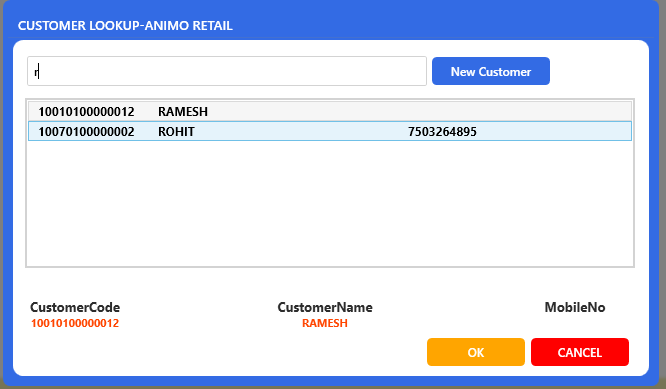
- To book an order it is mandatory to tag customer, press button Customer

- Search the customer by typing mobile no or customer name in text box “Search the Customer”
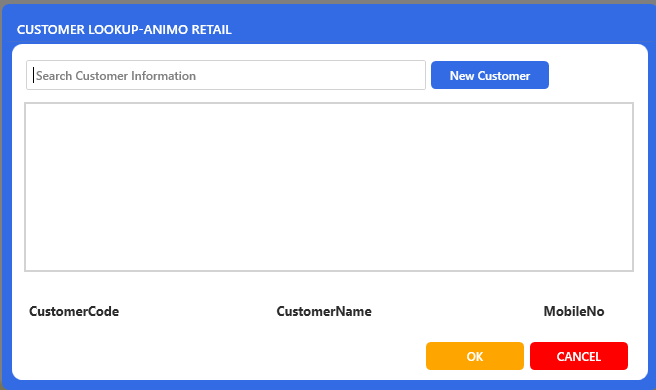
- Click on the row to select a customer record in the transaction
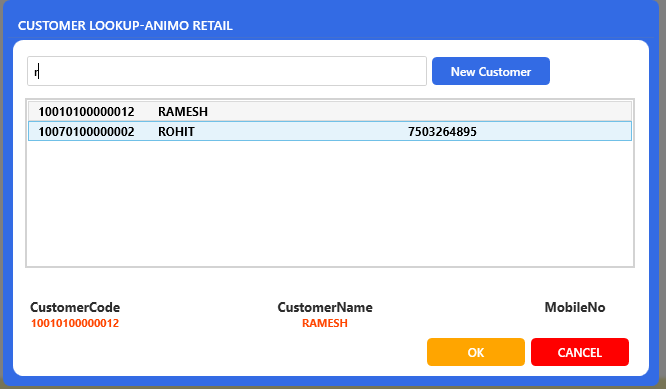
- Once Pressed the row will be highlighted, then press OK button
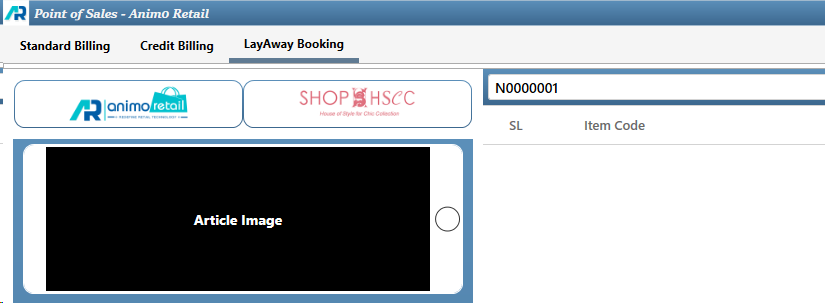
- Scan the item as it is showing in text box “Product Bar Code”

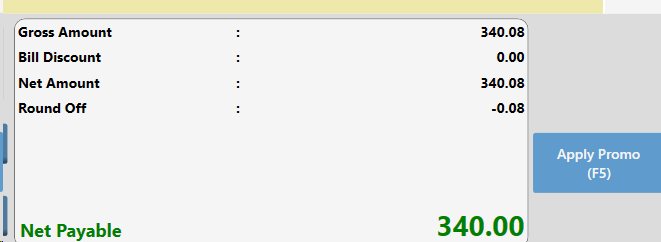
- Press F5 : Apply Promo
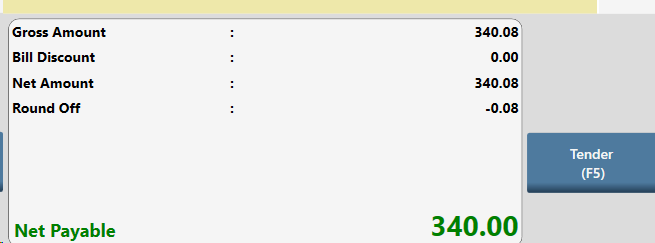
- Press F5 : Tender to accept mode of payment and amount
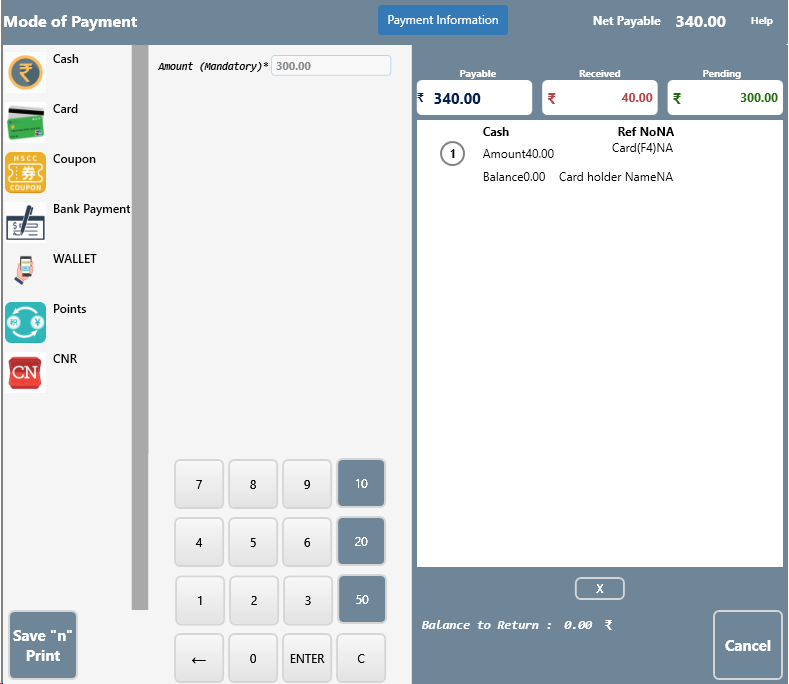
- Select mode of payment and enter booking amount as per configuration or company policy
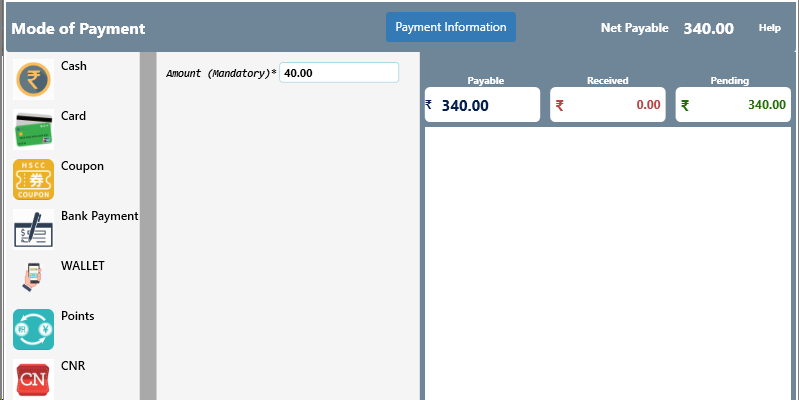
- Click on Save n Print button to book the Lay-By/Lay Away/ Order
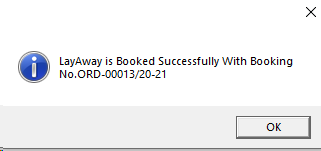
- A message will appear as confirmation message that order has been booked
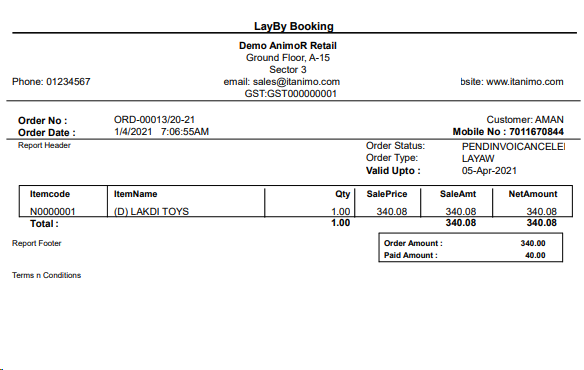
- A print out will be directed to printer or PDF as per configuration , sample document is below
How to Receive Payment against Booked Lay-By / Lay Away/ Order
- Click on Lay-Away Booking and then click on Payment Receive
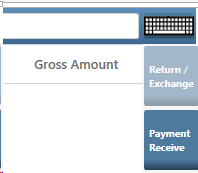
- A new page or window will appear with all pending orders/lay-by/lay-away
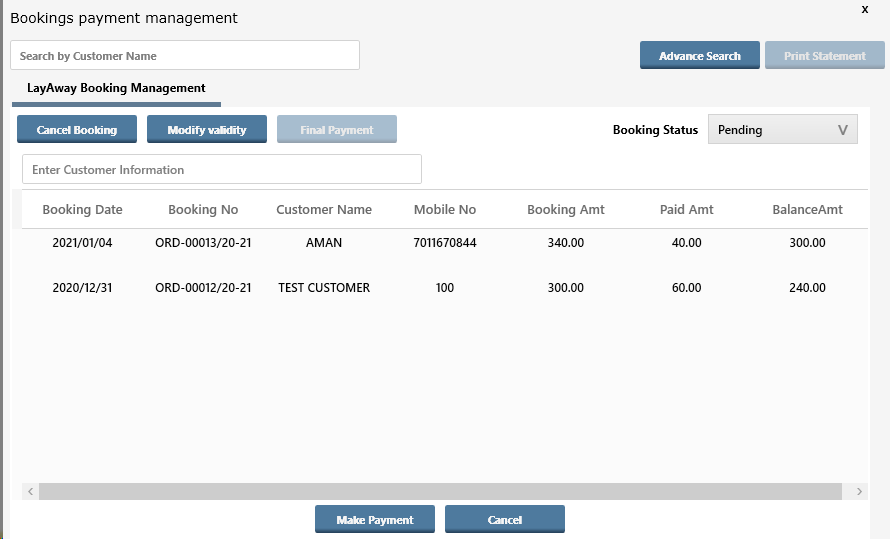
- Select the Order by clicking on an order and click on Make Payment button
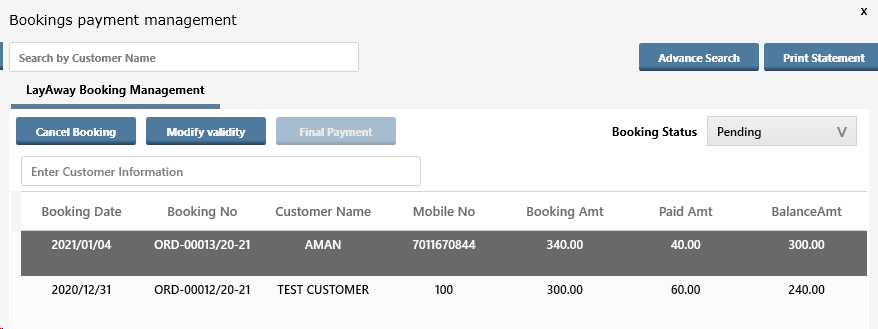
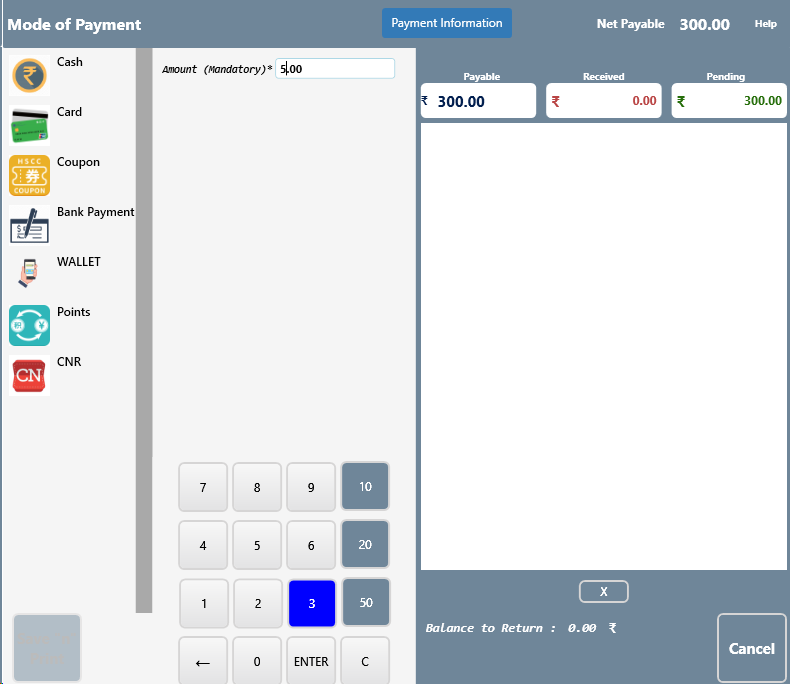
- Enter the Amount customer is paying and press ENTER button
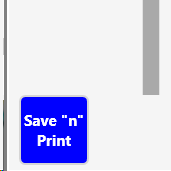
- Click on Save n Print Button to save Payment Received against Lay-Away/Lay-By/Order
- One the document is saved a message will appear on screen called “Payment is Received with Document No”
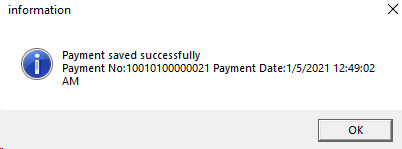
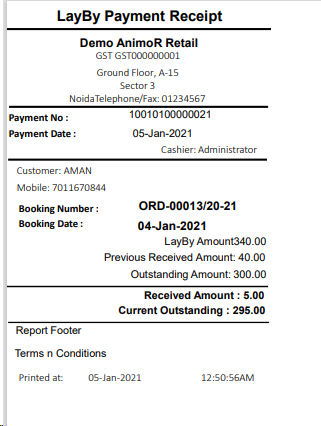
- Press Ok to Print the Payment Receipt
How to Extend validity of a Lay-By / Lay Away/ Order
- Click on Lay-Away Booking and then click on Payment Receive
- A new page or window will appear with all pending orders/lay-by/lay-away
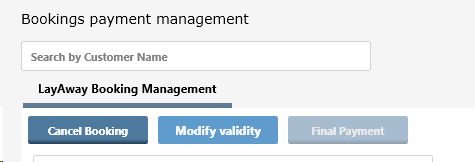
- Click on Modify Validity button to extend the validity of an order
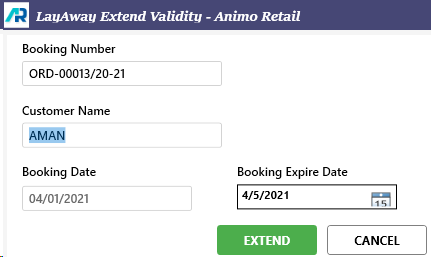
- Change Booking Expiry Date as listed below and Click on EXTEND button
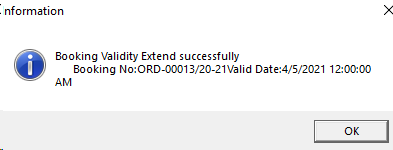
- The Validity Extension message appears as below
How to cancel a Lay-By / Lay Away/ Order
- Click on Lay-Away Booking and then click on Payment Receive
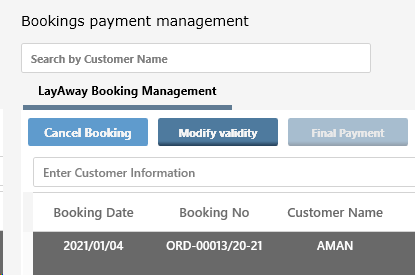
- A new page or window will appear with all pending orders/lay-by/lay-away, select the order to cancel
- Select the Order and click on Cancel Booking
- Cancelation Fees Charges will appear as per configuration, An Authorized user can change cancelation charges if he/she is authorized to do so by clicking on button Cancelation Fees Charges
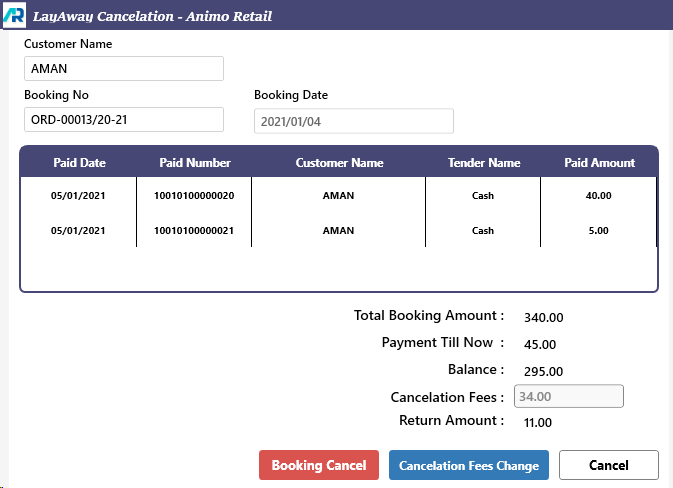
- If the user is authorized the text box in front of Cancelation Fees will be enabled
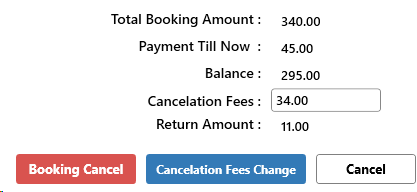
- After changing the Cancelation Fees Value Return Amount will be changed as mentioned below
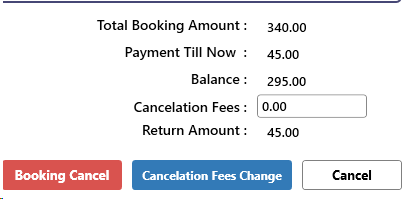
- Press on Booking Cancel button to cancel the order and return the money to customer
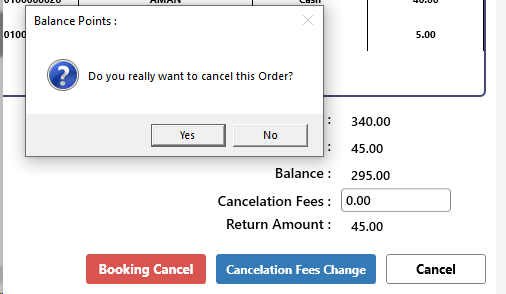
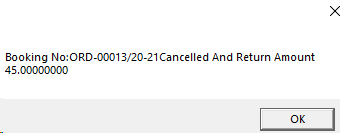
- A confirmation message will appear as below