Partial Return Knowledge base.
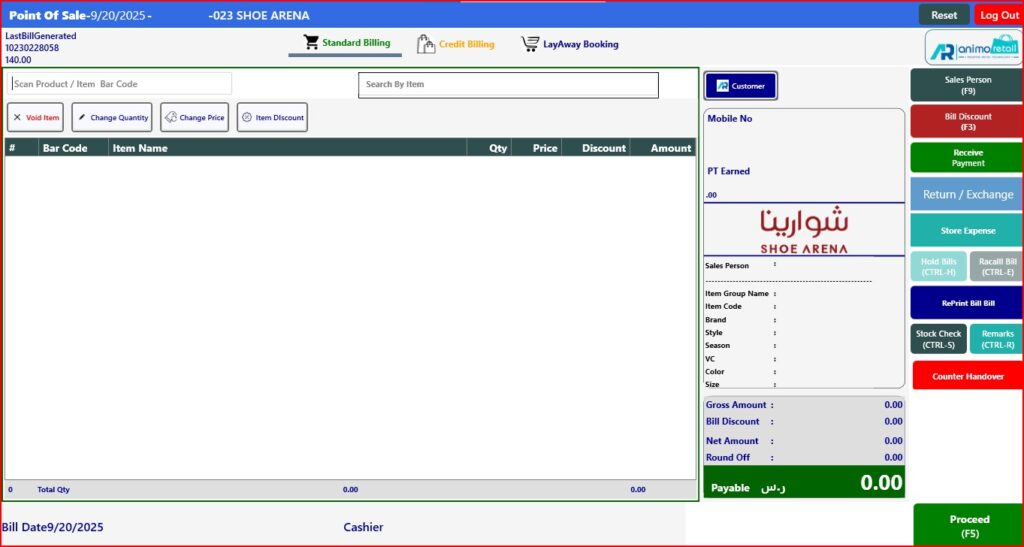
> First Click on Return/Exchange option to make a return
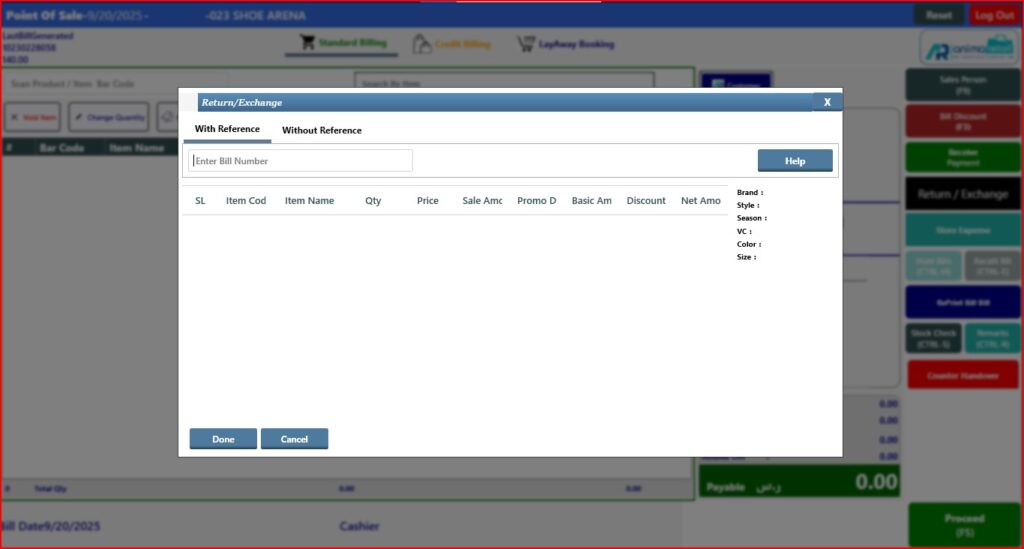
> After clicking you will see this window, click on Help button to search the document/Bill no.
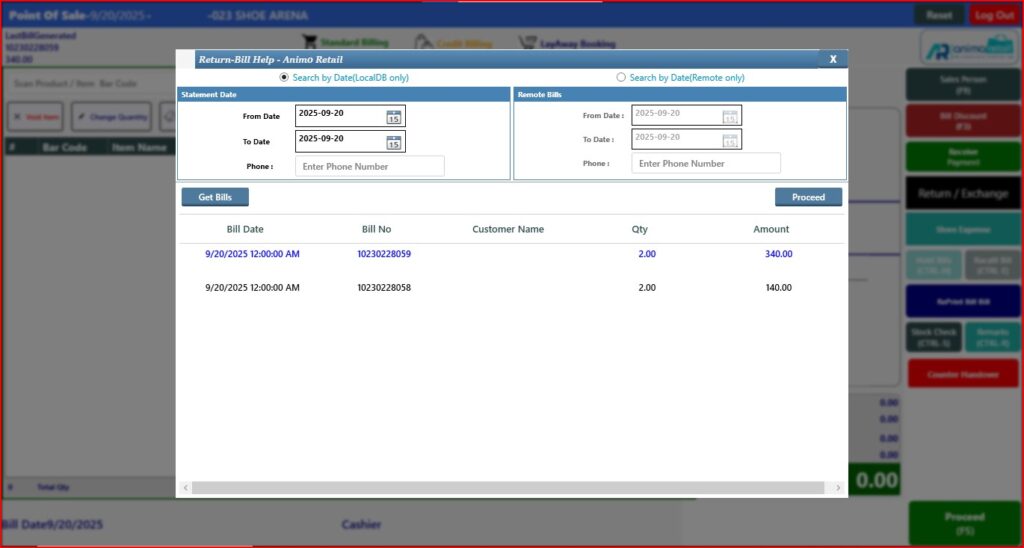
 > After click on Help button, select the date range in which document was created and click on Get Bills button to select the bill number, select the bill by clicking on bill number and after select the bill click on Proceed button.
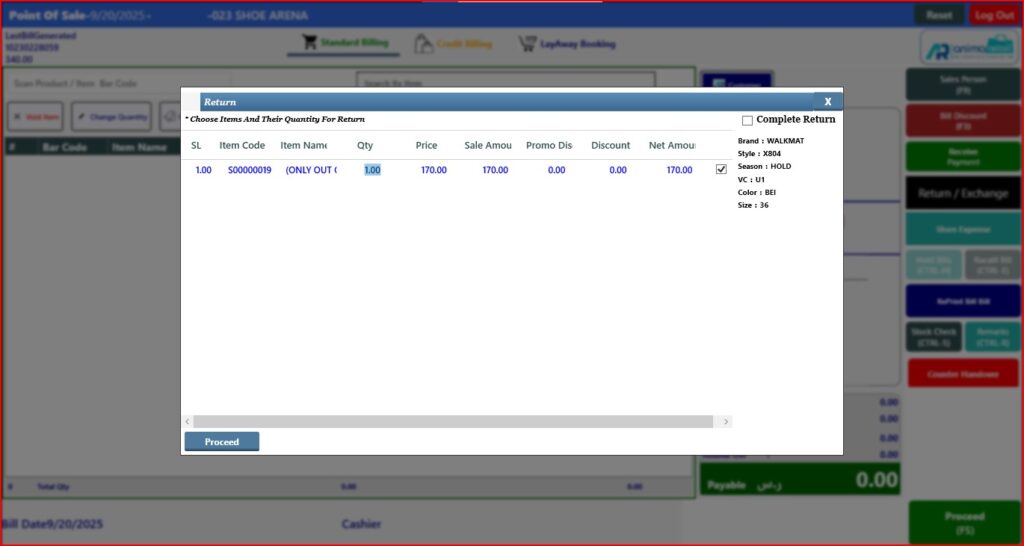
 > After click on Proceed button, you will see this window, just click on check box to select the item and click on Qty option to change the qty as you want to return just click and enter the value, (remember you can put quantity either equal to sale quantity or less then sale quantity you can’t enter more than sale quantity, if you enter more than sale quantity in qty option application will not allowed. Now click on Proceed button.
> After Click on Proceed button, you will see this window, just click on Done button.
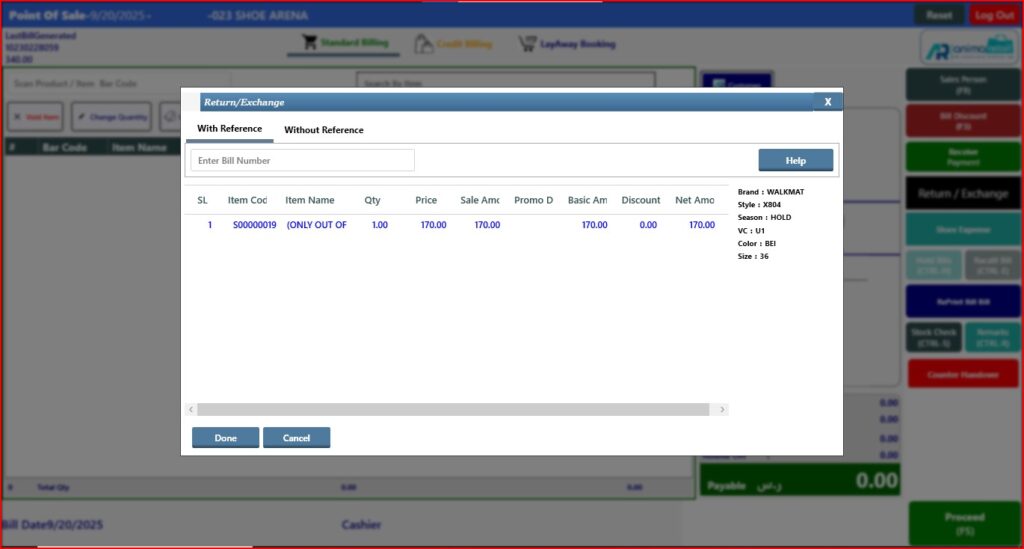
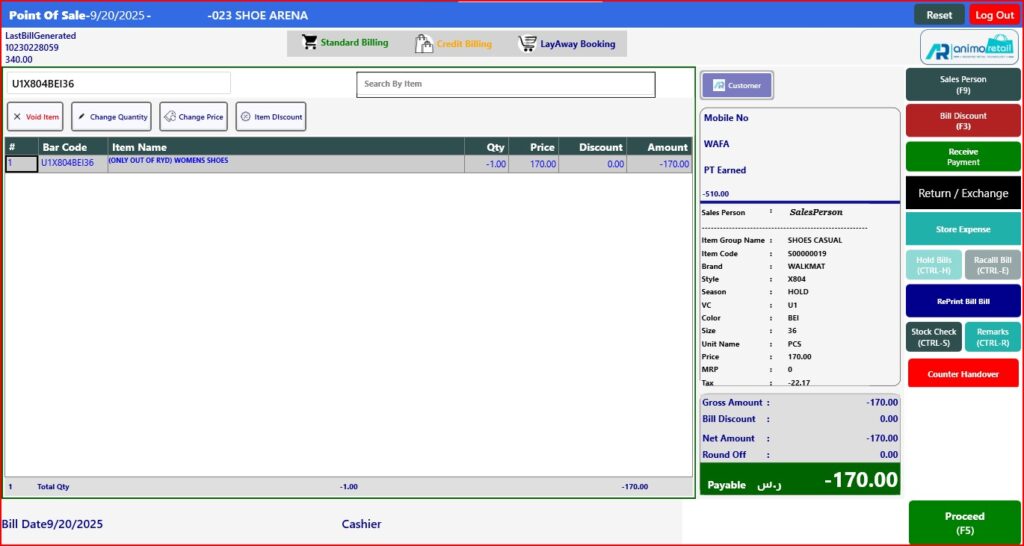
> After click on Done button, you will see the return item and quantity showing in billing screen, now open tender window.
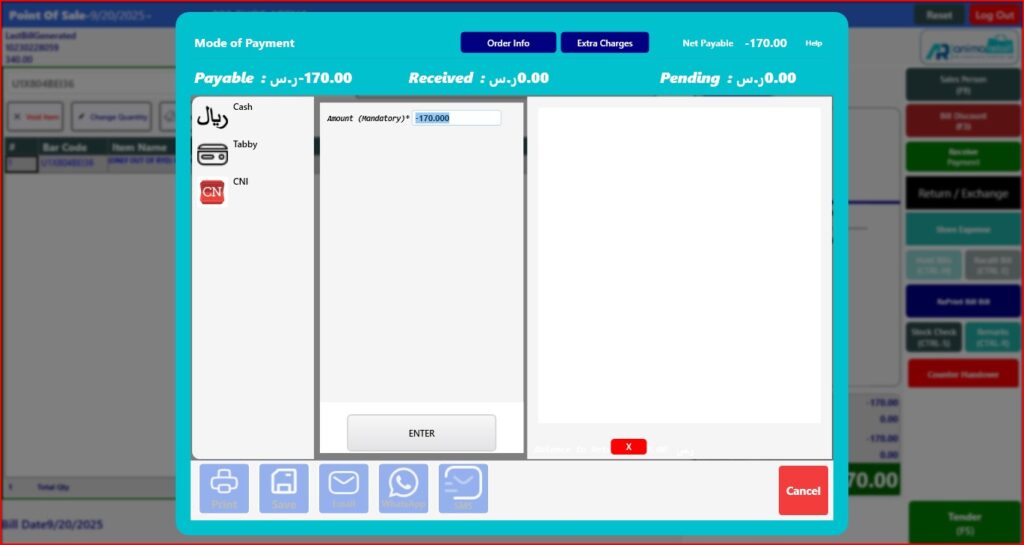
> Select the tender mode and save the return bill.
> After bill saved, you will see the confirmation message.
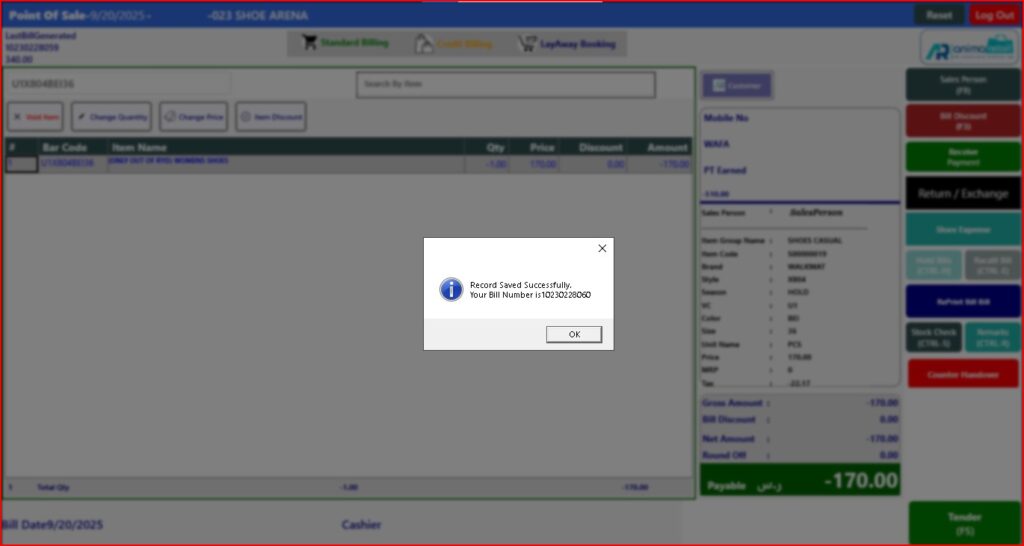
>>>> Now Partial Return process completed successfully.