There are two options in User management Interface
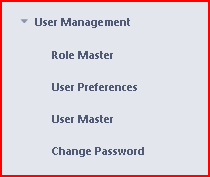
> Role Master – In this you can create different roles according to permissions, like manager, warehouse, cashier like this.
> User Master – In this, you create a user and select the role to which you want to allow permissions to this user.
>>> Step 1
>> How To Create the Role in Role Master
> First Click on Role Master interface, Click on New Role button

> Enter Role Name which you want to create in Role Name option and Allow permissions as per requirements by clicking on check box.
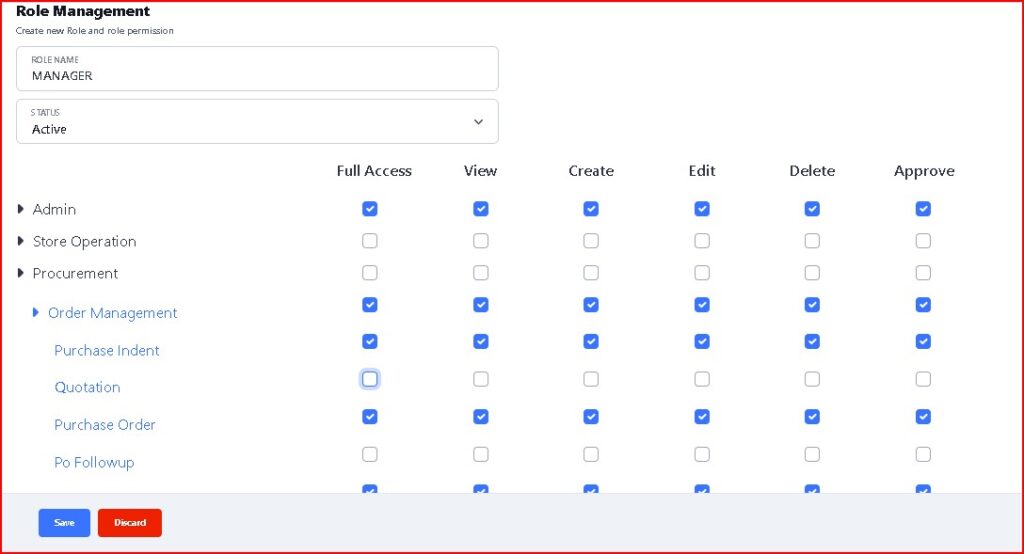
> After allowing permissions, click on Save button to create the Role.
>>> Step 2
>> How to create user and select the Role in it
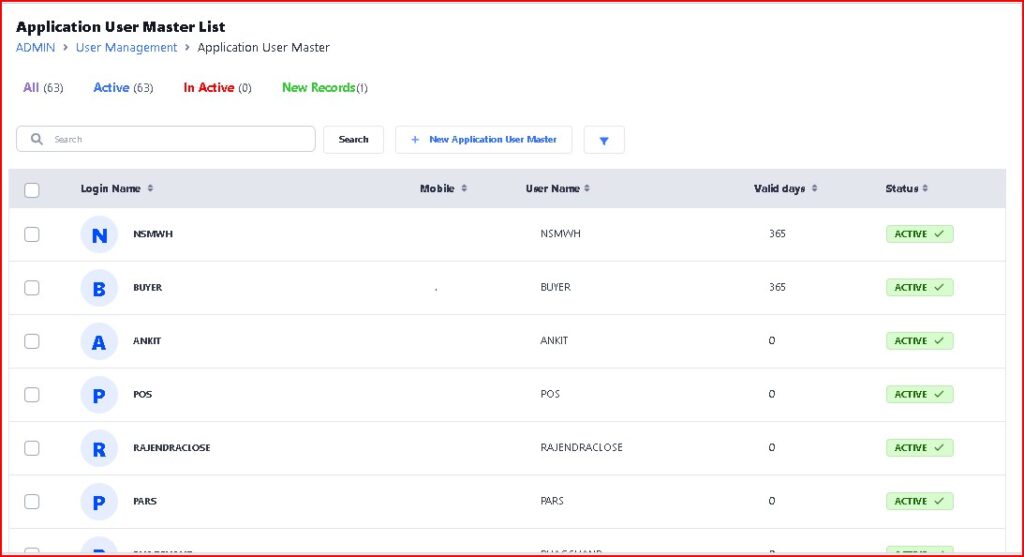
> First click on User Master interface, after open, click on New Application User Master button to create new user.
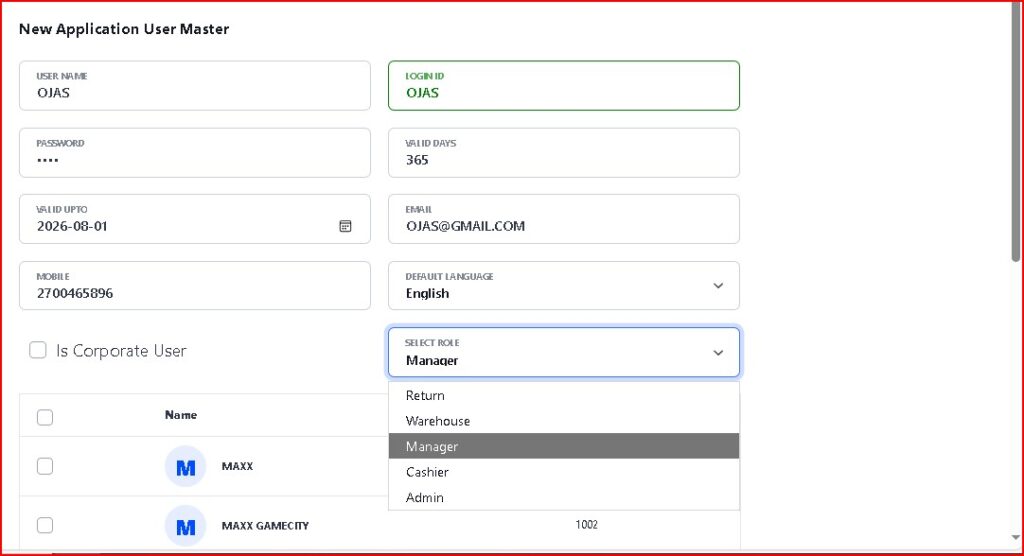
> Now enter the details according to the fields and select the Role in Select Role option in which you want to create this user.
> If you want to use this user for all stores including warehouse, then click on the Is Corporate User check box
> And if you want to create this user for particular store, then click on the check box in front of that store.
>> Now your Role Master and User Master create process successfully done.
> If you want to add permission to your user, then first check which role is selected in that user in User Master, you can also change the role in User Master.
> If you want to change or add permissions in existing Role, then open Role Master and click on that Role and make the changes according to your requirement.